23 lesser known VS Code shortcuts as GIFs
Despite the many shortcuts that I use frequently in VS Code, the shortcuts I mention below can come in handy, but I often forget that they even exist. I made some GIFs for visualization to better remember them.
Every command in VS Code can also be executed via command prompt with CTRL+SHIFT+P and a search query; however, knowing the direct shortcut might be faster.
I use VS Code on Windows in the GIFs, but I also provide a table showing the shortcut for each command in both Windows and Mac.
1. CTRL+, = Open user settings
| Windows | Mac |
|---|---|
CTRL+, |
⌘+, |

Once in a while, I need to adjust my user preferences. This is how you would open them directly.
2. CTRL+K CTRL+S = Show shortcuts
| Windows | Mac |
|---|---|
CTRL+K |
⌘+K |
CTRL+S |
⌘+S |

This is the complete list of shortcuts in VS Code. There is also a Windows Cheat-Sheet [PDF] and MacOS Cheat-Sheet [PDF] available to download.
3. CTRL+R = Switch workspace
| Windows | Mac |
|---|---|
CTRL+R |
⌘+R |

This opens a list of your recent workspaces and is a super-fast way to switch to another folder or project. Note that this will kill your current terminal session if you had a terminal open in your VS Code workspace.
4. ALT+Z = Toggle word wrap
| Windows | Mac |
|---|---|
ALT+Z |
⌥+Z |

A handy little helper when you quickly want to see complete lines without scrolling horizontally.
5. CTRL+G = Go to line
| Windows | Mac |
|---|---|
CTRL+G |
^+G |

This is the shortcut for typing CTRL+P :.
6. CTRL+P = Go to file
| Windows | Mac |
|---|---|
CTRL+P |
⌘+P |

The fastest way to switch files (especially when they are not already open) without using the mouse.
7. F8 = Go to next error or warning
| Windows | Mac |
|---|---|
F8 |
F8 |

This is debugging with a single key. You can also go to previous errors or warnings using SHIFT+F8.
8. CTRL+TAB = Switch tabs
| Windows | Mac |
|---|---|
CTRL+TAB |
^+TAB |

The fastest way to switch already open files without using the mouse.
9. SHIFT+ALT+I = Insert cursor at the end of each line selected
| Windows | Mac |
|---|---|
SHIFT+ALT+I |
⇧+⌥+I |

This is useful for a quick creation of multiple cursors in a selected area.
10. CTRL+L = Select current line
| Windows | Mac |
|---|---|
CTRL+L |
⌘+L |

Use this to search for identical lines in combination with the next shortcut.
11. CTRL+SHIFT+L = Select all occurrences of current selection
| Windows | Mac |
|---|---|
CTRL+SHIFT+L |
⇧+⌘+L |

This shortcut really saves time because you don’t have to CTRL+D through a whole file.
12. CTRL+F2 = Select all occurrences of current word
| Windows | Mac |
|---|---|
CTRL+F2 |
⌘+F2 |

With this, you don’t have to select something anymore. Instead, just place the cursor on the word that you would like to select all occurrences of.
13. CTRL+SHIFT+SPACE = Trigger parameter hints
| Windows | Mac |
|---|---|
CTRL+SHIFT+SPACE |
⇧+⌘+SPACE |

In case you don’t remember parameter order and don’t want to interrupt your flow by looking into the docs.
14. SHIFT+ALT+F = Format document
| Windows | Mac |
|---|---|
SHIFT+ALT+F |
⇧+⌥+F |
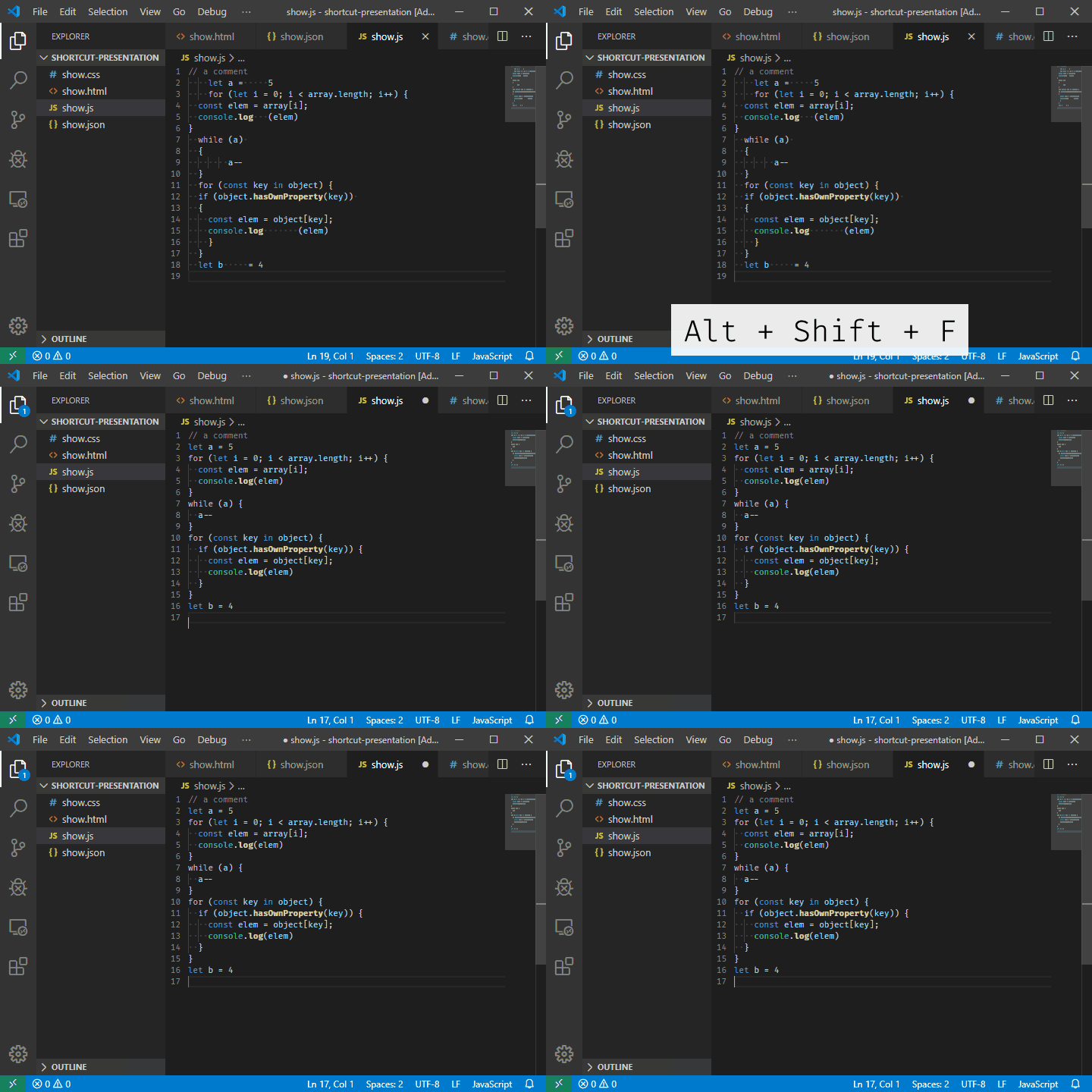
Because nobody wants to format a whole file manually.
15. CTRL+K CTRL+F = Format selection
| Windows | Mac |
|---|---|
CTRL+K |
⌘+K |
CTRL+F |
⌘+F |

In case you only want to format some parts of a file.
16. F12 = Go to definition
| Windows | Mac |
|---|---|
F12 |
F12 |

The quick way to jump to the definition of a variable or function.
17. ALT+F12 = Peek at definition
| Windows | Mac |
|---|---|
ALT+F12 |
⌥+F12 |

This just shows the corresponding definition of a variable or function without moving the cursor.
18. F2 = Rename symbol
| Windows | Mac |
|---|---|
F2 |
F2 |

An indispensable shortcut for refactoring code.
19. CTRL+K CTRL+X = Trim trailing whitespace
| Windows | Mac |
|---|---|
CTRL+K |
⌘+K |
CTRL+X |
⌘+X |

This is especially useful for multi-line selections.
20. CTRL+K R = Reveal active file in Explorer
| Windows | Mac |
|---|---|
CTRL+K R |
⌘+K R |

In case you want to perform some actions out of your systems file manager instead of using VS Code.
21. CTRL+SHIFT+H = Replace in files
| Windows | Mac |
|---|---|
CTRL+SHIFT+H |
⇧+⌘+H |

If only one file at a time isn’t enough for you.
22. CTRL+K V = Open Markdown preview to the side
| Windows | Mac |
|---|---|
CTRL+K V |
⌘+K V |

This way you don’t have to switch to the mouse to open a preview.
23. CTRL+K Z = Enter Zen mode
| Windows | Mac |
|---|---|
CTRL+K Z |
⌘+K Z |

Instantly code, distraction-free. To exit Zen mode, hit ESC ESC.
So that’s it for now. I maintain a repository on GitHub where I collect commands I tend to forget - check it out if you want.
Happy Coding!
Edited: 7th January 2019 (add MacOS shortcuts)
Published: 7th January 2019 by Andreas Müller on dev.to
Cover Image: https://codepen.io/devmount/full/ExaQjdm
Free Resources
- undefined by undefined