3D surface plots in Python
A surface plot is a graph depicting a function of two variables. It is basically a two-dimensional representation of a three-dimensional surface. If we aim to take this further, we can opt for 3D surface plots.
3D surface plots
A 3D surface plot represents the relationship between two independent variables and a dependent variable.
The independent variables are termed predictor variables.
The dependent variable is termed the response variable.

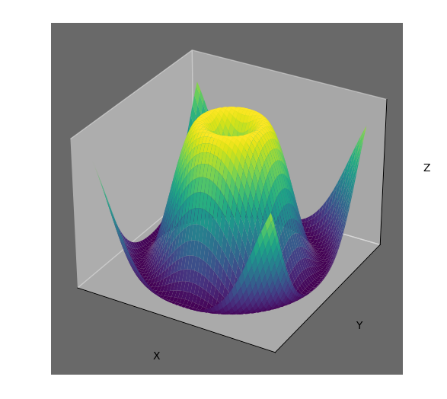
While a surface plot is a two-dimensional projection of the surface on the x-y plane, a 3D surface plot presents the surface in its entirety, including its three-dimensional shape and structure.
Matplotlib and Plotly
Plotting in Python has been made extremely efficient through the advent of libraries such as Matplotlib and Plotly.
Matplotlib and Plotly are open-source libraries that specialize in both static and interactive representations of data. They provide numerous variations in plot-making and other data visualization techniques.
The plus point of Plotly visualizations is that they can be zoomed, rotated, and dynamically updated based on user interactions.
Therefore, we'll use these libraries to create 3D surface plots in our answer.
Important Matploblib concepts
Concept | Meaning |
figure | The |
axe | The |
meshgrid | The |
Important Plotly concepts
Concept | Meaning |
Surface | A type of trace in Plotly used for visualizing 3D surfaces. |
Figure | The top-level container in Plotly that holds all the elements of a plot, including traces, annotations, and layout configurations. |
update_layout | A method in Plotly used to customize the layout and properties of a plot. |
Matplotlib 3D surface plot
Matplotlib provides us with a plot_surface() method that we can use with our dependent and independent variables. Let's see it in action!
import matplotlib.pyplot as plt
import numpy as np

fig = plt.figure()
axe = fig.add_subplot(111, projection='3d')

dataForX = np.linspace(-10, 10, 100)
dataForY = np.linspace(-10, 10, 100)

dataForX, dataForY = np.meshgrid(dataForX, dataForY)

Z = np.sin(np.sqrt(dataForX**2 + dataForY**2))

surface = axe.plot_surface(dataForX, dataForY, Z, cmap='inferno', linewidth=0, antialiased=False)

fig.colorbar(surface, shrink=0.7, aspect=10)

axe.set_xlabel('X')
axe.set_ylabel('Y')
axe.set_zlabel('Z')

axe.set_title('3D Surface Plot')

plt.show()
Code explanation
Lines 1–2: Let's import the modules needed for our code, including
matplotlib.pyplotaspltfor plotting, andnumpyasnpfor numerical calculations.Lines 4–5: The first step in making Matplotlib's plots is using a figure and axe. A new figure is created using
plt.figure()and a 3D subplot usingfig.add_subplot()with the projection set to'3d'.Lines 7–8: For our data, we generate two arrays,
dataForXanddataForY, usingnp.linspace(), to create 100 equal points between -10 and 10.Line 10: We create a grid of coordinates using
np.meshgrid()withdataForXanddataForY.Line 12: Since surface plots are three-dimensional, we also include the Z-axis. We set the Z-values by applying the sine function to the square root of the sum of squares of
dataForXanddataForY.Line 14: We create the surface plot using
axe.plot_surface()with the X, Y, and Z values. Thecolormapis set to "inferno" for darker colors.Line 16: We can also add a color bar to the figure using
fig.colorbar()for the surface plot. This helps display the color range.Lines 18–20: To add customizations, we set the X, Y, and Z labels using
axe.set_xlabel(),axe.set_ylabel(), andaxe.set_zlabel().Line 22: Next, we set the title of the plot using
axe.set_title().Line 24: The plot is then displayed using
plt.show().
Various representations of the plot


Interactive representation
We can interact with the rendered plot in various ways, as depicted in the video below. You can experiment with the plot yourself by clicking the "Run" button in the code.
Alternate Matplotlib example
We can change the X, Y, and Z values and even customize our plots according to our needs. Let's look at another example below.
import matplotlib.pyplot as plt
import numpy as np

dataForX = np.linspace(-5, 5, 100)
dataForY = np.linspace(-5, 5, 100)

dataMeshX, dataMeshY = np.meshgrid(dataForX, dataForY)
dataZ = np.cos(dataMeshX) * np.sin(dataMeshY)

fig = plt.figure(figsize=(8, 6))
ax = fig.add_subplot(111, projection='3d')

ax.plot_surface(dataMeshX, dataMeshY, dataZ, cmap='plasma')

ax.set_facecolor('black')

ax.grid(False)

ax.set_xticks([])
ax.set_yticks([])
ax.set_zticks([])

ax.set_xlabel('X')
ax.set_ylabel('Y')
ax.set_zlabel('Z')

ax.set_title('Basic 3D Surface Plot')

plt.show()
Output


Plotly 3D surface plot
Plotly consists of the go.Figure() and go.Surface() functions that we can use to achieve our goal. Let's look at the implementation below.
import plotly.graph_objects as goimport numpy as npindependentVariable1 = np.linspace(-5, 5, 100)independentVariable2 = np.linspace(-5, 5, 100)X, Y = np.meshgrid(independentVariable1, independentVariable2)dependentVariable = np.sin(np.sqrt(X**2 + Y**2))fig = go.Figure(data=[go.Surface(x=independentVariable1, y=independentVariable2, z=dependentVariable, colorscale='Blues')])fig.update_layout(title='3D Surface Plot',scene=dict(xaxis_title='Independent Variable 1',yaxis_title='Independent Variable 2',zaxis_title='Dependent Variable'))fig.show()
Plotly can utilize a local server to render and display the plots interactively, so a local server might open when you run this code on your machine.
Note: You can find a line by line walkthrough of the above code and an executable model of it in the link below.
Various representations of the plot


What does the Z-axis in a 3D surface plot represent?
Free Resources