Add AR face mask with multiple options
In the ever-evolving landscape of augmented reality, the fusion of digital experiences with the real world continues to captivate developers and users alike. One captivating application is the integration of AR face masks, allowing individuals to transform their appearances in real time through their camera lens.
In this demo, you can create an AR application with the ability to select from various mask options. Leveraging the power of Unity and the AR foundation, this endeavor showcases how to seamlessly integrate multiple face mask choices into an application, providing users a dynamic and engaging experience.
Implement face mask swapping
Create a Unity project and set up the AR settings.

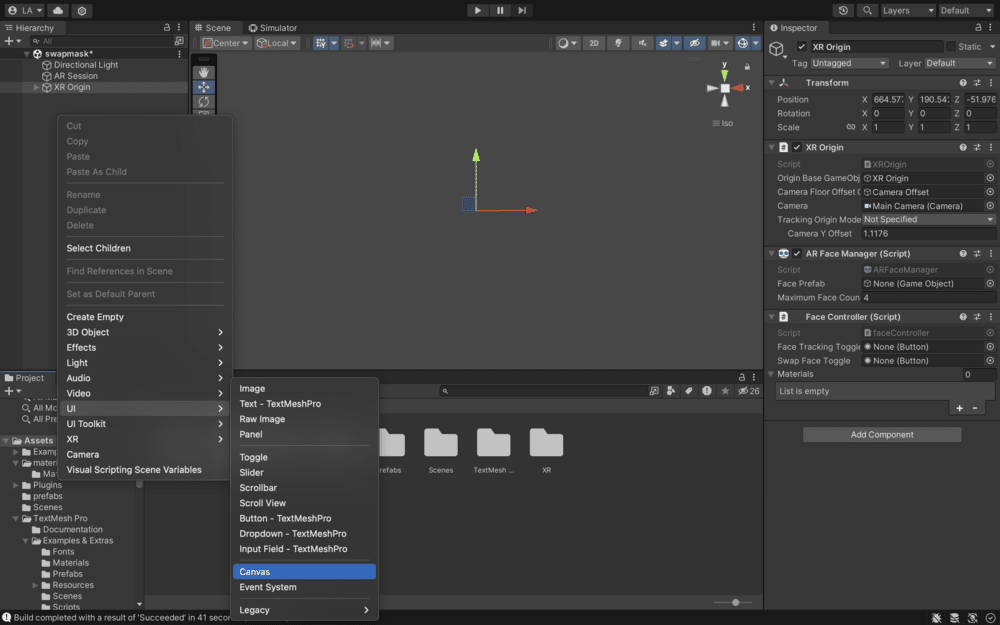
Canvas
A canvas is a UI component that acts as a container for UI elements such as buttons, text, images, and other UI controls. The Canvas renders these UI elements in the game world, overlaying them on the scene. This is especially important in AR applications, where you must provide interactive elements that users can see and interact with in the augmented environment.
Canvas is used to create user interfaces that can respond to user interactions, display information, and provide controls within the AR environment.
Here, create a canvas and add a button called "swapToggleButton."
Face manager
Add the face manager component in your XR origin for face tracking. The AR face manager is a component provided by Unity's AR foundation package that facilitates face tracking and management in AR applications. Face tracking involves identifying and tracking facial features and expressions in real-time through the device's camera.
Face controller script
XR origin, add a component, and create a new script called "faceController." The script will manage the swapping of face materials for AR faces and update the UI button’s text accordingly.
using UnityEngine.UI;using UnityEngine;using UnityEngine.XR.ARFoundation;[RequireComponent(typeof(ARFaceManager))]public class faceController : MonoBehaviour{[SerializeField]private Button swapFaceToggle;private ARFaceManager arFaceManager;private bool faceTrackingOn = true;private int swapCounter = 0;[SerializeField]public faceMaterial[] materials;void Awake(){arFaceManager = GetComponent<ARFaceManager>();swapFaceToggle.onClick.AddListener(swapFaces);arFaceManager.facePrefab.GetComponent<MeshRenderer>().material = materials[0].Material;}void swapFaces(){swapCounter = swapCounter == materials.Length - 1 ? 0 : swapCounter + 1;foreach (ARFace face in arFaceManager.trackables){face.GetComponent<MeshRenderer>().material = materials[swapCounter].Material;}swapFaceToggle.GetComponentInChildren<Text>().text = $"Face Tracking ({materials[swapCounter].Name})";}[System.Serializable]public class faceMaterial{public Material Material;public string Name;}}
Explanation
Line 1–3: These lines import the necessary namespaces from the Unity engine to access the required classes and functionalities for working with UI elements, game objects, and AR foundation.
Line 6: This attribute ensures that the script requires an
ARFaceManagercomponent to be attached to the same GameObject. If the component is missing, Unity will automatically add it.Line 8: This line defines the start of the
faceControllerclass, which inherits fromMonoBehaviour, the base class for Unity scripts.Line 11–12: This creates a serialized private field named
swapFaceToggleof typeButton. TheSerializeFieldattribute makes this field visible in the Unity inspector while keeping it private.Line 13: A private field
arFaceManagerof typeARFaceManageris declared. This will store a reference to theARFaceManagercomponent.Line 14: A private boolean field
faceTrackingOnis declared and initialized with the valuetrue.Line 15: A private integer field
swapCounteris declared and initialized with the value0.Line 17–18: A serialized public field named
materialsis declared, which is an array offaceMaterialobjects. This field will store different face materials that can be swapped.Line 21–26: The
Awakemethod is called when the script instance is initialized. In this method:arFaceManageris assigned the reference to theARFaceManagercomponent attached to the same GameObject as the script.The
swapFaceTogglebutton’sonClickevent is subscribed to theswapFacesmethod, meaning theswapFacesmethod will be called when the button is clicked.The material of the
facePrefabis set to the material from the first element of thematerialsarray.
Line 28–38: The
swapFacesmethod is defined as:The
swapCounteris incremented, cycling back to 0 if it reaches the end of thematerialsarray.A loop iterates through each
ARFaceobject in thearFaceManager.trackablescollection (representing tracked faces), and the material of the face’sMeshRenderercomponent is set to the material at the currentswapCounterindex.The text of the button (
swapFaceToggle) is updated to show the current face material name.
Line 40–46: A nested class named
faceMaterialis defined within thefaceControllerclass:This class is marked as
[System.Serializable], allowing its instances to be displayed in the Unity Inspector.It contains two public fields:
Material(for storing a material) andName(for storing the material’s name).
Customize the button
Using the transform tools on the top left side of the scene, move your button to the bottom of the canvas. In the hierarchy tabs in the drop-down list, select "Text (TMP)" and change the text to "Swap Face Mask."
Face controller
Go to your XR origin. In the inspector tab, you will see your face controller component.
Next to the swap face toggle, drag and drop your button or choose your swap face button.
Under the materials tab, add all the face mask materials you want your user to choose.
Save the scene. Connect your Android or iOS device. Go to File > Build and Run.
Demonstration
Conclusion
The integration of AR face masks has come a long way from simple filters to a canvas of creativity and personalization. With Unity and the AR Foundation, we’ve explored how to construct a versatile AR face mask system, enabling users to effortlessly switch between different mask options. By harnessing the potential of various materials and textures, this project bridges the gap between the digital and the physical, encouraging further exploration and experimentation in the realm of augmented reality. As the technology continues to advance, the scope for imaginative applications of AR face masks expands, promising novel ways to express individuality and enhance user experiences.
Free Resources