Animations and facets with Plotly in Python
Data visualization is one of the highlights of data analysis as it involves a graphical representation of data. We can enhance our ability to interpret data findings greatly.
In this Answer, let's learn how to use Plotly's animations and facets today!

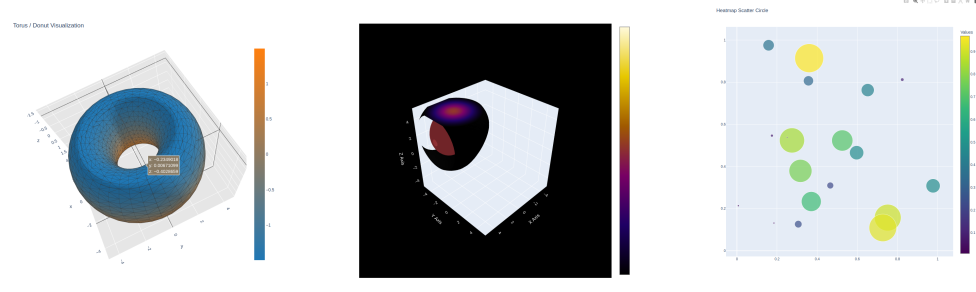
Plotly
Plotly is a data visualization library that allows us to create rich and dynamic visualizations in Python, R, and JavaScript. Some interesting features are:
Zooming
Tooltips
Rotating
Downloading plots


Animation
Animation in visualization is basically the display of frames, i.e., data points over time. This allows us to understand the data trends better.


Facet
Faceting is dividing a dataset into smaller subsets so that we can then display them in separate panels or grids. This helps in the comparison and analysis of different aspects of the data simultaneously.


Complete code
In our implementation, the animation is achieved using the animation_frame parameter in imshow(), allowing frames to be shown one after another. We establish facets using the facet_col parameter. This splits the data into columns to depict different aspects together.
Therefore, our goal of enhancing the understanding of changes over time within each aspect is achieved!
import plotly.express as px
from skimage import io

image_data = io.imread("https://github.com/scikit-image/skimage-tutorials/raw/main/images/cells.tif")

reshaped_data = image_data.reshape((15, 4, 256, 256))[5:]

fig = px.imshow(reshaped_data, animation_frame=0, facet_col=1, binary_string=True)

fig.update_layout(
    plot_bgcolor='black',
    paper_bgcolor='black',
    font_color='white',
)

fig.for_each_annotation(lambda a: a.update(text=a.text.split("=")[1]))

fig.show()
fig.write_html("output.html", auto_open=True)
Code explanation
Lines 1– 2: First and foremost, we import our needed libraries. We use
plotly.expressfor creating interactive plots and theskimagelibrary for image processing.Line 4: Next, we use the
imread()function fromskimageto read the images from the specified link and store them inimage_data.Line 6: We use
reshape()to modify the shape of the image and give the modification specifications as parameters.15is the total number of animation frames present in the reshaped array.4is the total channels per image. For instance, if the image is in RGB format, then its channels are red, blue, and green.256is the height in pixels of each image.256is the width in pixels of each image.[5:]is the range on which array slicing is applied. In this case, the starting index is5and:represents that the end index is the last array index.
Line 8: We use the
imshow()function and save the figure on thefigattribute. We pass the required figure specifications as a parameter.reshaped_datais the reshaped image that we want to show.animation_frameis set to 0 to specify that the initial animation frame is set to the first frame.facet_colis set to 1 to specify the number of columns in which the data should be divided.binary_stringis set to True to represent the data in binary format.
Lines 10– 13: Now, we use
update_layout()to customize the background color of the plot and paper and set the font color. We can customize our app according to our needs!Line 16: We update the text content by using the
for_each_annotation()function to iterate over each annotation and modify the value as per our requirements.Line 18: Congratulations, we are now ready to show our interactive plot! We use
show()to display the whole thing, including the image and histograms.
Note: To save the output in an HTML file,
fig.write_html("output.html", auto_open=True)can be used.
Demonstration
This is how the animation of the cells is rendered within different facets.
Plotly allows zooming into the facets as well. Note that in this code, zooming in on one facet zooms in on each of the facets.
How can we specify the number of columns within a plot in Plotly?
Free Resources