How to add a customized README file to your GitHub profile
GitHub serves a significant role in a developer’s day-to-day work. With its amazing features, GitHub has greatly transformed the open-source community and helped developers.
One of the great features of GitHub is a customized README that entails the information of a developer at the top of their profile.
This post is for any developer looking to add a customized README to share their personal information with the community.
Let’s get to it!
Add a customized README file to a GitHub profile
Adding a customized README to a Github is an easy task. We simply need to follow the instructions.
It’s important to know that certain condition needs to be met for GitHub to display a customized README on a profile.
The conditions are:
- The customized README repository name must match the GitHub username
- The customized README repository is not private, i.e., it is public.
- The customized README repository contains README. md in its root files.
- The customized README repository is not empty.
Keep the above in mind while creating a customized README.
So, what are the steps to add a customized README to a GitHub profile?
The following are steps to add a customized README to a GitHub profile.
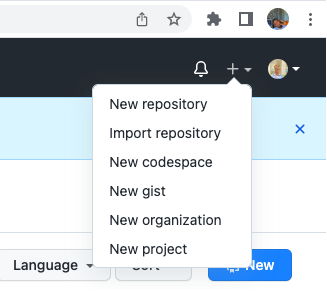
- Clicking the + at the top right corner of the profile, a dropdown will pop up. Select the New Repository

- Navigate to the repository name box, and type in a name that matches the GitHub profile username.


- Select Public to make the repository public.


- Select Initialize this repository with a README.


-
Click on the Create repository button.
-
Click on the pen icon to edit the README.
The Edit icon is above the right sidebar.
Once clicked, a README file that contains a README template is generated. This gives the owner inspiration on how to set up their customized README.


Edit the template with all the necessary personal information.
Congratulations, a customized README file has just been created!
Free Resources