How to calculate average in MS Excel
Microsoft Excel provides a powerful set of functions for performing various calculations on data. One fundamental operation is calculating the average/mean of a set of numbers. A typical value from a range, distribution, or list of data may be produced using the Excel AVERAGE function. The AVERAGE function calculates the arithmetic mean of a range of numbers. In simple terms, it adds up all the numbers in the specified range and then divides the sum by the count of those numbers. The formula of the average is as follows:
Syntax
The basic syntax for the AVERAGE function is given below:
=AVERAGE(number1, number2,...)
Here, number1 and number2 represents the cell number or any numeric value. It’s worth noting that we have the flexibility to include additional cells as needed.
Note: Ranges or cell references may be used instead of explicit values. We can add up to 255 numbers in the
AVERAGEfunction.
Simple values
If we simply want to calculate the average of 10, 20, and 30 we will use the AVERAGE function using the formula below:
=AVERAGE(10,20,30)
List of cells
If we want to find the average by providing the list of cells, we can use the formula below:
=AVERAGE(A1,A2,A3)
Range of cells
If we want to find the average by providing the range of cells, we can use the formula below:
=AVERAGE(A1:A3)
If we want to use the range of cells, and wanted to add an extra number or a cell number in that case we can use the formula below:
=AVERAGE(A1:A3,B3)
The formula above calculates the average of cell A1, A2, A3, and B3.
Steps
The following is a step-by-step guide to using the AVERAGE function:
Select the cell: We click on the cell where we want the average to appear.
Use the AVERAGE function: We type
=AVERAGE(into the selected cell.Select the range: If we want to calculate average of the number of cells in the range A1 to A5, there are two ways to achieve the desired result:
We can enter “A1:A5” after the opening parenthesis and then close the parenthesis and press “Enter.” The formula should look something like this:
=AVERAGE(A1:A5).We can also enter “A1,A2,A3,A4,A5” after the opening parenthesis and then close the parenthesis and press “Enter.” The formula should look something like this:
=AVERAGE(A1,A2,A3,A4,A5).
Let’s apply the steps above on our dataset. Let’s suppose we have the following dataset:

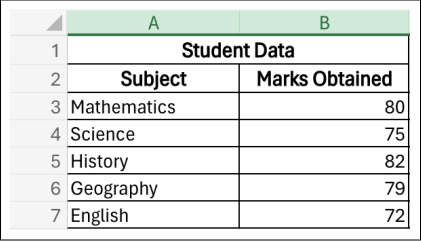
Now, our objective is to determine the average of a student generated using the given dataset. We aim to calculate the average marks of one student mentioned in the dataset. There are two ways to calculate the average. Let’s look at these:
Using the AVERAGE function with list of cells
First we select the cell, where we need to calculate the average. Let’s suppose here the cell number is B9. After we select the cell(B9), write the following in the cell:
=AVERAGE(B3,B4,B5,B6,B7)
Let's visualize the steps above in action.

Note: As we can see in the slides above, when multiple cells are added, the system automatically highlights the cell number and alters its color for easier identification.
If an empty cell is included in an average formula and subsequently populated with a value, the total in cell B9, where the average is calculated, will automatically update to reflect the new value.
Using the AVERAGE function by specifying the range
First we select the cell, where we need to calculate the average. Let’s suppose here the cell number is B9. After we select the cell(B9), write the following in the cell:
=AVERAGE(B3:B7)
Let's visualize the steps above in action.

Note: To skip any subject, let’s say “Geography,” we can simply write the range formula as follows:
=AVERAGE(B3:B5,B7)
Things to remember
Numbers, ranges, or cell references containing numbers can all be arguments.
The count doesn’t include the text representations of integers and logical values that we provide directly into the list of parameters.
Text, logical values, and empty cells in a range or cell reference argument are disregarded; cells with the value zero are included.
Unlock your potential: MS Excel essentials series, all in one place!
To deepen your understanding of MS Excel, explore our series of Answers below:
How to create MS Excel files using Python
Learn how to generate and manipulate Excel files using Python libraries likeopenpyxlandpandas.How to create MS Excel files using Julia
Discover how to create and modify Excel files using Julia with packages likeXLSX.jlfor data analysis.Common aggregate functions in MS Excel
Explore key aggregate functions like SUM, AVERAGE, MAX, and MIN to perform data calculations efficiently.How to count values in MS Excel
Learn to count cells, numbers, and specific values using functions likeCOUNT,COUNTA, andCOUNTIF.How to calculate sum in MS Excel
Use theSUMfunction to add numbers across rows, columns, and custom ranges.How to calculate average in MS Excel
Apply theAVERAGEfunction to find the mean of a dataset quickly.How to calculate maximum in MS Excel
Learn how to use theMAXfunction to find the highest value in a range.How to calculate the product in MS Excel
Use thePRODUCTfunction to multiply values in a selected range.How to calculate the median in MS Excel
Understand how theMEDIANfunction determines the middle value in a dataset.How to calculate minimum in MS Excel
Use theMINfunction to identify the smallest value within a range.How to calculate the mode in MS Excel
Find the most frequently occurring value using theMODEfunction.Calculate student grades from percentage in MS Excel
Learn how to automate grade calculation using conditional formulas likeIF,LOOKUP, andVLOOKUP.
Free Resources