How to check if the user is logged in to Firebase
In applications integrated with Firebase, verifying whether a user is logged in is necessary to ensure a seamless and secure user experience. By confirming the user’s login status, developers can tailor the application’s interface and functionality accordingly, offering personalized content and features to authenticated users while guiding non-authenticated users toward the login or signup flow. Moreover, verifying login status is essential for enforcing access control, safeguarding sensitive data, and managing authentication-related workflows effectively. In this Answer, we’ll learn to check whether a user is logged in to Firebase.
Note: We'll use React Native to check whether a user is logged in to Firebase. However, the concepts learned are easily transferable over other programming languages and frameworks as well.
Follow the steps outlined below to check whether a user is logged in to Firebase.
Create a Firebase project
Firstly, ensure that you have a Firebase project set up. It serves as the foundation for user authentication functionalities within the application. Firebase provides the necessary services to manage user authentication securely, allowing us to integrate login functionalities seamlessly into the application.
Secondly, ensure that you have the Firebase credentials for the above-mentioned Firebase project. The Firebase credentials contain important information, such as the Firebase project’s API key, authentication domain, and database URL. These credentials are essential for establishing a secure connection between the application and the Firebase backend services. They authenticate the application with Firebase, enabling features like user authentication, data storage, and real-time updates.
Note: It's crucial to keep the Firebase credentials confidential to prevent unauthorized access to the Firebase resources.
Follow the “How to create Cloud Firestore database for React Native” Answer to learn how to create a Firebase project and obtain Firebase credentials. You only have to follow the steps mentioned under the headings “Create a Firebase project” and “Obtain credentials for the Firebase configuration file.”
Enable Firebase authentication
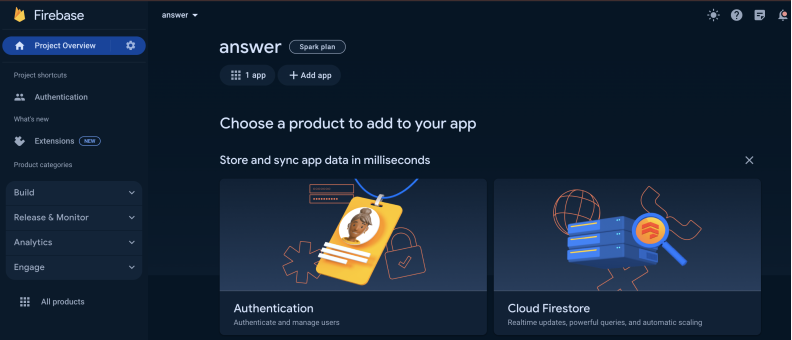
Next, we need to enable Firebase authentication. Firebase authentication is a service provided by Firebase that handles user authentication in applications. It allows users to sign up, sign in, and manage their authentication state securely. For this Answer, we’ll use “Email/Password” as the sign-in method. Follow the steps outlined below to enable Firebase authentication within the Firebase project.

Add Firebase credentials to the Firebase configuration file
Once the above steps have been completed, we need to add the Firebase credentials to the Firebase configuration file. Adding Firebase credentials to the configuration file allows the application to securely authenticate and communicate with Firebase services. This file serves as a crucial link between the application and Firebase, enabling features such as user authentication, database access, and cloud functions. The code snippet below shows what the Firebase configuration file looks like in React Native.
import { initializeApp } from 'firebase/app';import { initializeAuth, getReactNativePersistence, browserLocalPersistence } from 'firebase/auth';import ReactNativeAsyncStorage from '@react-native-async-storage/async-storage';import { Platform } from 'react-native';const firebaseConfig = {// Add your Firebase credentials hereapiKey: "",authDomain: "",projectId: "",storageBucket: "",messagingSenderId: "",appId: ""};const app = initializeApp(firebaseConfig);const auth = Platform.OS === 'android'? initializeAuth(app, {persistence: getReactNativePersistence(ReactNativeAsyncStorage)}): initializeAuth(app, {persistence: browserLocalPersistence});export { auth };
In the code snippet above:
Line 1: We import the
initializeAppfunction from thefirebase/appmodule. This function is used to initialize the Firebase application with the provided Firebase credentials.Line 2: We import
initializeAuth,getReactNativePersistence, andbrowserLocalPersistencefromfrom thefirebase/authmodule. These are used to initialize Firebase authentication and set the persistence method for the authentication state.Line 3: We import
ReactNativeAsyncStoragefrom@react-native-async-storage/async-storage. This import is used as a persistence layer for the authentication state in React Native applications.Line 4: We import
Platformfromreact-native.This module is used to detect the current platform.Lines 6–14: We set up the Firebase configuration object with the Firebase credentials that you obtained previously. At this stage, you do not need to add the Firebase credentials. You’ll add them toward the end of this Answer within the “Coding playground” section.
Line 16: We initialize the Firebase application with the provided Firebase configuration/credentials.
Lines 18–24: We initialize the Firebase authentication based on the platform using appropriate persistence settings.
Line 26: We export the
authobject to be used with other parts of the application. Theauthobject will be used for handling user authentication in the React Native application.
Write the login method
To check if the user is logged in to Firebase, we first need to write a method to allow the user to log in. The code snippet below shows what the login method will look like in React Native.
import React, { useState } from 'react';import { signInWithEmailAndPassword } from "firebase/auth";import { auth } from './firebaseConfig';const [email, setEmail] = useState('');const [password, setPassword] = useState('');const login = async () => {if (email === '' || password === '') {window.alert('One or more fields are empty.');return;}try {await signInWithEmailAndPassword(auth, email, password);window.alert(`User with email '${email}' logged in!`);} catch (error) {if (error.message.includes('invalid-login-credentials') || error.message.includes('invalid-credential'))window.alert("Incorrect email or password!");else if (error.message.includes('invalid-email'))window.alert(`'${email}' is invalid! Please provide a valid email.`)elsewindow.alert("Something went wrong while logging in! Please try again later.");}}
In the code snippet above:
Lines 1–3: We import the required libraries and methods.
Line 5: We use the
useStateHook to initialize a state variable namedemail. We set the default value to an empty string. This variable will be used to keep track of the user’s email.Line 6: We use the
useStateHook to initialize a state variable namedpassword. We set the default value to an empty string. This variable will be used to keep track of the user's password.Lines 8–24: We define a function named
login. This function will be used to log the user into the application. Within this function:Lines 9–12: If the
emailorpasswordstate variables are an empty string, we display an appropriate error message and return from the function.Lines 14: We use the
signInWithEmailAndPasswordmethod from thefirebase/authmodule to sign the user into the application. We pass theauthobject and theemailandpasswordstate variables as parameters to the function.Lines 15: If the user is signed in successfully, we display an appropriate success message.
Lines 17–22: If there are any errors using the sign-in process, we display the appropriate error messages.
Write the checkLoginStatus and logout methods
Next, we need to write the checkLoginStatus and logout methods. The checkLoginStatus method will be used to check if the user is logged in to Firebase. On the other hand, the logout method will be used to log the user out of the application. Once the user has been logged out, we can again use the checkLoginStatus method to verify that the user has indeed been logged out of the application. The code snippet below shows what the checkLoginStatus and logout methods will look like in React Native.
const checkLoginStatus = () => {if (auth.currentUser) {console.log(auth.currentUser);window.alert(`User ${auth.currentUser.email} is logged in.`);}elsewindow.alert('User is not logged in.');}const logout = async () => {if (auth.currentUser) {auth.signOut();setEmail('');setPassword('');window.alert('User logged out.');}else {window.alert("No user is currently logged in.");}}
In the code snippet above:
Lines 1–8: We define a function named
checkLoginStatus. Within the function, we check theauth.currentUser. If it isnull, we display an appropriate error message. Otherwise, we logauth.currentUseronto the console and display an appropriate success message. Note thatauth.currentUseris an object containing all the information related to the currently logged-in user, such as theemailanddisplayName.Lines 10–20: We define a function named
logout. Within this function, we check theauth.currentUser. If it isnull, we display an appropriate message that no user is currently logged in. Otherwise, we use thesignOut()method from theauthobject to log the user out of the application. We then reset the state variables and display an appropriate success message.
Coding playground
Utilize the coding playground below to see the above concepts in action. Before executing the code using the “Run” button, make sure to add your Firebase credentials inside the firebaseConfig.js file. Once the code has been executed, click the link next to the text “Your app can be found at:” to open the application. The text is located at the bottom of the coding playground below.
{
  "name": "ecommerce-application",
  "version": "1.0.0",
  "main": "node_modules/expo/AppEntry.js",
  "scripts": {
    "start": "expo start",
    "android": "expo start --android",
    "ios": "expo start --ios",
    "web": "expo start --web"
  },
  "dependencies": {
    "@expo/vector-icons": "^13.0.0",
    "@expo/webpack-config": "^19.0.0",
    "@react-native-async-storage/async-storage": "1.18.2",
    "@react-native-masked-view/masked-view": "0.2.9",
    "axios": "^1.6.2",
    "cors": "^2.8.5",
    "expo": "~49.0.15",
    "expo-status-bar": "~1.6.0",
    "firebase": "^10.8.0",
    "fuse.js": "^7.0.0",
    "http": "^0.0.1-security",
    "react": "18.2.0",
    "react-dom": "18.2.0",
    "react-native": "0.72.6",
    "react-native-gesture-handler": "~2.12.0",
    "react-native-responsive-screen": "^1.4.2",
    "react-native-safe-area-context": "4.6.3",
    "react-native-screens": "~3.22.0",
    "react-native-svg": "13.9.0",
    "react-native-web": "~0.19.6"
  },
  "devDependencies": {
    "@babel/core": "^7.20.0"
  },
  "private": true
}
In conclusion, by following the outlined steps, you can effectively verify whether a user is logged in to Firebase. These steps provide a clear path for implementing user authentication checks within applications, ensuring seamless user experiences and enhanced security measures.
Free Resources