How to connect an HTML form to a MySQL database in PHP
This Answer outlines how to use PHP to connect an HTML form to a MySQL database. We'll use XAMPP as the server software to create a database and run PHP.
We'll use the below steps to create a connection:
Set up XAMPP and configure a PHP development environment
Create an HTML form
Create a MySQL database
Create a PHP file
Create a connection
Step 1: Set up XAMPP
The method to configure a PHP development environment with XAMPP is shown here.
Step 2: Create an HTML form
This Answer explains what an HTML form is and how to create it.
Step 3: Create a MySQL database
In this step, we'll create a simple MySQL database since our server is already running.
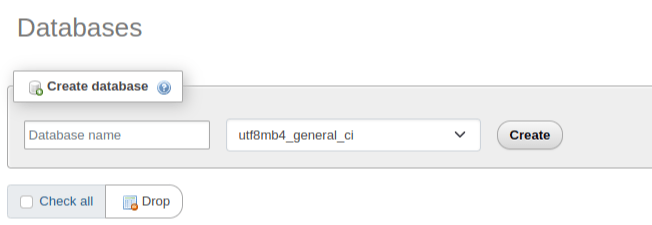
We'll open the browser and type http://localhost/phpmyadmin/. This redirects us to the PHP admin page, where we can create and manage databases. Click on the New option in the menu panel on the left side. The image below demonstrates this:
On the next page, we'll choose a name for our database and click on Create, as shown:
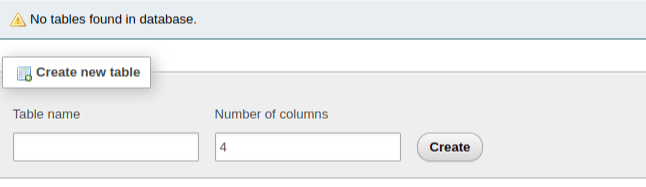
Next, we'll create a table in the database. We'll add a table name and choose the number of columns:
Once we click on Create, we'll be redirected to the following page:
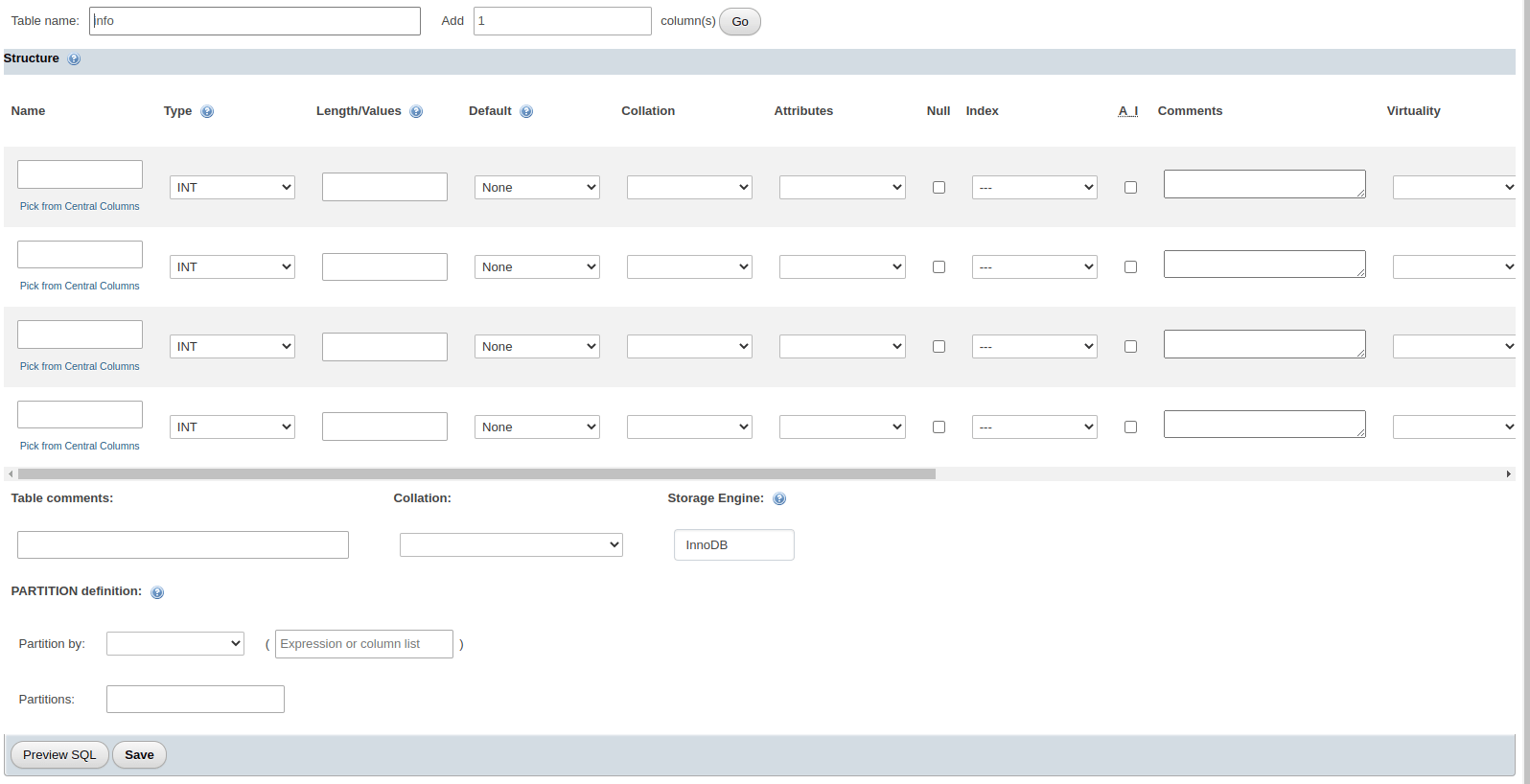
Here, we've to give details regarding the table. The columns correspond to our fields in the HTML form. We may also assign each column a data type, characters length, or special privileges such as the
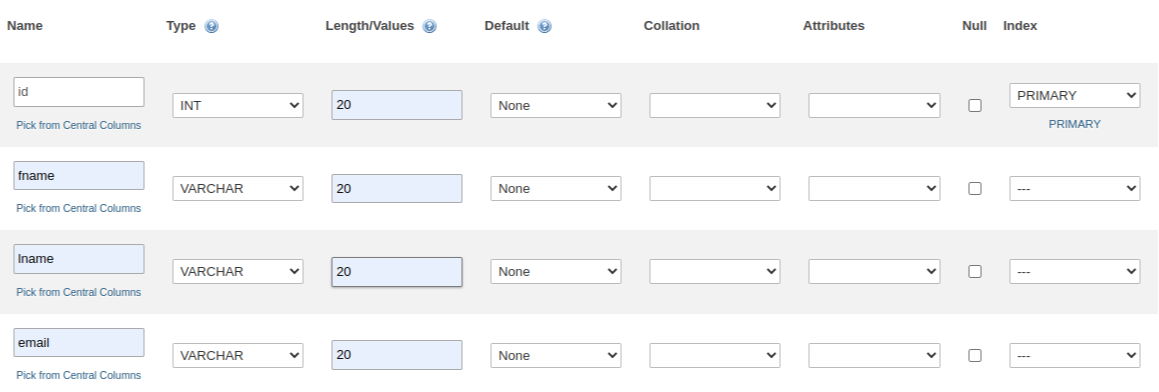
Once we're done, we'll click on Save. Our first table in the database is created.
Step 4: Create a PHP file
Now that we have our database and server ready, we'll create the necessary files. We'll begin by opening the folder directory containing XAMPP. We traditionally find this folder in Local Disk E or Local Disk C. For Linux users, this will be in the Computer/opt/lampp directory.
Within that folder, open another folder titled htdocs and create a folder in it. We can name it anything, but for this tutorial, we'll name it educativeform. This new folder will contain our HTML and PHP files.
htdocs/educativeform|-> form.php|-> index.html

The following code snippet contains the HTML code for the form:
Note: If we click on the submit button, it will given an error since we haven't yet connected it to the database.
Explanation
Line 6: The method
POSTis the connection type to send the HTML form entries. Theactionattribute has the valueform.php. This is the name of the PHP file in the working directory, and the form entries will be sent to this file upon submission.Lines 8–20: These are the
formfields. The lastinputtype is abuttonthat submits the field values to the PHP file.
To confirm that our form is ready, we'll type localhost/educativeform in the browser. This ensures that the server, MySQL, and Apache is running. Otherwise, we might get an error.
Next, we'll create the PHP file. The sample code, along with the explanation, is given below:
<?phpif(isset($_POST['submit'])){$fname = $_POST['fname'];$lname = $_POST['lname'];$email = $_POST['email'];}?>
Explanation
Line 2: We'll use the
$_POSTas connection type to get HTML form entries.Lines 4–6: We define the fields here. The square brackets contain the values of the
nameattribute in theinputlabels of the HTML code.
Step 5: Create a connection
Finally, we'll connect our HTML form to the database using PHP. The code below is an addition to the previous code snippet, as shown:
<?php// getting all values from the HTML formif(isset($_POST['submit'])){$fname = $_POST['fname'];$lname = $_POST['lname'];$email = $_POST['email'];}// database details$host = "localhost";$username = "root";$password = "";$dbname = "sampledb";// creating a connection$con = mysqli_connect($host, $username, $password, $dbname);// to ensure that the connection is madeif (!$con){die("Connection failed!" . mysqli_connect_error());}// using sql to create a data entry query$sql = "INSERT INTO contactform_entries (id, fname, lname, email) VALUES ('0', '$fname', '$lname', '$email')";// send query to the database to add values and confirm if successful$rs = mysqli_query($con, $sql);if($rs){echo "Entries added!";}// close connectionmysqli_close($con);?>
Explanation
Lines 10–14: We'll specify the permissions of the database. This will allow us to add entries to the table.
Line 17: We use
mysqli_connectto create a connection.Lines 20–23: Here, we'll confirm if the connection is made. If the connection has failed, we'll get an error message.
Line 26: We create an SQL query for insertion. Here we add the values that we received from the HTML form.
Lines 29–33: We send the query to the database over the connection.
Line 36: This line closes the connection once the entry is inserted.
If everything is running without errors, we should be able to add our HTML form details in the MySQL database.
Live demonstration
Click the "Run" button to execute the application and fill out the form so that it can add the details in the MySQL database.
<!DOCTYPE html>
<html lang="en">
<head>
    <meta charset="UTF-8">
    <meta name="viewport" content="width=device-width, initial-scale=1.0">
    <title>Contact Form</title>
</head>
<body>
    <h2>Contact Form</h2>
    <form action="form.php" method="post">
        <label for="fname">First Name:</label><br>
        <input type="text" id="fname" name="fname"><br>
        <label for="lname">Last Name:</label><br>
        <input type="text" id="lname" name="lname"><br>
        <label for="email">Email:</label><br>
        <input type="email" id="email" name="email"><br><br>
        <input type="submit" name="submit" value="Submit">
    </form>
</body>
</html>
Free Resources