How to connect to EC2 instance in private subnet
While deploying our applications on an EC2 instance, we often use the approach where we deploy the frontend of our application in the public subnet and the backend of our application in the private subnet. The perk of this approach is that we make our application more secure. The backend logic, which communicates between the frontend and the database, is not accessible to anyone in this way. However, since EC2 instances in a private subnet don’t have a public IP address, we can’t connect to them using SSH. So, to resolve this issue, we use the VPC endpoint.
The basic infrastructure
The basic infrastructure for our application consists of a VPC with a public and a private subnet. We will then create the internet gateway and a NAT gateway in our VPC, and after that, we will configure the routing tables. The internet gateway allows the instances and the resources to communicate over the internet, and the NAT gateway acts as a channel between the resources in the private subnet to communicate over the internet. Then, we will deploy an instance in the private subnet. The instance deployed in the private subnet has no public IP address, so we can’t connect to it using conventional methods. To establish a connection with the private subnet, we need to create a VPC endpoint. We will create an “Instance Connect Endpoint” in the VPC to establish a connection with the EC2 instance. The infrastructure is similar to the illustration below:


CloudFormation template
Here, we will create the infrastructure using AWS CloudFormation. CloudFormation allows us to deploy infrastructure as code. Let’s construct a CloudFormation template with the required resources.
Parameters
Parameters are a way to pass dynamic values into the template at runtime. They allow you to customize and modify the behavior of the resources defined in your CloudFormation template without changing it. We’ll use the parameters to pass values where they are required so that they are easy to manage and update.
Parameters:VpcCidrBlock:Type: StringDefault: "10.1.0.0/16"PublicSubnetCidrBlock:Type: StringDefault: "10.1.1.0/24"PrivateSubnetCidrBlock:Type: StringDefault: "10.1.2.0/24"InstanceAMI:Type: 'AWS::SSM::Parameter::Value<AWS::EC2::Image::Id>'Default: '/aws/service/ami-amazon-linux-latest/al2023-ami-kernel-default-x86_64'AllowedValues:- '/aws/service/ami-amazon-linux-latest/al2023-ami-kernel-default-x86_64' # Replace with your actual AMI IDInstanceType:Type: StringDefault: 't2.micro'
Here, we define the VPC CIDR block, public and private subnet CIDR blocks, the instance’s AMI, and the instance type.
VPC
We’ll create our own isolated virtual network, which will be associated with the resources.
cfnVPC:Type: AWS::EC2::VPCProperties:CidrBlock: !Ref VpcCidrBlockEnableDnsHostnames: trueEnableDnsSupport: true
Here, we create the VPC with the name cfnVPC which uses the CIDR block VpcCidrBlock, defined in the parameters. We enabled the DNS support and hostnames for any public instances that might reside in this network.
Internet gateway and NAT gateway
We’ll create an internet gateway so that our resources are accessible to the internet traffic. Creating an internet gateway allows the internet traffic to and from the VPC. We’ll also create a NAT gateway that will allow the private instance to communicate over the internet.
InternetGateway:Type: AWS::EC2::InternetGatewayNATGateway:Type: AWS::EC2::NatGatewayProperties:AllocationId: !GetAtt NATGatewayEIP.AllocationIdSubnetId: !Ref PublicSubnetAttachGateway:Type: AWS::EC2::VPCGatewayAttachmentProperties:VpcId:Ref: cfnVPCInternetGatewayId:Ref: InternetGatewayNATGatewayEIP:Type: AWS::EC2::EIP
Here, we create an internet gateway and NAT gateway. The internet gateway is defined on lines 1–2, and the NAT gateway is defined on lines 4–8. We associate the NAT gateway with a public subnet and attach an elastic IP address to the NAT gateway, which is created on lines 18–19. On lines 10–16, we attach the internet gateway to the VPC.
Subnets
Subnets are essentially smaller segments of the available address space within your VPC, providing an additional layer of control and security for resources in our environment. Here, we’ll create a private and a public subnet.
PublicSubnet:Type: AWS::EC2::SubnetProperties:VpcId: !Ref cfnVPCCidrBlock: !Ref PublicSubnetCidrBlockPrivateSubnet:Type: AWS::EC2::SubnetProperties:VpcId: !Ref cfnVPCCidrBlock: !Ref PrivateSubnetCidrBlock
Here, we create public and private subnets in the cfnVPC with the CIDR blocks defined in the parameters section.
Route table
A route table defines which external IP addresses can be reached from a subnet or internet gateway.
PrivateRouteTable:Type: AWS::EC2::RouteTableProperties:VpcId: !Ref cfnVPCPublicRoute:Type: AWS::EC2::RouteDependsOn: AttachGatewayProperties:RouteTableId: !Ref PublicRouteTableDestinationCidrBlock: "0.0.0.0/0"GatewayId: !Ref InternetGatewayPrivateRoute:Type: AWS::EC2::RouteProperties:RouteTableId: !Ref PrivateRouteTableDestinationCidrBlock: "0.0.0.0/0"NatGatewayId: !Ref NATGateway
Here, we create route tables for public and private subnets. The public route is associated with the internet gateway, directing traffic to 0.0.0.0/0 via the Internet Gateway. The private route is associated with the NAT gateway, directing traffic to 0.0.0.0/0 via the NAT Gateway.
Subnet Association
Subnet association refers to the process of linking a subnet to a specific route table in a Virtual Private Cloud (VPC) within Amazon Web Services (AWS). This association determines the routing rules that apply to the traffic originating from the subnet.
PublicSubnetAssociation:Type: AWS::EC2::SubnetRouteTableAssociationProperties:SubnetId: !Ref PublicSubnetRouteTableId: !Ref PublicRouteTablePrivateSubnetAssociation:Type: AWS::EC2::SubnetRouteTableAssociationProperties:SubnetId: !Ref PrivateSubnetRouteTableId: !Ref PrivateRouteTable
Here, we are associating the route tables with the subnets. The PublicSubnetAssociation resource associates the public subnet with the public route table. The PrivateSubnetAssociation resource associates the private subnet with the private route table.
Security group
A security group functions as a virtual firewall for our instance, managing inbound and outbound traffic. The security group outlined below permits all traffic over port 22 (SSH) and port 80 (HTTP). This security group is necessary for instances in both the private and public subnets.
MySecurityGroup:Type: AWS::EC2::SecurityGroupProperties:GroupDescription: "Default security group for cfnVPC"VpcId: !Ref cfnVPCSecurityGroupIngress:- IpProtocol: tcpFromPort: 22ToPort: 22CidrIp: 0.0.0.0/0
Here, we define the security group with the identifier MySecurityGroup and on lines 6–10, we are allowing inbound traffic on port 22, which is designated for SSH connections.
EC2 Instance Connect Endpoint
An Instance Connect Endpoint is an AWS feature that allows secure and easy access to your Amazon EC2 instances without the need to manage SSH keys or modify security group rules.
EC2Endpoint:Type: AWS::EC2::InstanceConnectEndpointDependsOn: PrivateInstanceProperties:SecurityGroupIds:- !Ref MySecurityGroupSubnetId: !Ref PrivateSubnet
Here, we are creating the EC2 endpoint. On lines 5–6, we associate it with our security group. On line 7, we associate it with the private subnet.
Private instance
After all the necessary infrastructure has been defined, we can set up our EC2 instance. The EC2 instance configuration is provided below:
PrivateInstance:Type: AWS::EC2::InstanceDependsOn: NATGatewayProperties:ImageId: !Ref InstanceAMIInstanceType: t2.microSecurityGroupIds:- !GetAtt MySecurityGroup.GroupIdBlockDeviceMappings:- DeviceName: "/dev/xvda"Ebs:VolumeType: "gp2"DeleteOnTermination: "false"VolumeSize: "8"SubnetId: !Ref PrivateSubnet
Here, we are setting the instance type to t2.micro and the AMI we are using is amazon linux 2023 which we defined in the parameter section. On lines 7–8, we attach the security group to the instance. On lines 9–14, we define the block storage associated with the instance. On line 15, we associate the instance with the private subnet.
Putting it all together
The CloudFormation template that we are going to deploy is available in the widget below:
AWSTemplateFormatVersion: '2010-09-09'Parameters:VpcCidrBlock:Type: StringDefault: "10.1.0.0/16"PublicSubnetCidrBlock:Type: StringDefault: "10.1.1.0/24"PrivateSubnetCidrBlock:Type: StringDefault: "10.1.2.0/24"InstanceAMI:Type: 'AWS::SSM::Parameter::Value<AWS::EC2::Image::Id>'Default: '/aws/service/ami-amazon-linux-latest/al2023-ami-kernel-default-x86_64'AllowedValues:- '/aws/service/ami-amazon-linux-latest/al2023-ami-kernel-default-x86_64' # Replace with your actual AMI IDInstanceType:Type: StringDefault: 't2.micro'Resources:cfnVPC:Type: AWS::EC2::VPCProperties:CidrBlock: !Ref VpcCidrBlockEnableDnsHostnames: trueEnableDnsSupport: trueInternetGateway:Type: AWS::EC2::InternetGatewayNATGateway:Type: AWS::EC2::NatGatewayProperties:AllocationId: !GetAtt NATGatewayEIP.AllocationIdSubnetId: !Ref PublicSubnetAttachGateway:Type: AWS::EC2::VPCGatewayAttachmentProperties:VpcId:Ref: cfnVPCInternetGatewayId:Ref: InternetGatewayNATGatewayEIP:Type: AWS::EC2::EIPPublicSubnet:Type: AWS::EC2::SubnetProperties:VpcId: !Ref cfnVPCCidrBlock: !Ref PublicSubnetCidrBlockPrivateSubnet:Type: AWS::EC2::SubnetProperties:VpcId: !Ref cfnVPCCidrBlock: !Ref PrivateSubnetCidrBlockPublicRouteTable:Type: AWS::EC2::RouteTableProperties:VpcId: !Ref cfnVPCPrivateRouteTable:Type: AWS::EC2::RouteTableProperties:VpcId: !Ref cfnVPCPublicRoute:Type: AWS::EC2::RouteDependsOn: AttachGatewayProperties:RouteTableId: !Ref PublicRouteTableDestinationCidrBlock: "0.0.0.0/0"GatewayId: !Ref InternetGatewayPrivateRoute:Type: AWS::EC2::RouteProperties:RouteTableId: !Ref PrivateRouteTableDestinationCidrBlock: "0.0.0.0/0"NatGatewayId: !Ref NATGatewayPublicSubnetAssociation:Type: AWS::EC2::SubnetRouteTableAssociationProperties:SubnetId: !Ref PublicSubnetRouteTableId: !Ref PublicRouteTablePrivateSubnetAssociation:Type: AWS::EC2::SubnetRouteTableAssociationProperties:SubnetId: !Ref PrivateSubnetRouteTableId: !Ref PrivateRouteTableMySecurityGroup:Type: AWS::EC2::SecurityGroupProperties:GroupDescription: "Default security group for cfnVPC"VpcId: !Ref cfnVPCSecurityGroupIngress:- IpProtocol: tcpFromPort: 22ToPort: 22CidrIp: 0.0.0.0/0EC2Endpoint:Type: AWS::EC2::InstanceConnectEndpointDependsOn: PrivateInstanceProperties:SecurityGroupIds:- !Ref MySecurityGroupSubnetId: !Ref PrivateSubnetPrivateInstance:Type: AWS::EC2::InstanceDependsOn: NATGatewayProperties:ImageId: !Ref InstanceAMIInstanceType: t2.microSecurityGroupIds:- !GetAtt MySecurityGroup.GroupIdBlockDeviceMappings:- DeviceName: "/dev/xvda"Ebs:VolumeType: "gp2"DeleteOnTermination: "false"VolumeSize: "8"SubnetId: !Ref PrivateSubnet
Architecture deployment using AWS CLI
You can deploy the template by clicking the “Run” button in the “Deploy stack” playground below and pasting the following command in the terminal:
aws cloudformation create-stack --stack-name cfn-template-deploy --template-body file://Cloudformation_Template.yaml --region us-east-1
In this command, cfn-template-deploy is the name of the template we are deploying and file://CloudformationTemplate.yaml is the path to the YAML file, which contains the blueprint of the infrastructure. This command will provide you with the stack ID.
To monitor the template, paste the following command in the terminal:
./status.sh
This command executes the shell script, which logs the stack’s status after 30 seconds interval.
Enter your AWS Access_Key_ID and Secret_Access_Key in the widget below before running any commands. If you don’t have these keys, follow this Answer to generate them "How to generate AWS access keys."
STACK_NAME="cfn-template-deploy"
REGION="us-east-1"

while true; do
    STATUS=$(aws cloudformation describe-stacks --stack-name $STACK_NAME --region $REGION --query "Stacks[0].StackStatus" --output text)

    if [ "$STATUS" == "CREATE_COMPLETE" ]; then
        echo "Stack creation complete."
        break
    elif [ "$STATUS" == "ROLLBACK_COMPLETE" ]; then
        echo "Stack creation failed. Check the CloudFormation console for details."
        break
    else
        echo "Current status: $STATUS"
        sleep 30  # Wait for 30 seconds before checking again
    fi
doneCreate the endpoint using the console
If you already have the infrastructure deployed and you want to create the endpoint using the console, follow the steps listed below:
Search for “VPC” on the AWS Management Console, then click the “VPC” service from the search results.
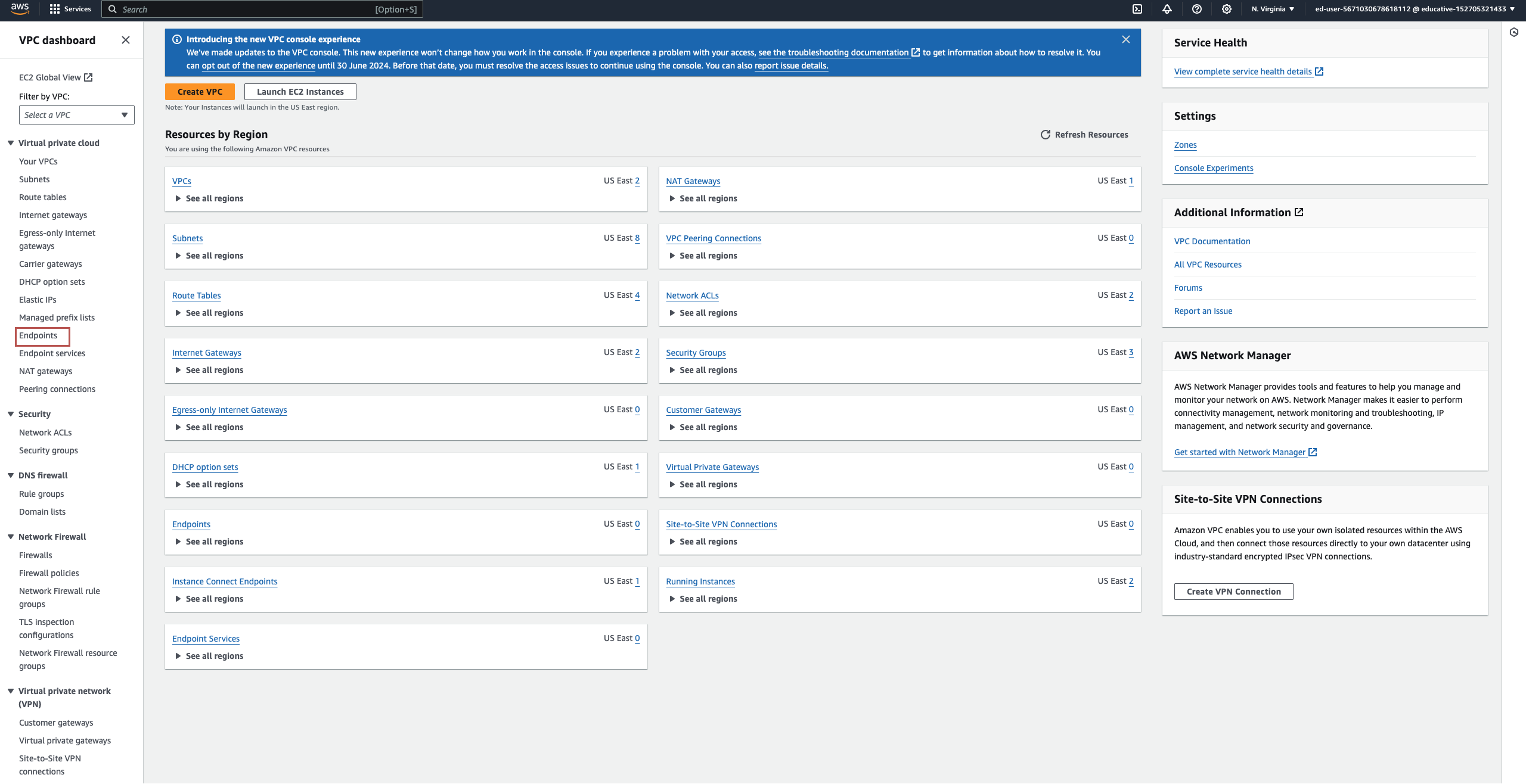
Click “Endpoints” from the left menu bar and click the “Create endpoint” button.
Set the name for the endpoint in the “Name tag” section, and select “EC2 Instance Connect Endpoint” in the “Service category” section.
Choose the VPC where you intend to deploy the endpoint in the “VPC” section.
In the “Security groups” section, select the endpoint’s security group, and in the “Subnet’’ section, select the private subnet.
The slides below show how we can configure the EC2 Instance Connect Endpoint using the AWS console:

Connection to the EC2 using endpoint
As the instance resides in the private subnet, it is not reachable via the internet or shell. Therefore, we must establish a connection using the console. Follow the steps below to connect to the EC2 instance in the private subnet:
Search for “EC2” on the AWS Management Console, then click the “EC2” service from the search results.
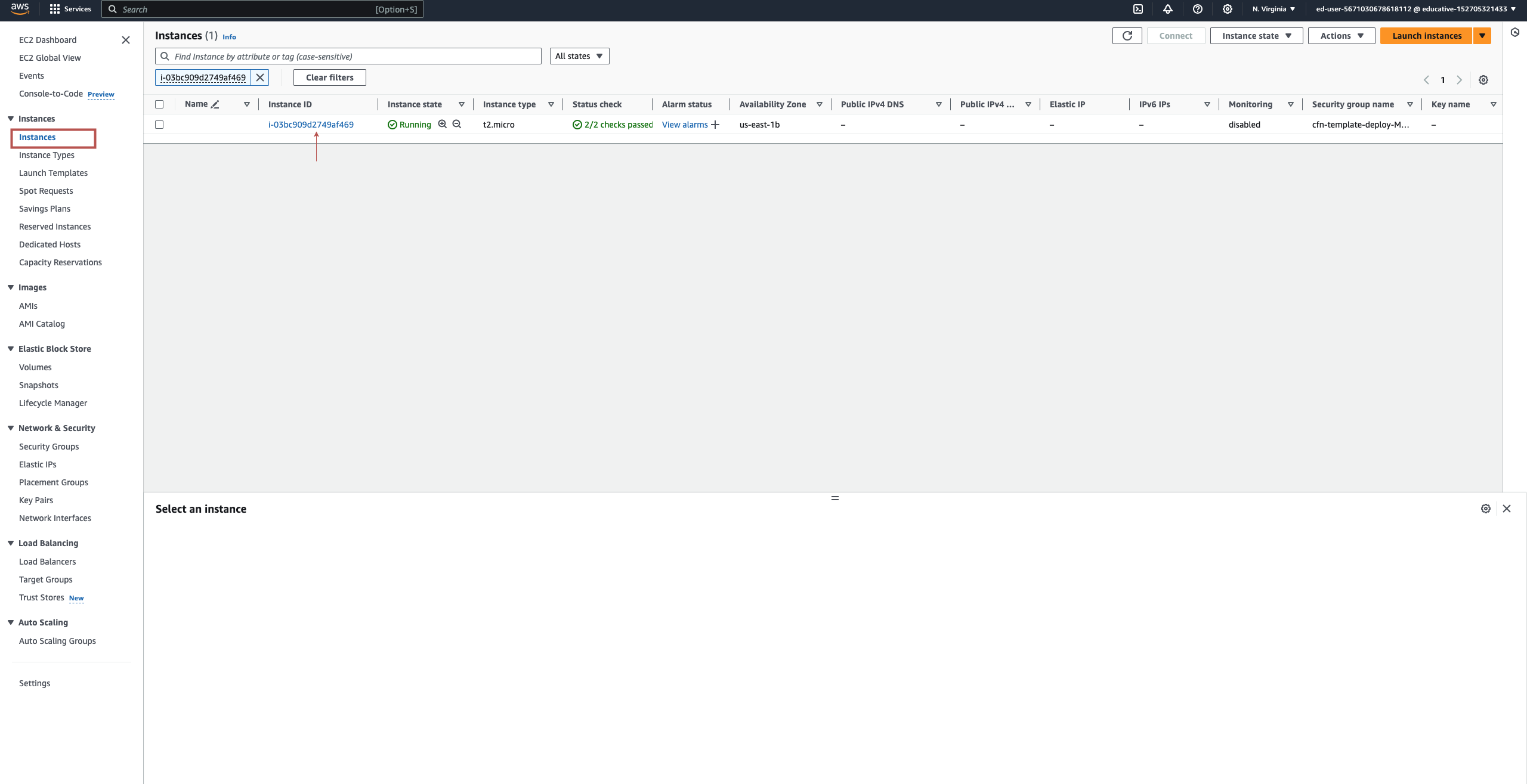
Click “Instances” from the left menu bar and select the instance created in the private subnet.
Click the “Connect” button, and in the “Connection type” section, select the “Connect using EC2 Instance Connect Endpoint” option.
In the “EC2 Instance Connect Endpoint” section, click “Select an endpoint” and select the available endpoint from the list.
Scroll to the bottom and click the “Connect” button.
The slides below show how we can connect to the EC2 instance using the Instance Connect Endpoint:
Free Resources