How to create 2D shapes in Matplotlib
Matplotlib is a powerful Python library for creating visualizations and plots. One of its key components is the matplotlib.patches module, which allows us to draw various 2D shapes and patches on our plots. These patches can be used to highlight specific regions, add annotations, or customize the appearance of the plots in a wide range of ways.
In this Educative Answer, we’ll explore what Matplotlib patches are, learn how to use them, and try coding examples to illustrate their functionality.
What are Matplotlib patches?
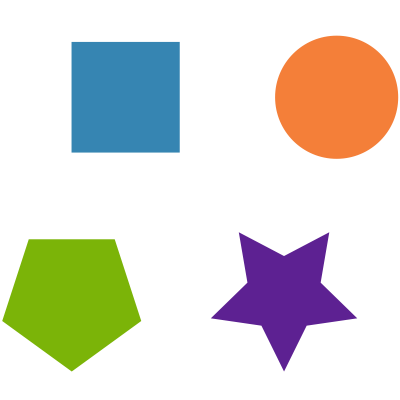
Matplotlib patches are objects that represent various 2D shapes and graphical elements that can be added to a Matplotlib figure or axes. These shapes include rectangles, circles, ellipses, polygons, arrows, and more.
Commonly used classes from the matplotlib.patches module include:
-
Rectangle: Represents a rectangular patch -
Circle: Represents a circular patch -
Ellipse: Represents an elliptical patch -
Polygon: Represents a polygon with a given set of vertices -
Arrow: Represents an arrow patch
How to use Matplotlib patches
To use Matplotlib patches, we first need to import the matplotlib.patches module. We also require a Matplotlib figure and axes to add these patches. Here are the basic steps to create and use Matplotlib patches:
Import the necessary modules as follows:
import matplotlib.pyplot as pltimport matplotlib.patches as patches
Create a Matplotlib figure and axes as follows:
fig, ax = plt.subplots()
Create a patch object and add it to the axes as follows:
# Example: Creating a red rectangle patchrectangle = patches.Rectangle((0.2, 0.3), 0.4, 0.5, color='red')# Add the rectangle patch to the axesax.add_patch(rectangle)
Customize the patch properties as needed as follows:
# Example: Changing the edge color and linewidth of the rectanglerectangle.set_edgecolor('blue')rectangle.set_linewidth(2)
Finally, display the plot as follows:
plt.show()
The show() function has been automated on our platform, and we do not need to make an explicit call for it.
Sample shapes
Each patch option comes with some required and some optional parameters. These parameters let us control the shape and position of the patch. Here, we have elaborated on some of the required parameters with the help of some coding examples.
Let’s go through the details and required parameters for plotting each of the mentioned shapes using Matplotlib patches:
1. Rectangle
The matplotlib.patches.Rectangle class is used to create a rectangular patch.
Required parameters
(x, y): A tuple specifying the bottom-left coordinates of the rectanglewidth: Width of the rectangleheight: Height of the rectangle
The following code provides us with an example use case of the rectangle patch.
import matplotlib.pyplot as pltimport matplotlib.patches as patchesfig, ax = plt.subplots()# Create a red rectangle patchrectangle = patches.Rectangle((0.2, 0.3), 0.3, 0.5)# Add the rectangle patch to the axesax.add_patch(rectangle)ax.set_aspect('equal')
2. Circle
The matplotlib.patches.Circle class is used to create a circular patch.
Required parameters
(x, y): A tuple specifying the center coordinates of the circleradius: Radius of the circle
The following code provides us with an example use case of the circle patch.
import matplotlib.pyplot as pltimport matplotlib.patches as patchesfig, ax = plt.subplots()# Create a blue circle patchcircle = patches.Circle((0.5, 0.5), 0.3)# Add the circle patch to the axesax.add_patch(circle)# Set aspect ratio of the axesax.set_aspect('equal')
3. Ellipse
The matplotlib.patches.Ellipse class is used to create an elliptical patch.
Required parameters
(x, y): A tuple specifying the center coordinates of the ellipsewidth: Width of the ellipseheight: Height of the ellipse
The following code provides us with an example use case of the ellipse patch.
import matplotlib.pyplot as pltimport matplotlib.patches as patchesfig, ax = plt.subplots()# Create a green ellipse patchellipse = patches.Ellipse((0.5, 0.5), 0.6, 0.4)# Add the ellipse patch to the axesax.add_patch(ellipse)ax.set_aspect('equal')
4. Polygon
The matplotlib.patches.Polygon class is used to create a polygonal patch.
Required parameters
[(x1, y1), (x1, y1), ...]: A list of (x, y) coordinates of the polygon’s verticesclosed: Boolean indicating whether the polygon should be closed (i.e., the last vertex is connected to the first one)
The following code provides us with an example use case of the polygon patch.
import matplotlib.pyplot as pltimport matplotlib.patches as patchesfig, ax = plt.subplots()# Define the vertices of the polygonpolygon_vertices = [(0.2, 0.2), (0.5, 0.7), (0.8, 0.2)]# Create a polygon patchpolygon = patches.Polygon(polygon_vertices, closed=True)# Add the polygon patch to the axesax.add_patch(polygon)ax.set_aspect('equal')
5. Arrow
The matplotlib.patches.Arrow class is used to create an arrow patch.
Required parameters
x: x coordinate of the arrow’s taily: y coordinate of the arrow’s taildx: Arrow length along the x-axisdy: Arrow length along the y-axis
The following code provides us with an example use case of the arrow patch.
import matplotlib.pyplot as pltimport matplotlib.patches as patchesfig, ax = plt.subplots()# Create an arrow patcharrow = patches.Arrow(0.2, 0.2, 0.4, 0.4, width = 0.3)# Add the arrow patch to the axesax.add_patch(arrow)ax.set_aspect('equal')
Conclusion
Matplotlib patches are versatile tools for adding shapes and graphical elements to the plots and visualizations. Whether we need to highlight specific regions, annotate the plots, or customize their appearance, Matplotlib patches offer a wide range of options.
Free Resources