How to create a Microsoft Azure subscription
Microsoft Azure is a public cloud computing service provided by Microsoft. It includes a lot of services:
Infrastructure as a Service (IaaS) It is a cloud computing service that provides required resources, including storage, computing power, networking resources, etc. Platform as a Service (PaaS) It is a cloud computing service that provides a complete platform for the development, testing, and deployment of web apps, mobile apps, etc. This includes all hardware and software tools required for specific app development. - Database services, storage capabilities, virtual machines, IoT services, etc.
Create a Microsoft Azure subscription
Follow these steps to create a Microsoft Azure subscription:
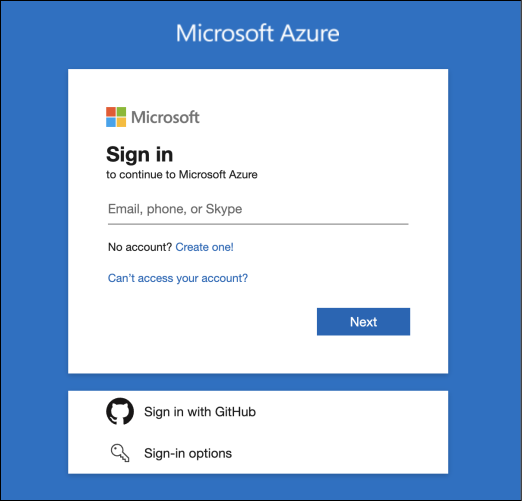
Step 1: Sign in to the Azure portal
Sign in to the Azure portal by entering your credentials and clicking the “Sign in” button.

Step 2: Navigate to the subscriptions
Scroll down and click the “Subscriptions” tab.


Step 3: Add a subscription
Click the “Add” button to add a new subscription.


Step 4: Select your subscription
Select the subscription according to your requirements. It will navigate to the billing profile if it is not set up already.


Step 5: Billing account
Set up your billing profile by adding your credit card information.
Step 6: Create a subscription
Once the billing account is completed, go to the “Subscription” page and click the “Add” button.
Click the “Basic” tab and do the following:
- Write the subscription name.
- Select the billing account for the payment of the new subscription.
- Select the billing profile for the payment of the new subscription.
- Select the invoice section for the payment of the new subscription.
- Select your plan.
- If you are using the subscription for development or testing purposes, select
Microsoft Azure Plan for DevTest. - Select
Microsoft Azure Planotherwise.
- If you are using the subscription for development or testing purposes, select


Click the “Advanced” tab and do the following:
- Select the subscription directory. Your subscription will be attached to the selected Azure Active Directory (Azure AD).
- Select the management group. Your subscription will be attached to the selected Azure AD management group.
- Select the subscription owner. You can add multiple owners from the selected subscription directory only.


Tags
Enter the tag pairs for the Name and Value in the “Tags” tab.

Review + create
Go to the “Review + create” tab and confirm the subscription details. You’ll see a Validation passed message.


Once you review the subscription details, click the “Create” button to create the subscription.


We have created a Microsoft Azure subscription.
Free Resources