How to create a tenant and a user in Azure Active Directory
In this shot, we go through a step-by-step process to create a tenant and a user with the Global Administrator role.
To follow this demo, open your azure portal, or create one.
Creating a tenant
- Search for “Azure Active Directory” and then click on “Manage Tenants”.
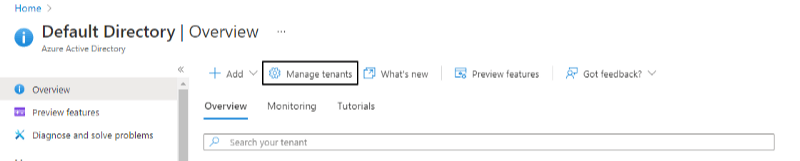
- Click on “Create”.
- Select tenant type, for this demo, we will choose “AAD”.

Configuring tenant
- Click on “Next: Configuration”.
- Provide the “Organization name” and “Initial domain name” (must be unique).

- Click “Review + Create”, wait for validation to pass, and click “Create”.
- Wait for tenant creation (it may take a few minutes).
- You can switch tenants from “Manage Tenants”.
Creating a user
- From the left menu, blade click on “Users”.

- Click on “new user”.
- Provide details as shown below:

Note: when generating a password, remember to store it. The password won’t be displayed to you afterward (unless you reset the password for that user).
- Click on the role (here it is “User”)
- Search for “global administrator”, and select it to assign that role to “user1”.
- You can leave the other fields blank and click on “create”.

