How to create a VM(virtual machine) on GCP with Terraform
Setting up a Google Cloud Platform (GCP) virtual machine (VM) using Terraform offers an efficient way to automate infrastructure provisioning and management. Terraform, an Infrastructure as Code (IaC) tool, allows users to define their desired cloud infrastructure using declarative code, ensuring consistent and reproducible environments. GCP, one of the leading cloud service providers, offers a vast array of services, and Terraform simplifies the process of creating, modifying, and destroying resources within this cloud ecosystem.
By employing Terraform's concise and human-readable configuration language (HCL), Infrastructure as Code becomes accessible to a broader range of users, from seasoned cloud engineers to developers and operations teams, empowering them to efficiently manage complex cloud infrastructure.
Set up GCP virtual machine
To set up a Google Cloud Platform (GCP) virtual machine (VM) using Terraform, you need to follow these steps:
Install required tools:
Install Terraform: Download and install Terraform from the official website and ensure it is added to your system's PATH.
Install the Google Cloud SDK: Follow this Answer to install the Google Cloud SDK, which includes the
gcloudcommand-line tool.
Set up authentication:
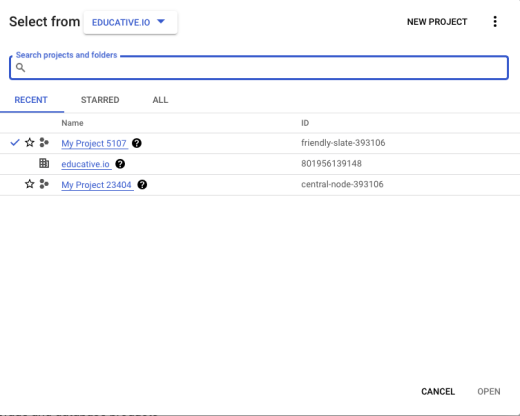
Create a Google Cloud project: Go to the Google Cloud Console and create a new project or use an existing one.

Enable the Compute Engine API: In the Cloud Console, navigate to "APIs & Services" > "Library," search for "Compute Engine API," and enable it.


Authenticate with gcloud: Run
gcloud auth loginand follow the instructions to log in and authenticate the SDK with your Google Cloud account.


Create a Terraform configuration file:
Create a new directory for your Terraform configuration and navigate to it in the terminal.
Create a file named
main.tfin this directory. This is where you'll define the Terraform configuration.


Define the provider and VM Configuration:
In the
main.tffile, specify the GCP provider and the VM resource. Here's a basic example:
locals {project_id = var.project_id}provider "google" {project = local.project_idregion = "us-central1"zone = "us-central1-b"}resource "google_project_service" "compute_service" {project = local.project_idservice = "compute.googleapis.com"}resource "google_compute_instance" "vm_instance" {name = "nginx-instance"machine_type = "f1-micro"tags = ["nginx-instance"]boot_disk {initialize_params {image = "centos-7-v20210420"}}
Code explanation
The code starts by defining a local variable
project_idusing the user-provided input variablevar.project_id, which represents the GCP project ID where resources will be created.Next, the GCP provider is configured with the
googleprovider block. It sets the GCP project ID to the previously defined local variableproject_id. The region is set tous-central1, and the zone is set tous-central1-b, specifying the location for resource creation.A
google_project_serviceresource is defined to enable the Compute Engine API (compute.googleapis.com) for the specified GCP project. This API is essential for creating compute resources like virtual machines.Finally, a
google_compute_instanceresource is defined to create a GCP virtual machine instance. The VM will be namednginx-instanceand will use thef1-micromachine type, which provides limited resources. The VM's boot disk is initialized with the CentOS 7 image specified ascentos-7-v20210420.
Create a VPC network
A VPC network provides a logically isolated and private environment within GCP. It allows you to segment your resources and control their communication, providing a secure and controlled infrastructure.
resource "google_compute_network" "vpc_network" {name = "terraform-network"auto_create_subnetworks = falsedelete_default_routes_on_create = truedepends_on = [google_project_service.compute_service]}
Code explanation
The new resource block creates a Google Compute Engine network in the specified GCP project.
The
nameattribute sets the name of the Virtual Private Cloud (VPC) network toterraform-network. This network will be identified by this name within the GCP project.The
auto_create_subnetworksattribute is set tofalse. This means that no subnetworks will be automatically created within this VPC network. Subnetworks will need to be created manually.The
delete_default_routes_on_createattribute is set totrue. When creating a custom network, this setting will delete the default routes that are automatically created for the network.The
depends_onattribute specifies that the creation of this VPC network depends on the successful creation of thegoogle_project_service.compute_service. This ensures that the Compute Engine API (compute.googleapis.com) is enabled before creating the VPC network.
Create a private subnetwork
Creating a private subnetwork in Google Cloud Platform (GCP) allows you to further segment your Virtual Private Cloud (VPC) network into smaller subnets with distinct IP address ranges. Each subnetwork can be associated with a specific region and can contain a subset of resources within the larger VPC.
resource "google_compute_subnetwork" "private_network" {name = "private-network"ip_cidr_range = "10.2.0.0/16"network = google_compute_network.vpc_network.self_link}
Code explanation
The new resource block creates a Google Compute Engine subnetwork within the previously defined VPC network.
The
nameattribute sets the name of the subnetwork to "private-network". This name is used to identify the subnetwork within the GCP project.The
ip_cidr_rangeattribute defines the IP address range for the subnetwork. Here, it is set to10.2.0.0/16, which means the subnetwork will have a private IP address range from 10.2.0.0 to 10.2.255.255.The
networkattribute specifies theself_linkof the VPC network where the subnetwork will be created. Thegoogle_compute_network.vpc_networkis a reference to the previously defined VPC network resource, andself_linkretrieves the unique identifier of that network.
Create a VPC router
VPC router in Google Cloud Platform (GCP) enables the establishment of network connectivity and routing capabilities within your Virtual Private Cloud (VPC) network. The VPC router acts as a central hub for handling traffic between subnets and external networks.
resource "google_compute_router" "router" {name = "quickstart-router"network = google_compute_network.vpc_network.self_link}
Code explanation
The new resource block creates a Google Compute Engine router within the specified VPC network.
The
nameattribute sets the name of the router toquickstart-router. This name is used to identify the router within the GCP project.The
networkattribute specifies the self_link of the VPC network where the router will be associated. Thegoogle_compute_network.vpc_networkis a reference to the previously defined VPC network resource, and.self_linkretrieves the unique identifier of that network.
Configure NAT (Network Address Translation)
Configuring NAT (Network Address Translation) in Google Cloud Platform (GCP) with a VPC router enables instances within private subnets to access the internet or external services using a single or a pool of public IP addresses. NAT allows private IP addresses to be translated into a publicly routable IP address when communicating with resources outside the VPC.
resource "google_compute_router_nat" "nat" {name = "quickstart-router-nat"router = google_compute_router.router.nameregion = google_compute_router.router.regionnat_ip_allocate_option = "AUTO_ONLY"source_subnetwork_ip_ranges_to_nat = "ALL_SUBNETWORKS_ALL_IP_RANGES"}
Code explanation
The new resource block creates a Google Compute Engine NAT (Network Address Translation) configuration within the previously defined router.
The
nameattribute sets the name of the NAT configuration toquickstart-router-nat. This name is used to identify the NAT configuration within the GCP project.The
routerattribute specifies the name of the router to which the NAT configuration will be associated. The value is taken from thenameattribute of the previously definedgoogle_compute_router.routerresource.The
regionattribute specifies the region where the router is located. The value is taken from theregionattribute of the previously definedgoogle_compute_router.routerresource.The
nat_ip_allocate_optionattribute sets the NAT IP allocation option. Here, it is set toAUTO_ONLY, which means the NAT IP addresses will be automatically allocated from the available pool.The
source_subnetwork_ip_ranges_to_natattribute determines which subnetwork IP ranges are subjected to NAT. Here, it is set toALL_SUBNETWORKS_ALL_IP_RANGES,which means that all IP ranges from all subnetworks associated with the router will be subject to NAT.
Create an internet route for private network
Internet route for a private network in Google Cloud Platform (GCP) enables instances within a private subnet to access the internet for outbound communication. This is achieved by routing traffic destined for the internet through a specific route in the VPC network.
resource "google_compute_route" "private_network_internet_route" {name = "private-network-internet"dest_range = "0.0.0.0/0"network = google_compute_network.vpc_network.self_linknext_hop_gateway = "default-internet-gateway"priority = 100}
Code explanation
The new resource block creates a Google Compute Engine route within the specified VPC network to allow outbound internet access for the private network.
The
nameattribute sets the name of the route toprivate-network-internet. This name is used to identify the route within the GCP project.The
dest_rangeattribute specifies the destination IP range for the route. Here, it is set to0.0.0.0/0, which represents all IP addresses. This means the route will apply to all outbound traffic from the private network.The
networkattribute specifies the self_link of the VPC network where the route will be associated. Thegoogle_compute_network.vpc_networkis a reference to the previously defined VPC network resource, and.self_linkretrieves the unique identifier of that network.The
next_hop_gatewayattribute sets the next hop for the route. In this case, it is set todefault-internet-gateway, indicating that the outbound traffic will be forwarded to the default internet gateway to access the internet.The
priorityattribute sets the priority of the route. The priority determines the precedence of the route when multiple routes match the same destination. Here, it is set to100, which means it has a higher priority compared to routes with lower values (e.g., default routes).
Here's the overall code in the main.tf file:
variable "project_id" {type = string}locals {project_id = var.project_id}provider "google" {project = local.project_idregion = "us-central1"zone = "us-central1-b"}resource "google_project_service" "compute_service" {project = local.project_idservice = "compute.googleapis.com"}resource "google_compute_network" "vpc_network" {name = "terraform-network"auto_create_subnetworks = falsedelete_default_routes_on_create = truedepends_on = [google_project_service.compute_service]}resource "google_compute_subnetwork" "private_network" {name = "private-network"ip_cidr_range = "10.2.0.0/16"network = google_compute_network.vpc_network.self_link}resource "google_compute_router" "router" {name = "quickstart-router"network = google_compute_network.vpc_network.self_link}resource "google_compute_router_nat" "nat" {name = "quickstart-router-nat"router = google_compute_router.router.nameregion = google_compute_router.router.regionnat_ip_allocate_option = "AUTO_ONLY"source_subnetwork_ip_ranges_to_nat = "ALL_SUBNETWORKS_ALL_IP_RANGES"}resource "google_compute_route" "private_network_internet_route" {name = "private-network-internet"dest_range = "0.0.0.0/0"network = google_compute_network.vpc_network.self_linknext_hop_gateway = "default-internet-gateway"priority = 100}resource "google_compute_instance" "vm_instance" {name = "nginx-instance"machine_type = "f1-micro"tags = ["nginx-instance"]boot_disk {initialize_params {image = "centos-7-v20210420"}}network_interface {network = google_compute_network.vpc_network.self_linksubnetwork = google_compute_subnetwork.private_network.self_link}}
Initialize and apply the configuration:
In the terminal, run
terraform initto initialize the Terraform configuration and download the required plugins.


II. Then, run terraform apply to apply the configuration and create the VM. Confirm the action when prompted.
Free Resources