How to create a waffle chart in Python
Waffle chart
A waffle chart is an alternative to a pie chart. It is used to visualize progress towards a goal, percentage of task completion or profit, or part-to-whole relationship. The waffle chart is also known by the name Grid Plot.
A waffle chart is represented by a square or rectangular grid of cells, each corresponding to unit or . The cells are represented with colors to differentiate between categories. A waffle chart can include multiple categories. Different waffle charts can also be combined as subplots to show relationships among different datasets.
Here’s an example of a sample waffle chart organized as a grid of x cells.
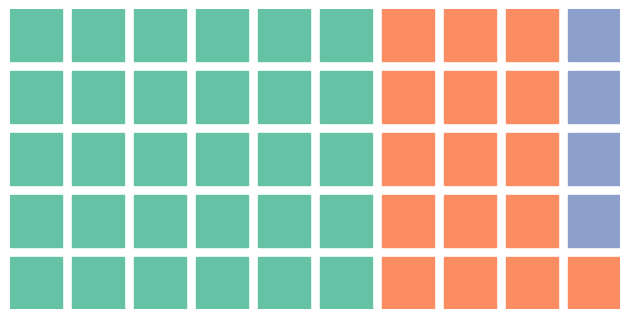
Waffle charts in Python
Python uses PyWaffle, an open-source package based on matplotlib, to create waffle charts. The figure constructor takes rows, columns, and data as parameters.
The following code creates a waffle chart corresponding to the simple waffle chart depicted above.
import matplotlib.pyplot as pltfrom pywaffle import Wafflefig = plt.figure(FigureClass=Waffle,rows=5,columns=10,values=[30, 16, 4],title = {"label": "Sample Waffle chart", "loc": "Center", "size": 15})
Here’s an explanation of the code above.
- Lines 1-2: We import the relevant libraries.
- Line 4: We initialize the figure constructor (
matplotlib.pyplot.figure) of the typeWaffleto create the waffle chart. - Line 5: We set
FigureClasstoWaffle. It describes the type of the chart. - Lines 6-7: We define the number of rows and columns. If only one of them is given, then a default waffle chart of cells is created.
- Line 8: The parameter
valuestakes the values to be plotted on the chart, it could be a list or a DataFrame. The values in the list represent the categories in the code.
Waffle Chart Customization
We can customize the waffle chart to add legends, titles, and labels. We can also customize colormaps, background color, icon types, and orientation of plotting in a waffle chart.
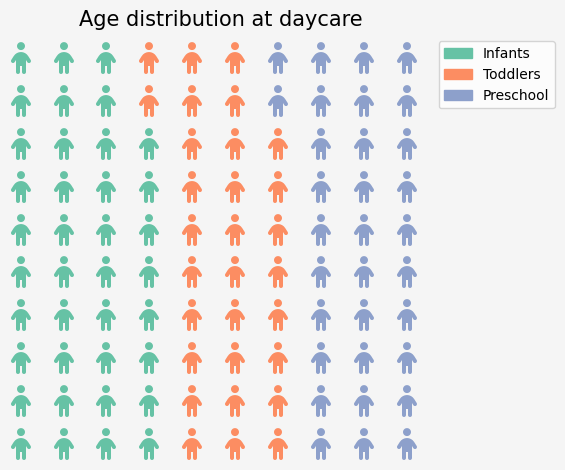
A relevant example is shown below where a small data has been represented in a customized manner.
import matplotlib.pyplot as pltfrom pywaffle import Wafflefig = plt.figure(FigureClass=Waffle,rows=10,columns=10,values={'Infant': 20, 'Toddler': 16, 'Preschool': 17},legend={'loc': 'upper left', 'bbox_to_anchor': (1, 1)},cmap_name = 'Set2',facecolor = 'whitesmoke',title = {"label": "Age distribution at daycare", "loc": "Center", "size": 15},icons = 'child',vertical=False)
- Line 8: The argument
valuesrepresents the dataset. - Line 9: The argument
legenddescribes the legend of the chart. - Line 10: The argument
cmap_namespecifies the colormap for the chart. - Line 11: The argument
facecolorrefers to the background color of the chart. - Line 12: The argument
titledescribes the title of the chart. - Line 13: The argument
iconsrefers to the icon type of the cells. - Line 14: The argument
verticalstates the direction of plotting. Waffle chart, by default, plots data column-wise, but setting the argumentverticaltotruewill plot the data row-wise.
The output of this code is given below.
Merits and limitations
Compared to pie charts, waffle charts are aesthetically pleasing, straightforward, quantitatively detailed, and provide an easier at-a-glance understanding. Waffle charts are used for flattening datasets that add up to , where each cell represents one unit or one percent instead of an angle or area, which is usually the case for pie charts.
In contrast, the downside to the easier interpretation of waffle charts is that the inclusion of too many cells tends to make it complicated. And the lack of spaces between the cells of the grid does not allow individualized labeling of cells, which makes it unsuited for complicated data visualizations.
Free Resources