How to create Cloud Firestore database for React Native
Cloud Firestore is a NoSQL document database provided by Firebase. It allows developers to store, sync, and query data. Firestore organizes data into collections and documents, making it easy to access and manipulate data.
Firestore is useful for React Native because it offers a reliable and secure way to store data in the cloud. It keeps the data in sync across multiple devices. With Firestore, React Native developers can easily store and retrieve data, perform complex searches, and create responsive applications without worrying about building and maintaining server infrastructure.
Follow the steps outlined below to successfully create the Cloud Firestore database for React Native.
Create a Firebase project
First, we have to create a Firebase project. Follow the following steps to create a Firebase project:
-
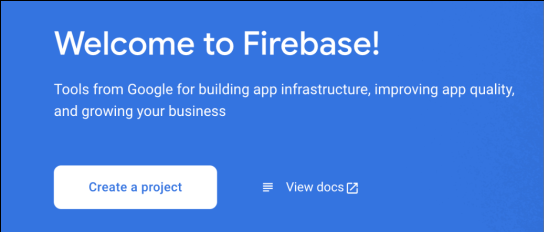
Navigate to the Firebase console and click the “Create a project” button to add a new project.
-
Next, add the project name and click the “Continue” button.
-
Next, enable or disable the
Enable Google Analytics for this projectoption as per the requirements of the project. Once done, click on the “Create project” button to create the project. -
Once the project has been created, click on the “Continue” button to navigate to the project dashboard.

Obtain credentials for the Firebase configuration file
Once the Firebase project has been created, we have to obtain the credentials for the Firebase configuration file. Follow the steps below to get these credentials.
-
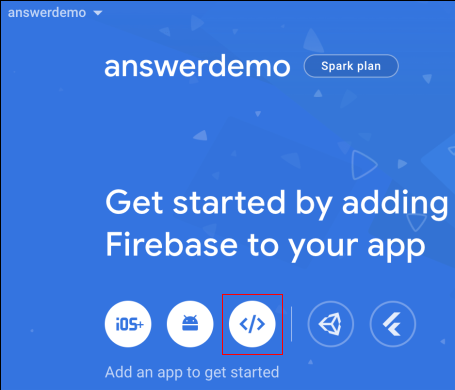
Navigate to the project dashboard and click on the web icon as shown in the illustration below. This will add a web application to the Firebase project.
-
Perform the following actions on the next screen:
- Give a nickname to the web application.
- Enable or disable the
Also set up Firebase Hosting for this app.option according to the requirements of the project.
-
Click the “Register app” button to register the application.
Once the web application has been registered, the credentials for the Firebase configuration file will be available on the screen. Copy the credentials and store them somewhere safe.

Obtain credentials for the google-services.json file
Next, we have to obtain the credentials for the google-services.json file. Follow the steps below to get these credentials.
-
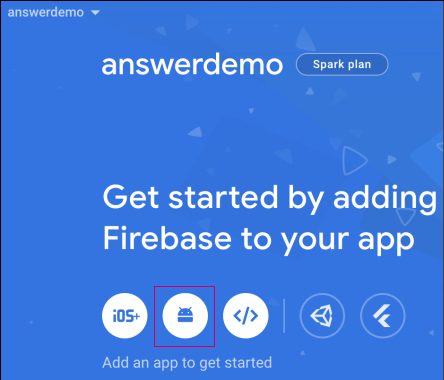
Navigate to the project dashboard and click on the Android icon as shown in the illustration below. This will add an Android application to the Firebase project.
-
Perform the following actions on the next screen:
- Provide a package name for the Android application. The package name is generally the
applicationIdinside the<projectName>/android/app/build.gradlefile within the React Native project.
Note:
<projectName>is the name of the React Native project.- Give a nickname to the Android application.
- Provide a package name for the Android application. The package name is generally the
-
Click the “Register app” button to register the application.
Note:
Debug signing certificate SHA-1is optional. However, configure it as per the requirements of the React Native project.
Once the Android application has been registered, the credentials for the google-services.json file will be available on the screen. Download the credentials and store them somewhere safe.

Create the Cloud Firestore database
Once all the above steps have been completed successfully, we can create the Cloud Firestore database for React Native. Follow the steps below to create the Cloud Firestore database.
-
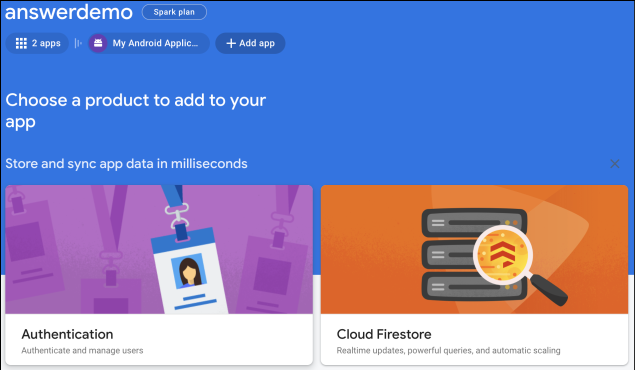
Click the “Cloud Firestore” card on the project’s dashboard, as shown in the illustration below.
-
Click the “Create database” button.
-
Select the
Start in production modeorStart in test modeoptions as per the requirements of the project and click the “Next” button. -
Select the location for the Cloud Firestore and click on the “Enable” button.
Congratulations! The cloud Firestore database for React Native has successfully been created and initialized. The database can now be integrated into React Native applications with the help of the firebase configuration and google-services.json files, respectively.

Free Resources