How to customize Seaborn plots
Seaborn is a data visualization library made for the Python programming language. It is built on top of Matplotlib, a widely used plotting library in Python as well. Therefore, Seaborn provides a more convenient API for creating aesthetically pleasing statistical graphics.
In this Answer, we will primarily explore a range of techniques to enhance the visual appeal of our plots and customize them. For this purpose, we'll delve into various methods and attributes of Seaborn.
Setting up Seaborn
To ensure that you have Seaborn installed, first, use the following command:
pip install seaborn
If pip i.e., the package manager for Python, is not installed, you can install it by first downloading pip's official script and then using the command:
python get-pip.py
Alternatively, you can follow the instructions here.
Prerequisites for the base code
Importing libraries
We import the following libraries for running our code snippets.
Numpy
Helps in mathematical operations
Matplotlib
Helps in data visualization
Seaborn
High-level library built on top of
matplotlib
Data initialization
To create any plot, some data is required beforehand. Let's create temporary data using the random method of the numpy library.
A
seedof 50 is generated to ensure the same sequence is created every time we run the code, which helps reproduce results.An array of 1000 random numbers having a standard deviation of 20 and a mean of 50, is generated using the
randnfunction.
Seaborn styling options
Once we've set up our data and imported libraries, we can experiment with Seaborn's various styling options to allow us creative freedom and strong statistical capabilities.
Setting fonts and font scales
We can choose our desired font that is supported by Seaborn and set it using the set method by passing the font attribute. We can further increase or decrease the default size of the text using the font_scale attribute. The set method is applied on sns.
In this example:
We set the font "Arial".
We increase the font size by a factor of 1.2.
import numpy as npimport seaborn as snsimport matplotlib.pyplot as pltnp.random.seed(50)data = np.random.randn(1000) * 20 + 50sns.set(font="Arial", font_scale=1.2)sns.histplot(data)plt.show()
Setting plot size
Another useful thing that we can do is specify the exact figure size we want our plot to have in case the default size does not meet our needs i.e., the plot seems too small or large. The figsize=(a,b) statement handles this. a refers to the width, while b refers to the height.
In this example:
We specify the
figsizeto be 8 x 6. This means that the figure will have a width of 8 inches and a height of 6 inches.
import numpy as npimport seaborn as snsimport matplotlib.pyplot as pltnp.random.seed(50)data = np.random.randn(1000) * 20 + 50plt.figure(figsize=(8, 6))sns.histplot(data)plt.show()
Setting X and Y labels for the plot
We use the plt.xlabel() and plt.ylabel() functions to specify the labels for both the
In this example:
We set the x-axis label to "X Label" and the y-axis label to "Y Label" using the
plt.xlabel()andplt.ylabel()functions, respectively.
import numpy as npimport seaborn as snsimport matplotlib.pyplot as pltnp.random.seed(50)data = np.random.randn(1000) * 20 + 50plt.xlabel("X Label")plt.ylabel("Y Label")sns.histplot(data)plt.show()
Setting the legend and adding a plot label
To create a legend in a plot, we can use the plt.legend() function. It allows us to provide a title for the legend and specify the labels for each item. We can now identify different elements in the plot and understand their meaning.
In this example:
We create a histogram plot using
sns.histplot()and assign the label "Data" to it. Then, we useplt.legend()to generate a legend for the plot. Thetitleparameter is used to set the title of the legend to "Legend Title".
import numpy as npimport seaborn as snsimport matplotlib.pyplot as pltnp.random.seed(50)data = np.random.randn(1000) * 20 + 50sns.histplot(data, label="Data")plt.legend(title="Legend Title")plt.show()
Setting colors
To modify the color palette of a plot in Seaborn, we can use the sns.set_palette() function. This allows us to specify a predefined palette or even create a custom color palette! How amazing is that?
In this example:
We set the color palette using
sns.set_palette("husl"). By using this palette, the histogram plot created withsns.histplot()will be displayed using the colors from ourhuslpalette.
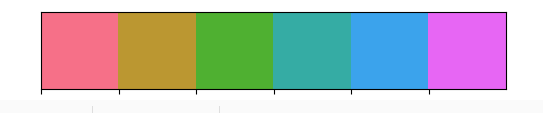
import numpy as npimport seaborn as snsimport matplotlib.pyplot as pltnp.random.seed(50)data = np.random.randn(1000) * 20 + 50sns.set_palette("husl")sns.histplot(data)plt.show()
Setting X and Y ticks
Aside from the basic functionalities, we can take our code a notch further and even customize our
To customize the tick marks on the x-axis and y-axis of a plot, we can use the plt.xticks() and plt.yticks() functions. Therefore, we can specify the specific positions and labels for the ticks.
In this example:
We use
plt.xticks(rotation=45)to set the rotation angle of the x-axis tick labels to 45 degrees.plt.yticks([0, 5, 10])specifies the positions of the y-axis tick marks as 0, 5, and 10, allowing us to define the specific locations of the ticks on the y-axis.
import numpy as npimport seaborn as snsimport matplotlib.pyplot as pltnp.random.seed(50)data = np.random.randn(1000) * 20 + 50sns.histplot(data)plt.xticks(rotation=45)plt.yticks([0, 5, 10])plt.show()
Note: Setting the angle to 45 degrees can be helpful when the labels are long or may overlap.
Adjusting plot margins
Plot margins can be a concern while observing various data and may be handled in different ways.
In this example:
After creating the histogram plot using
sns.histplot(), we can usesns.despine()to remove the defaultspines The lines that frame the plot. The
offsetparameter is used to specify the distance between the spines and the main content, and thetrimparameter controls whether the spines are trimmed to the end ticks or not.
import numpy as npimport seaborn as snsimport matplotlib.pyplot as pltnp.random.seed(50)data = np.random.randn(1000) * 20 + 50sns.histplot(data)sns.despine(offset=10, trim=True)plt.show()
Setting the plot background
We can also experiment with the background style of the plot by using the sns.set() function and specify our desired style and color palette.
In this example:
We set a background of "darkgrid" to our plot using the
styleattribute.We have also used our previously learned concept of palettes here and set a pastel palette for our plot.
Note: "darkgrid" refers to dark backgrounds and "whitegrid" refers to light backgrounds.
import numpy as npimport seaborn as snsimport matplotlib.pyplot as pltnp.random.seed(50)data = np.random.randn(1000) * 20 + 50sns.set(style="darkgrid", palette="pastel")sns.histplot(data)plt.show()
Customizing grid appearance
To achieve heightened customization in our grids, we can choose to experiment with various attributes like style and color_codes.
In this example:
We set the "tick"
styleto display minor tick marks at the gridlines.We also set the
color_codestoTrue, which allows us to use specific color codes in our gridlines.
import numpy as npimport seaborn as snsimport matplotlib.pyplot as pltnp.random.seed(50)data = np.random.randn(1000) * 20 + 50sns.set(style="ticks", color_codes=True)sns.histplot(data)plt.show()
Different seaborn code samples
Having covered quite a few styling scenarios, let's build complete plots using what we've learned in the section below. We will also be using some new attributes that are pretty self-explanatory like fontweight and fontsize.
Let's see how many new styles you can discover below!
Seaborn scatterplot
Our first interesting scenario includes a medical setting. The following plot creates some random data for heart rates and body temperatures. We then create dummy patients and create a scatterplot against heartRates and bodyTemperatures.
import numpy as np
import seaborn as sns
import matplotlib.pyplot as plt

np.random.seed(50)

heartRates = np.random.normal(80, 10, 100)
bodyTemperatures = np.random.normal(37, 0.5, 100)

sns.set(style="whitegrid", palette="viridis")

plt.figure(figsize=(10, 6))
sns.scatterplot(x=heartRates, y=bodyTemperatures, hue=heartRates, size=bodyTemperatures,
                sizes=(50, 300), alpha=0.8, edgecolor='black')

plt.xlabel("Heart Rate (bpm)", fontweight="bold")
plt.ylabel("Body Temperature (°C)", fontweight="bold")
plt.title("Heart Rate vs Body Temperature", fontweight="bold")

plt.text(90, 36.5, "Patient A", fontsize=10, fontweight="bold")
plt.text(78, 37.8, "Patient B", fontsize=10, fontweight="bold")
plt.text(75, 37.2, "Patient C", fontsize=10, fontweight="bold")
plt.text(85, 37.9, "Patient D", fontsize=10, fontweight="bold")

plt.legend(title="Heart Rate", title_fontsize=12)

plt.show()
Scatterplot output


Seaborn line plot
Here, we have another exciting scenario in the domain of astronomy!
Let's say we have random data for time and velocity. We can now make a line plot for these variables using Seaborn's lineplot and customize it according to our needs.
import numpy as np
import seaborn as sns
import matplotlib.pyplot as plt

np.random.seed(50)

time = np.linspace(0, 10, 100)
velocity = 10 * np.sin(time) + np.random.normal(0, 1, 100)

sns.set(style="whitegrid", palette="Set2")

plt.figure(figsize=(10, 6))

sns.lineplot(x=time, y=velocity, linewidth=2, color="orange")

plt.xlabel("Time", fontweight="bold")
plt.ylabel("Velocity", fontweight="bold")

plt.title("Astronomical Velocity Variation", fontweight="bold")

plt.xticks(np.arange(0, 11, 1))
plt.yticks(np.arange(-10, 11, 2))

plt.grid(color='white', linestyle='-', linewidth=0.5)
sns.despine(left=True, bottom=True)

plt.show()
Lineplot output


Hurray! We've not only learned various methods to customize our Seaborn plots, but we've also made two full-fledged plots depicting scenarios similar to real life.
You can also experiment with the plots and check out their varying outputs by clicking "Run".
Note: Here's our course on Seaborn that you can explore to further hone your Seaborn skills.
Test your styling knowledge here!
What will a font_scale factor of 0.9 do to the original font size?
Free Resources