How to debug applications in iOS
Debugging an application is an essential part of the software development process. It helps to identify and fix errors or bugs in the code.
It allows developers to understand the root causes of errors, such as application crashes, incorrect outputs, or unexpected behaviors in the program.
Xcode is the Integrated Development Environment (IDE) for developing applications that target Apple’s platforms, including macOS, iOS, watchOS, and tvOS. It offers a variety of debugging tools and features to diagnose and fix applications.
How to debug in Xcode
Here is the detailed guide on how to debug applications in Xcode.
Open the project
Open Xcode
Click on "Open another project"
Navigate to iOS folder in your project
Select
.xcodeprojor.xcworkspacefileOpen the project
Set up the breakpoints
Breakpoints are the lines in your code where the application is paused during execution. It allows you to control the flow of the program during debugging.
In the Editor window, click on the number of lines where you want to set the breakpoint.
A purple arrow will appear to indicate that the breakpoint has been set.
The program will stop at the breakpoints whenever you run your application on a simulator or an actual device.

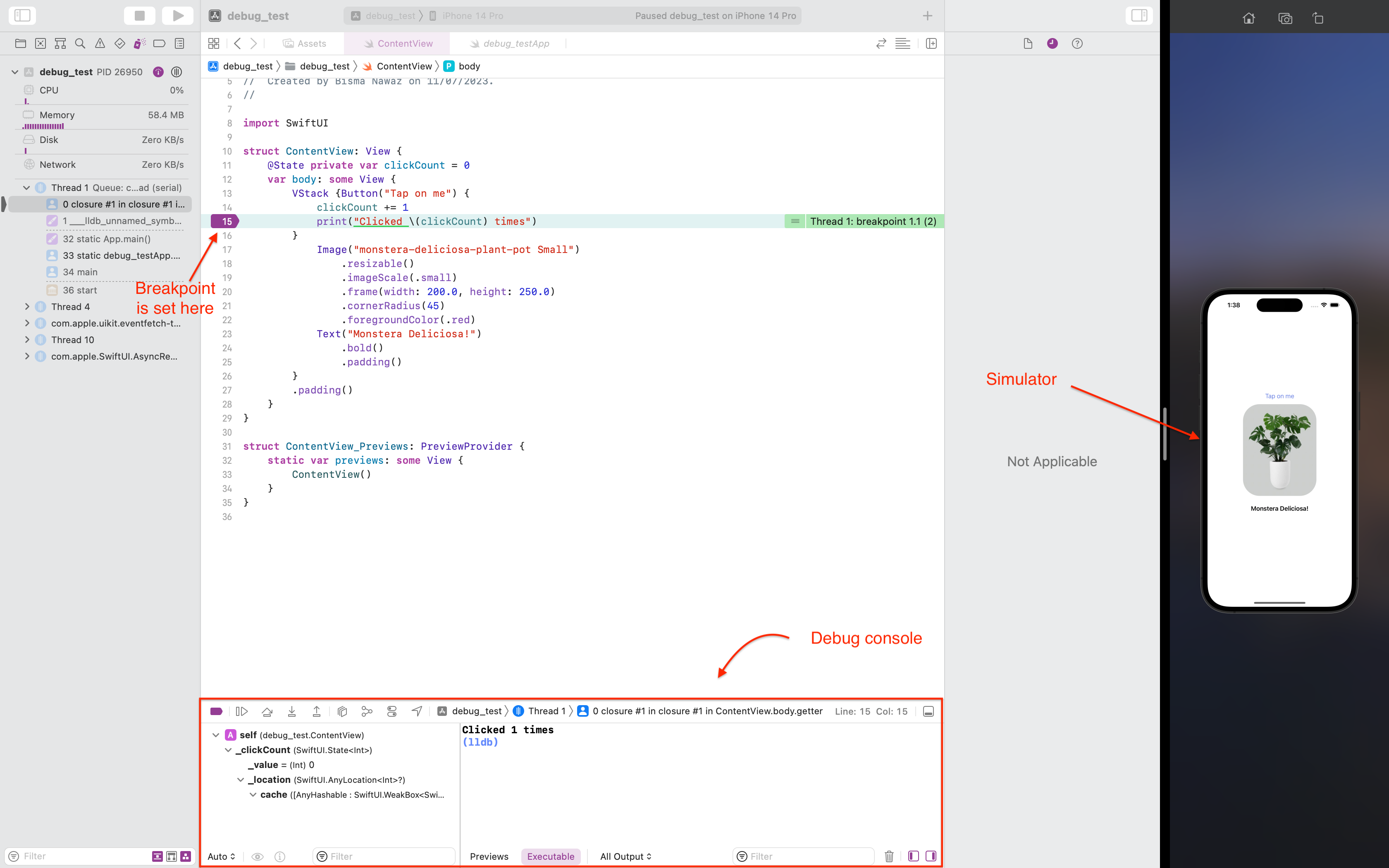
Inspect the variables
Inspecting the variables allow you to see the current values of the variables and point out the incorrect values.
While the execution is paused, you can inspect the variables in the debug area at the bottom of the Xcode window.
You can view local variables by clicking the "Local Variables" button or typing the variable name in the console to see its current value.


You can iterate over the code using the following buttons.
These buttons allow you to deactivate breakpoints, continue program execution, step over, step into, and step out of the current function.


Use the debug console
Debug console allows you to execute your program while it is paused. You can use the console to change variable values or call methods and see their outputs.
To open the debug console, click on the bottom right corner in the Xcode. It will show up at the screen.


Local variable and debug console


Use debugging tools
Xcode provides a variety of tools to debug your applications.
LLDB: It is a command line debugger in Xcode for examining and controlling the program. You can access it through the console in the debug area.
Debug view hierarchy: It allows you to inspect your UI in 3D. You can rotate, zoom, and pan the view to see all the layers of your interface. It is useful for finding views that are out of place or hidden.
Instruments: Instruments is a testing and performance analysis tool that helps you track CPU usage, memory leaks, and other performance-related issues.
By following the steps mentioned above, you should be able to debug your applications successfully.
Continue reading
Free Resources