How to fix the Julia language server in VS Code
Visual Studio is a powerful integrated development environment (IDE) developed by Microsoft, widely used for various types of software development. It supports a wide range of programming languages, including C#, C++, Python, JavaScript, TypeScript, and many others, making it versatile for different projects.
Using Julia in Visual Studio Code (VS Code) provides a robust environment for developing Julia applications.
Problem
VS Code may give the following error when using the Julia language server:
Could not start the Julia language server. Make sure the configuration setting julia.executablePath points to the Julia binary.
The above error means that the julia.exe can not start the language server, and it suggests checking if julia.executablePath points to the Julia binary.
Troubleshooting
Following are some steps you can take to troubleshoot this problem:
Install/Re-install: Make sure the Julia extension is installed in the VS Code. Re-installing also helps sometimes. For reference, you can review the documentation on the website of VS Code.
https://code.visualstudio.com/docs/languages/julia Compatibility issues: Make sure Julia and VS Code are updated. Try using the latest versions.
-
Check the path: Verify that the Julia executable is in the system’s path. You can also manually set the path to the
Julia.exein the VS Code. For this, go to “File"→"Preferences"→"Settings”. In the search bar, typejulia.executablePath. Click the “Edit in settings.json” link. Now, add thejulia.executablePathsetting with the path to the Julia executable in thesettings.jsonfile. Modify according to the path where Julia is installed.For Windows:
{
  "julia.executablePath": "C:\\Path\\To\\Julia\\bin\\julia.exe"
}
For Linux/MAC:
{
  "julia.executablePath": "/path/to/julia/bin/julia"
}
Check the language server output: Select "View" → "Output" and choose "Julia Language Server" from the dropdown. Look for any error messages or warnings.
Add the language server: Open Julia in the terminal and switch to
pkgmode with]and add theLanguageServerpackage withadd LanguageServercommand and restart VS code.

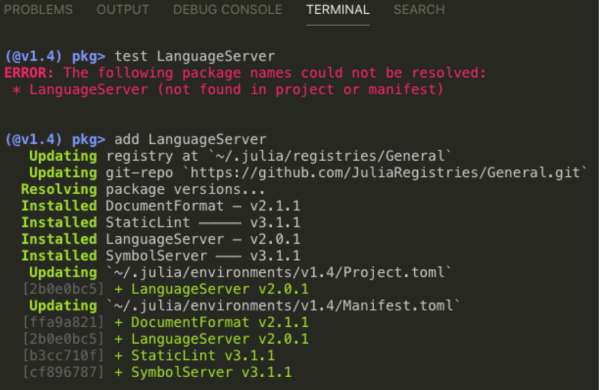
- Update the language server: Open Julia in the terminal and switch to
pkgmode with]and update theLanguageServerpackage with theupdate LanguageServercommand and restart VS code.(@v1.4) pkg> update LanguageServer
Free Resources