How to implement calendars in React Native
In React Native, calendars are user-friendly tools that help developers add calendar functionalities to mobile apps. With customizable options, these calendars allow users to easily view schedules, manage events, and interact with dates. Their integration enhances the overall app experience.
Therefore, we need to use a library to render calendars in React Native. For this purpose, we use the react-native-calendar-picker library, which enables developers to incorporate calendars into their React Native applications easily.
Installing dependencies
We'll need to install a few packages using npm, so make sure that your React Native application is built before we proceed.
You can see here how to create a React Native application.
Navigate to the root directory of your React Native project and install the dependencies using the following commands.
cd newProjectnpm i react-native-calendar-pickernpm i moment
Creating a basic calendar
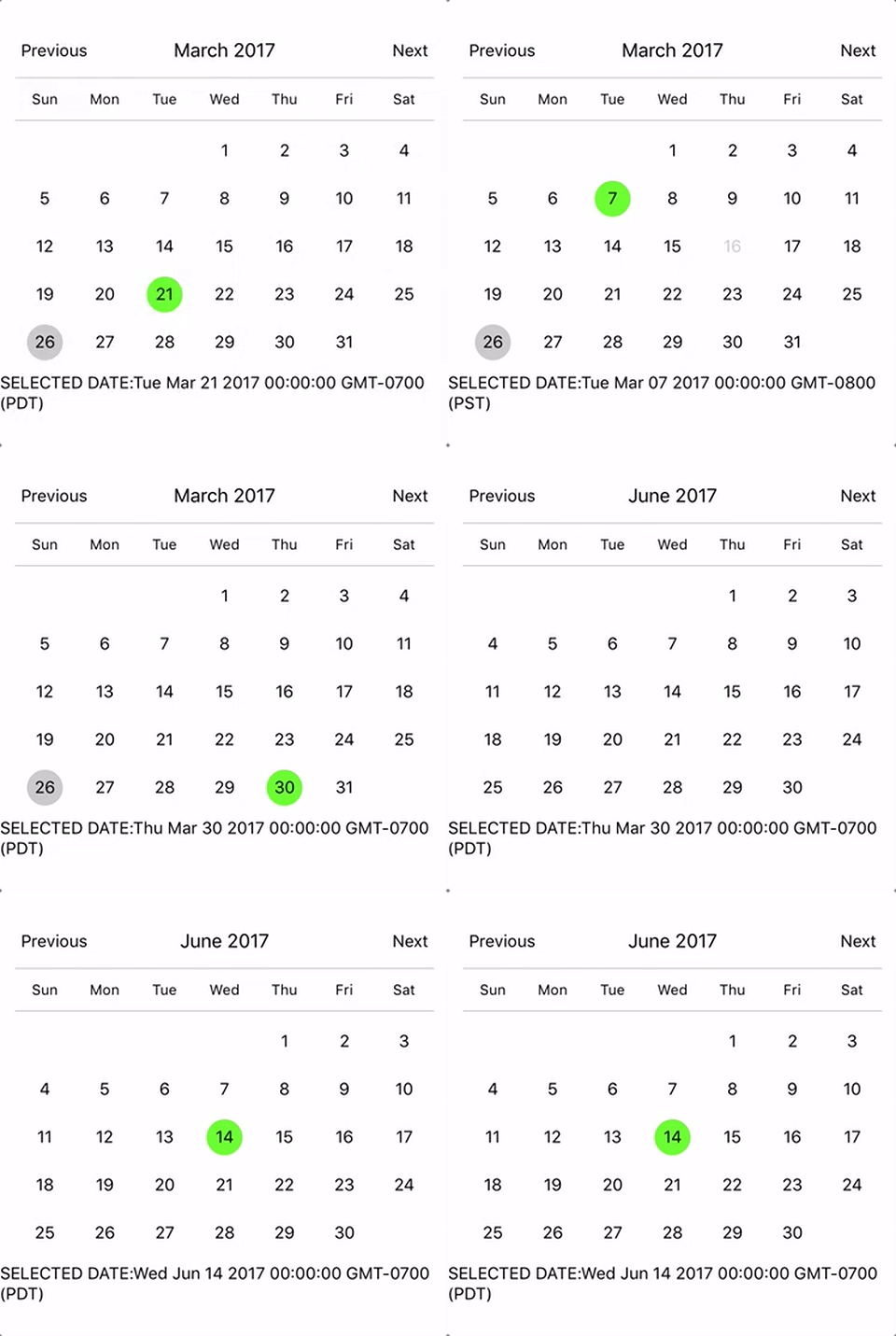
We will start with creating a basic calendar using the react-native-calendar-picker library. The code defines a React component named App that renders a CalendarPicker component from the react-native-calendar-picker library and displays the selected date below it.
import React, { Component } from 'react';
import { StyleSheet, Text, View } from 'react-native';
import CalendarPicker from 'react-native-calendar-picker';

export default class App extends Component {
  constructor(props) {
    super(props);
    this.state = {
      selectedStartDate: null,
    };
    this.onDateChange = this.onDateChange.bind(this);
  }

  onDateChange(date) {
    this.setState({
      selectedStartDate: date,
    });
  }

  render() {
    const { selectedStartDate } = this.state;
    const startDate = selectedStartDate ? selectedStartDate.toString() : '';
    return (
      <View style={styles.container}>
        <CalendarPicker
          onDateChange={this.onDateChange}
          width={700}
          height={500}
        />
        <Text>SELECTED DATE:{startDate}</Text>
      </View>
    );
  }
}

const styles = StyleSheet.create({
  container: {
    flex: 1,
    backgroundColor: '#FFFFFF',
    alignItems: 'center', // Center horizontally
    justifyContent: 'center', // Center vertically
  },
});
Note: Press 'w' key to see the output in web browser.
Line 9: The component's state has a property named
selectedStartDateinitialized asnull.Lines 14–18: The
onDateChangemethod updates theselectedStartDatestate when a date is selected in the calendar.Lines 20–33: In the
rendermethod:Line 21: The
selectedStartDateis extracted from the state and stored in thestartDatevariable.Lines 24–31: The UI consists of a
Viewcontainer with aCalendarPickercomponent and aTextcomponent to display the selected date.Line 26: The
onDateChangemethod updates the state when a date is selected in the calendar.Line 30: the selected date is extracted from the state and stored in the
startDatevariable.
This serves as a simple illustration of how calendars are incorporated into React Native. However, you can apply it in more practical scenarios, such as integrating it into to-do applications. When the onDateChange event occurs, you have the flexibility to invoke a function that manages the desired functionality.
Free Resources