How to install Android Studio in Ubuntu
Android Studio is the official integrated development environment (IDE) for Android app development. It provides a rich set of tools to design, build, and debug Android applications. Here are the step to install Android Studio in Ubuntu.
Step 1: Install Java Development Kit (JDK)
Android Studio requires Java Development Kit (JDK) to run. Before installing Android Studio, ensure you have JDK 8 or later version installed on your Ubuntu system. To install JDK, open a terminal window and update the package list using the following command:
sudo apt update
After updation, install JDK using the package manager:
sudo apt install openjdk-11-jdk
To verify that JDK has been installed successfully, run the following command:
java --version
Step 2: Install Android Studio
You can install Android Studio in two ways:
Using snap
Using repository
Using snap
Snap is a package management system developed by Canonical, which allows you to easily install and update software on your system. Run the following command to install Android Studio using Snap:
sudo snap install android-studio --classic
Using repository
Repository makes use of the PPA repository to proceed with the installation procedure. Here are the steps to follow:
Step 2.1: Import the Android Studio repository
Open a terminal and import the android-studio repository using the following command:
sudo add-apt-repository ppa:maarten-fonville/android-studio
Step 2.2: Update the package list
After adding the repository, update the package list again to include the new repository:
sudo apt update
Step 2.3: Install Android Studio
Now, you can install Android Studio using the apt package manager:
sudo apt install android-studio
Step 3: Launch Android Studio
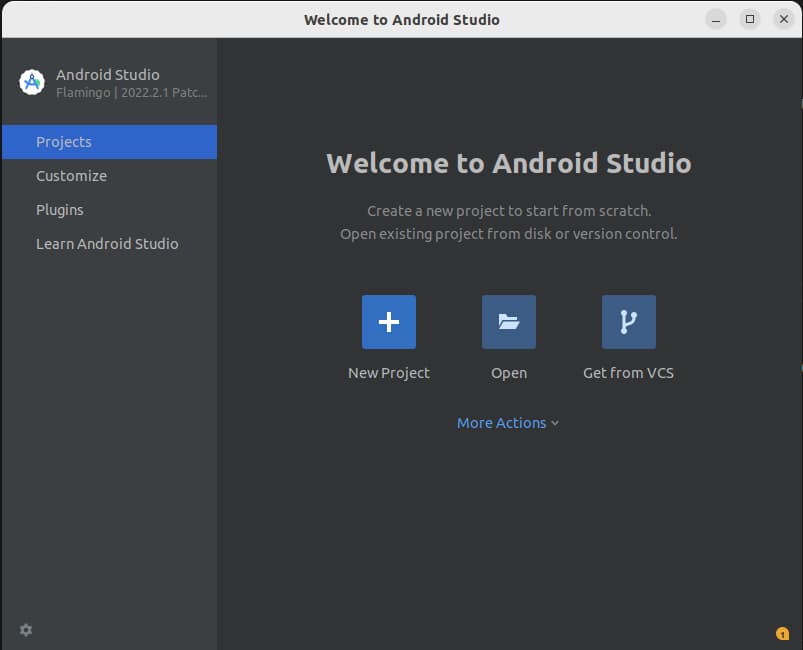
After successfully installing Android Studio on your system, you can launch it by searching for "Android Studio" in the application menu. Click on the icon to start the IDE. The setup wizard will guide you through the installation process. Follow the on-screen instructions, and when prompted, choose the installation options that suit your preferences.
Step 4: Setup Android SDK
Android Studio will prompt you to set up the Android SDK. If you already have an Android SDK installation, click on Next and provide the SDK path when prompted. If you don't have an existing Android SDK, choose the Standard installation and click Next to allow Android Studio to download and install the required SDK components.
Step 5: Configure Android Studio
Android Studio may prompt you to install additional components, such as SDK tools or emulator images. Follow the prompts to complete the installation. Once the setup is complete, you can customize Android Studio's appearance and settings according to your preferences.
Free Resources