How to install Kali Linux
1. Download VirtualBox
VirtualBox is a free open source virtualization solution. Download VirtualBox from its official website.
2. Install VirtualBox
After downloading VirtualBox, double click on the installer to install it.
3. Download the virtual image of Kali Linux
Go to the official page of Offensive Security, click on Kali Linux VirtualBox images, and download the image according to the bit version of your operating system.
4. Install Kali Linux on VirtualBox
4.1. Open VirtualBox and click on Import.
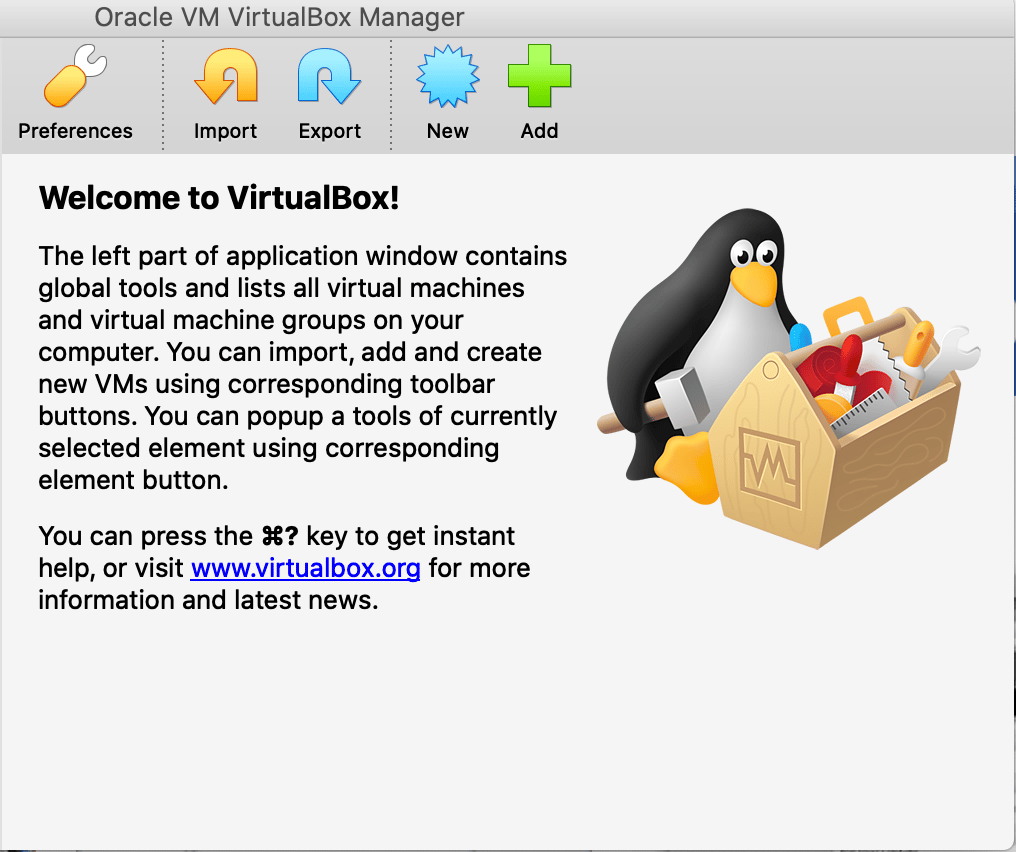
4.2. Click on the folder icon and locate your Kali Linux image file. Then, click on Continue.

4.3. Click on Import.

The following screen will appear:

4.4. Double-click on Kali Linux in the toolbar:

4.5. After a while, the following screen will appear. Enter kali as the username and click on Next.

4.6. Enter kali as the password and click on Sign In.

Kali Linux will be installed and you will be able to use it.

Note: Previously, the username was
rootand the password wastoor, but as of January 2020 both the username and the password arekali.
Free Resources