How to install Python
Installation of Python in Windows and Mac operating system
1. Windows
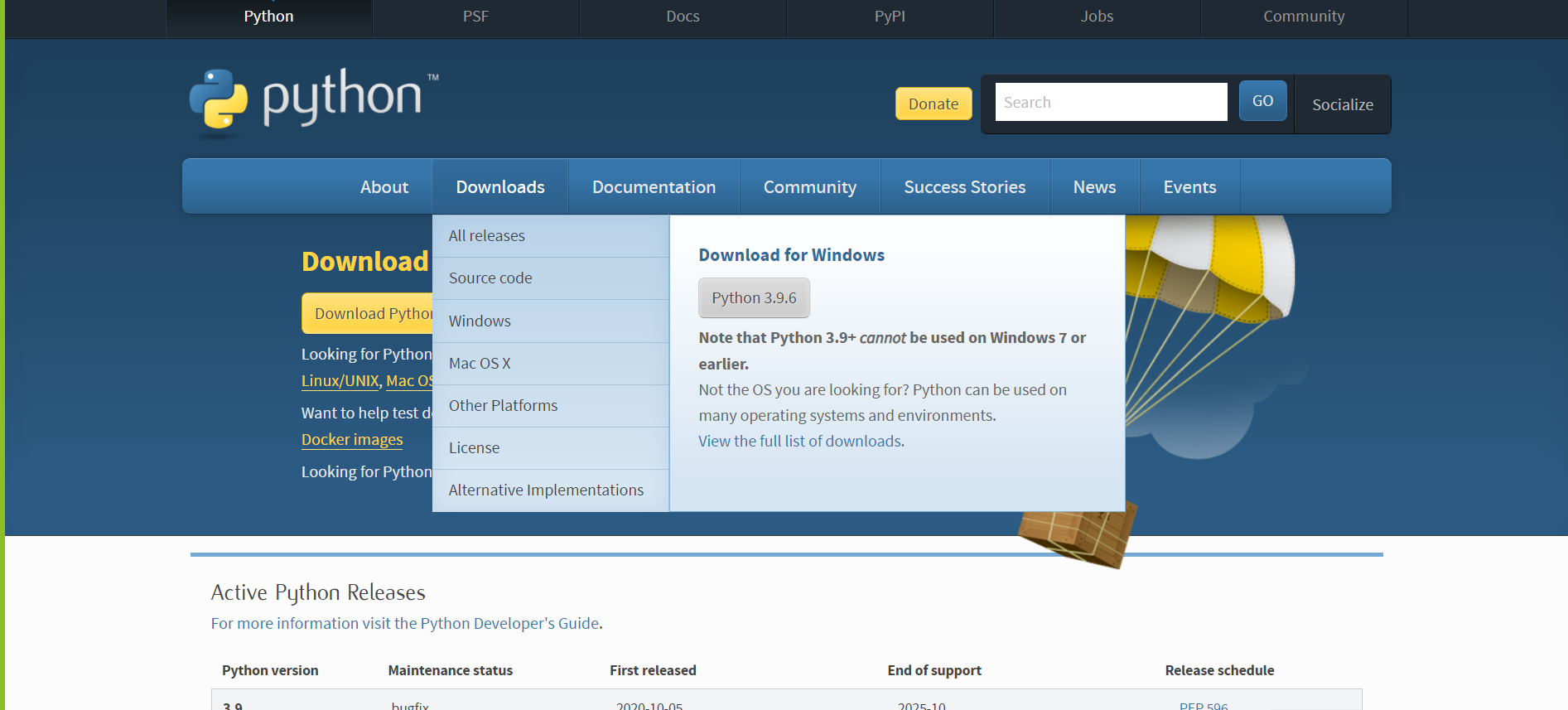
- Select any web browser and type https://www.python.org/
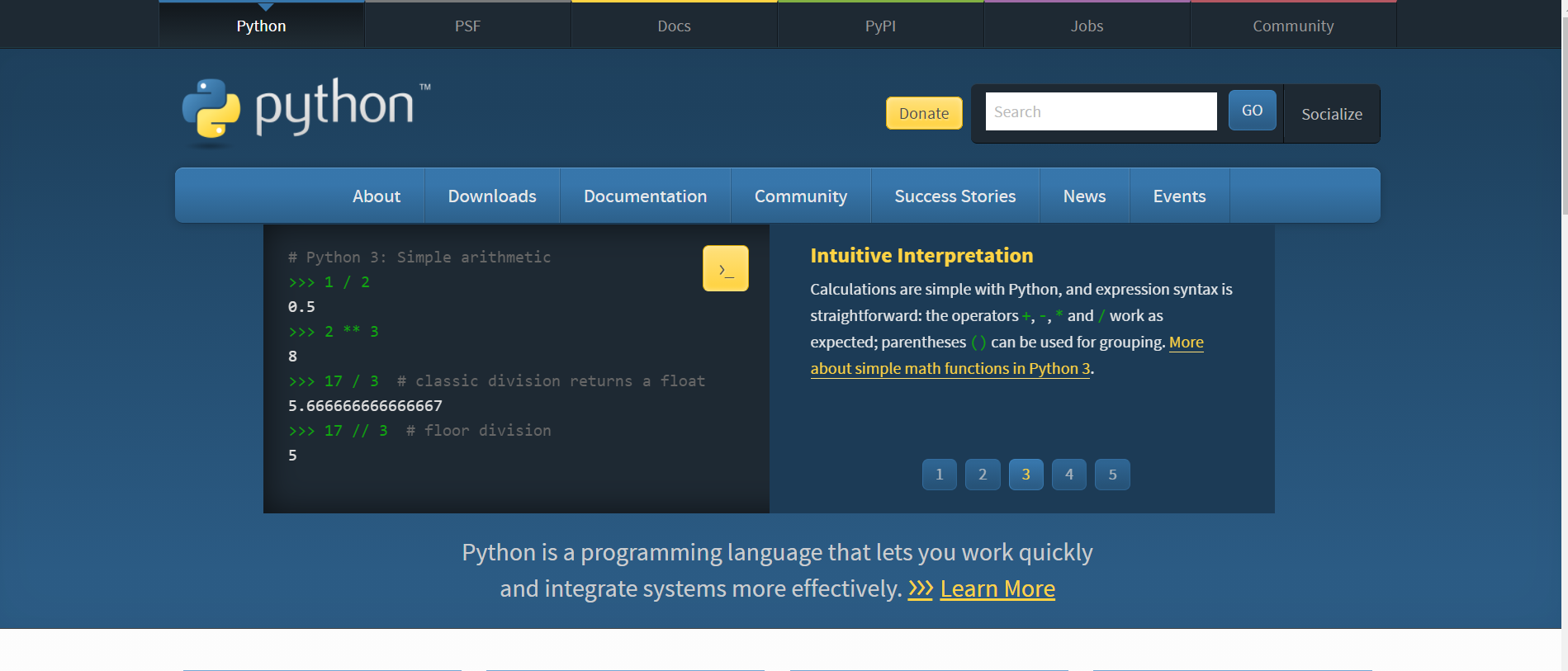
- You will see a new Python website
- Click on “Downloads”
- Select the version of Python for Windows
- Download the latest version of Python
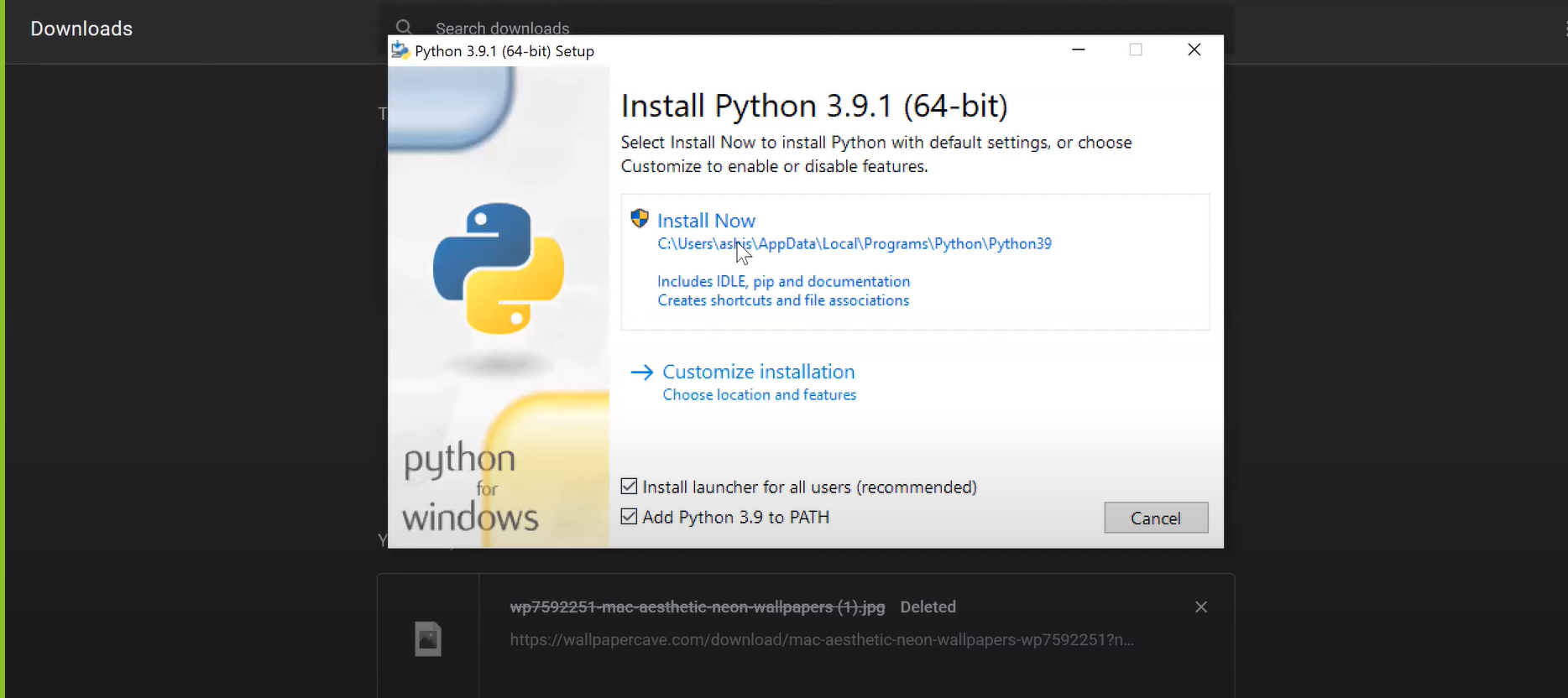
- After downloading, open the downloaded file; it will look like this
- Checkmark “Add Python 3.9 on path” and “Install launcher for all users,” then click on “Install”
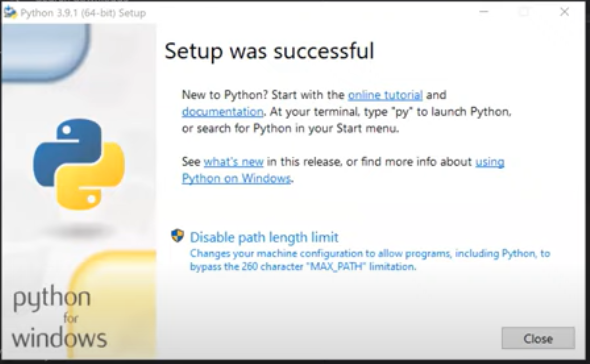
- After installing, it will show that set up was successful
2. Mac OS
-
Select any web browser and type https://www.python.org/
-
You will see a new Python website, like this
-
Click on “Downloads”
-
Select the version of Python for a Mac operating system
-
Download the latest version of Python on Mac OS. The Mac operating system will automatically detect the version.
-
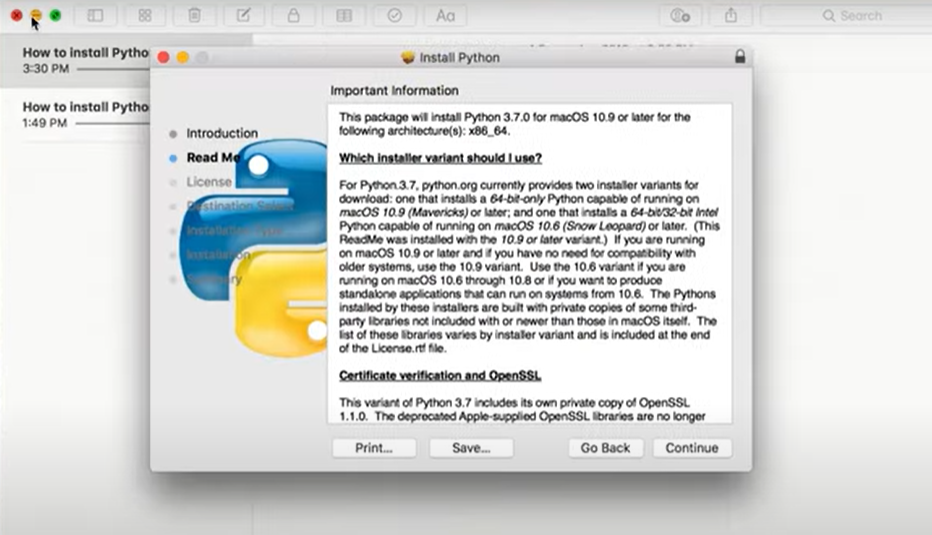
After downloading, open the downloaded file, it will look like this
-
After that, click on “Continue” and go through the license. Then click “Continue.” To install, click on “Agree.”
-
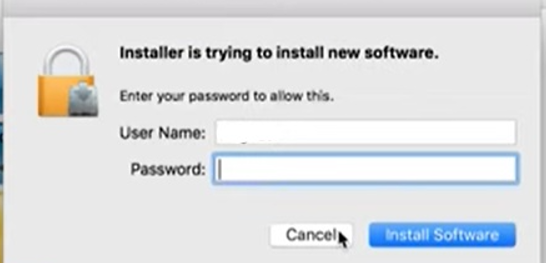
Click on “Install.” It may ask for your system password. In that case, type your password, then click on “Install Software”
-
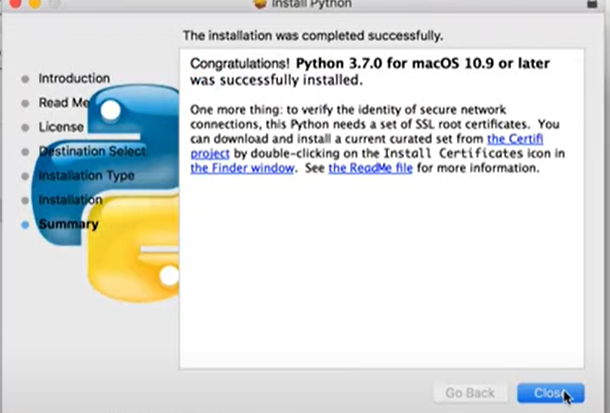
After installation, you will get the picture shown below
-
Check that your Python has been properly installed