How to set a default branch in GitHub
GitHub is one of the most commonly used version control collaboration software in the development community.
Branches
Branches allow users to develop in an isolated environment without affecting the rest of the repository. Each repository has a main branch, and all other branches come from existing branches. To merge the work on two or more branches, you must use a pull request.
Default branch
The default branch on the new repository is set to main, as it is the first and only branch on your repository at that time. The default branch is the one that is displayed to anyone viewing your repository. This is also the
You can change the default and set a different branch for pull requests and new commits.
Changing default branch
If you only want to change the name of the default branch, look into renaming the branch. The process of changing the default branch is highlighted below.
Your branch must have more than one branch for the default branch to change.
- Go to the main page of your repository on GitHub, and click on “Settings”.

- When you get to Settings, in the left menu, click on the option
Branches.

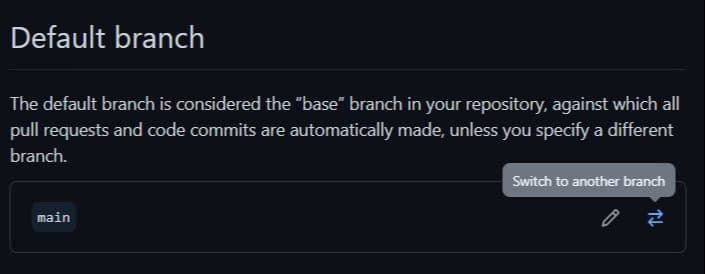
- Click on the two arrows next to the ‘Default branch’ heading.
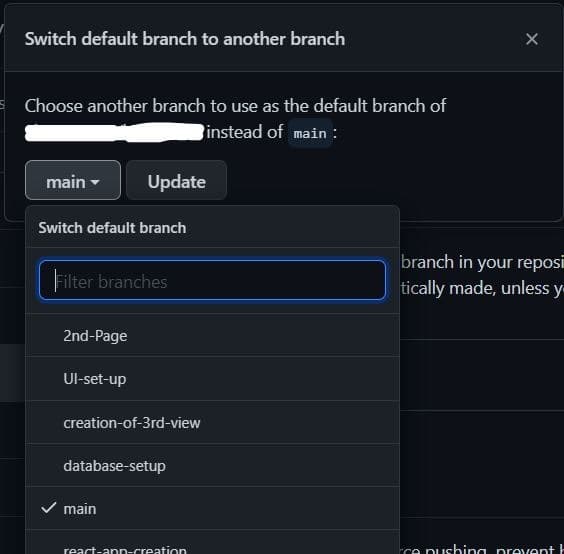
- On the pop-up, click
mainto reveal available options in the drop-down menu. Select the branch you want to set as the new default branch and clickUpdate.
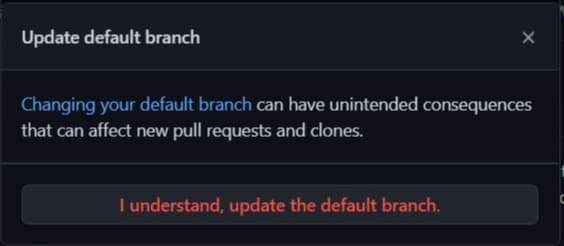
- Read the warning that pops up and click on ‘I understand’.
You have successfully changed your default branch.
Free Resources