








To set up an emulator in Visual Studio Code for Flutter, you’ll first need to install Android Studio, as it provides the Android SDK and tools to run an Android emulator. After installing Android Studio, open it and set up a virtual device through the AVD Manager (found in Tools > AVD Manager). Follow the prompts to create a new virtual device and select your desired device and system image. Once your emulator is set up, go back to Visual Studio Code. Start the emulator from Android Studio, or you can open the Command Palette in VS Code, type “Flutter: Launch Emulator,” and select your virtual device. With the emulator running, you can now test your Flutter apps directly from VS Code by running your project.
How to setup Flutter in VS Code
Key takeaways:
VS Code is a lightweight, fast, and customizable code editor that supports Flutter development with plugins for debugging, error detection, and autocompletion, making it ideal for creating multi-platform applications.
Install the Flutter and Dart plugins via VS Code's Command Palette to access essential tools for building, testing, and debugging Flutter applications seamlessly.
Utilize VS Code's debugging tools, such as breakpoints and the Debug Console, to inspect variable states and resolve issues efficiently during development.
Run the
Flutter Doctorcommand to check and verify the Flutter installation and development environment for errors, ensuring a smooth workflow.
Flutter is an open-source UI software development kit created by Google, designed for building natively compiled applications for mobile, web, and desktop from a single codebase. With its expressive, fast, and flexible framework, Flutter allows developers to create visually stunning applications with a smooth, native performance. By using a single codebase, developers can streamline the app development process, saving time and resources while reaching multiple platforms.
In this answer, we'll explore how to set up Flutter in VS Code, a lightweight and versatile code editor ideal for Flutter development.
Visual Studio Code
Before we begin making Flutter applications on our machine, let's ensure we have the latest version of Visual Studio Code installed.
What is Visual Studio Code exactly?
In easy words, Visual Studio Code, also known as VS Code, is a lightweight code editor that allows developers to write and edit code for various programming languages. The good thing is that it comes with features like code highlighting, auto-completion, debugging tools, and extensions for quite a lot of aspects.
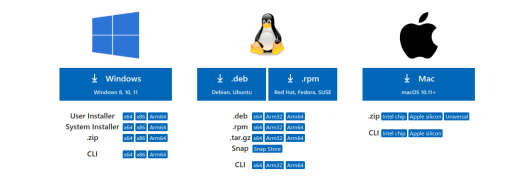
You can download VS Code from its official website.
Note: Download VS Code here.
VS Code supports various platforms
Why use Flutter in VS Code?
Choosing the right IDE can significantly impact your development experience. VS Code is a popular choice among Flutter developers because it’s lightweight, fast, and customizable with plugins. Unlike heavier IDEs, it doesn’t use up too many system resources, making it ideal for systems with limited capacity. Additionally, the Flutter and Dart plugins in VS Code offer efficient support for debugging, error detection, and autocompletion, creating a streamlined workflow for mobile app development. These features make it easier to build, test, and iterate on Flutter applications.
Downloading Flutter
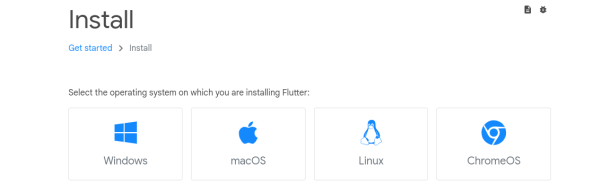
Once you're sure your VS Code has been downloaded and updated, you will have to download Flutter.
Note: Download Flutter here.
Download Flutter according to your operating system
Flutter in VS Code walkthrough
Having completed our initial downloads, we can now focus on how to use Flutter in VS Code. To ensure a smooth process, we've laid out the steps for you.
Installing Flutter and Dart plugins
We will start by opening VS Code. Then, we will follow these steps to install the Flutter and Dart plugins.
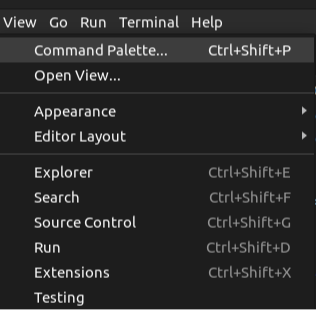
Step 1: Open VS Code's Command Palette by clicking View > Command Palette....
Locate the Command Palette
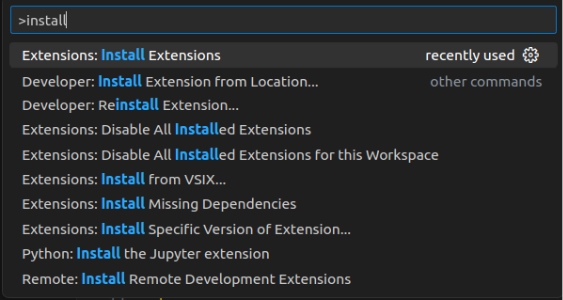
Step 2: Type "install" in the search field and select Extensions: Install Extensions.
Type "install"
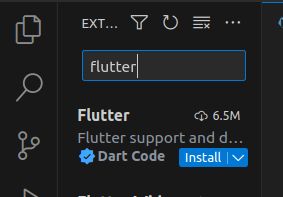
Step 3: In the extensions search field, type "flutter" and select "Flutter" from the list. Click "Install" to install both the Flutter and the required Dart plugin.
Find the Flutter extension
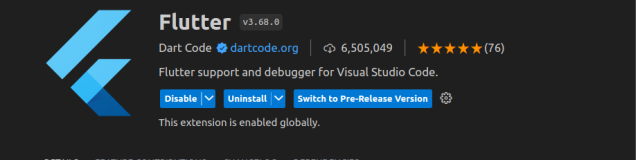
After installing it the results should be similar to this
Debugging tips
One of the benefits of using VS Code for Flutter is its powerful debugging tools. You can set breakpoints directly in your code by clicking to the left of the line numbers in your editor. To start debugging, run your application and watch as execution pauses at breakpoints, allowing you to inspect variable values and step through code. In addition, the "Debug Console" in VS Code provides detailed error messages and logs, making it easier to identify and resolve issues quickly. Leveraging these tools helps save time and ensures a smoother development experience.
Flutter Doctor
Next, we will validate our setup using the Flutter Doctor.
Step 1: Open VS Code's Command Palette again by clicking View > Command Palette....
Step 2: Type "doctor" and select Flutter: Run Flutter Doctor.
Choose "Select Flutter: Run Flutter Doctor" from the Command Palette by typing "doctor"
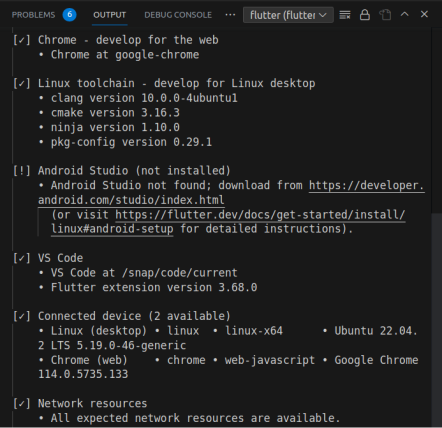
Step 3: Review the output in the "Output" pane to check if there was any unexpected error or not. Also, don't forget to select Flutter from the dropdown in the different Output Options.
The output shows detailed results regarding the setup. Everything is good to go!
Note: Flutter Doctor is a command-line tool provided by Flutter's SDK. It's used to check the status of Flutter installations and the development environment.
End notes
Congratulations! You can now build applications in Flutter and seamlessly run them in VS Code following the above-mentioned steps.
If you want to learn more, here's how to create a project in Flutter.
Note: Explore the Flutter series here!
Question
Why do we run Flutter Doctor?
Show Answer
Frequently asked questions
Haven’t found what you were looking for? Contact Us
How to set up emulator in Visual Studio Code for Flutter?
Why do we run Flutter Doctor?
How do I update Flutter to the latest version in Visual Studio Code?
Can I use iOS simulators for Flutter development in Visual Studio Code?
Free Resources
Copyright ©2026 Educative, Inc. All rights reserved