


The Row widget arranges its children horizontally, while the Column widget stacks them vertically. Both share properties like mainAxisAlignment and crossAxisAlignment, but the main axis refers to horizontal for Row and vertical for Column. The choice between them depends on the desired layout orientation.
How to use Column widget in Flutter
Key takeaways
The
Columnwidget in Flutter is a multi-child layout widget that arranges its children vertically, making it essential for building user interfaces with vertically organized components.The
Columnwidget does not support vertical scrolling; an overflow message is displayed if the children exceed the screen's vertical space. For scrolling, alternatives like the ListView widget should be considered.
The Column widget is one of the Flutter application’s most commonly used layout patterns. It is a multi-child widget that displays its children in a vertical array. This widget is widely used to create user interfaces with multiple components organized in a vertical arrangement. Its main-axis alignment is vertical, as shown in the below image:
Column widget visual representation
Constructor and parameters
The Column widget provides a constructor with various parameters to customize its behavior and layout.
Column({
  Key? key,
  MainAxisAlignment mainAxisAlignment = MainAxisAlignment.start,
  MainAxisSize mainAxisSize = MainAxisSize.max,
  CrossAxisAlignment crossAxisAlignment = CrossAxisAlignment.center,
  TextDirection? textDirection,
  VerticalDirection verticalDirection = VerticalDirection.down,
  TextBaseline? textBaseline,
  List<Widget> children = const <Widget>[],
})
Let’s take a closer look at each parameter and its purpose.
key: This is an optional parameter that allows us to provide a unique identifier for theColumnwidget.mainAxisAlignment: This determines how its children are aligned vertically within the available space. The default value isMainAxisAlignment.start: other possible values includeMainAxisAlignment.center,MainAxisAlignment.end, andMainAxisAlignment.spaceEvenly.mainAxisSize: This specifies the vertical size of theColumn. The default value isMainAxisSize.max, which allows theColumnto occupy all available vertical space. Alternatively, we can set it toMainAxisSize.minto make theColumntake up only the required vertical space.crossAxisAlignment: This determines how the children are aligned horizontally. The default value isCrossAxisAlignment.center. Other options includeCrossAxisAlignment.startandCrossAxisAlignment.end, among others.textDirection: This is an optional parameter that specifies the directionality of the text within theColumn.verticalDirection: This specifies the order in which the children of theColumnare laid out vertically. The default value isVerticalDirection.down, which arranges the children from top to bottom. We can also useVerticalDirection.upto reverse the order.textBaseline: This is an optional parameter that determines the baseline alignment for the text within theColumn. By default, it uses theTextBaseline.alphabetic.children: This is the the list of child widgets is stacked vertically in theColumn. We can provide any number of widgets as children. The default value is an empty list([]).
Implementation
We can follow the instructions given below to add a column widget in UI.
Import the necessary packages
To use the Column widget, we need to import the flutter/material.dart package in your Dart file.
import 'package:flutter/material.dart';
Create a column widget
To create a Column widget, we can use the Column constructor and provide the desired children widgets as a list.
Column(
  children: <Widget>[
    // Add your children widgets here
  ],
)
Add children to the column
We can add multiple widgets we want to stack vertically inside the children property of the Column widget. These children can be any Flutter widgets, such as Text, Image, Container, etc.
Column(
  children: <Widget>[
    Text('Widget 1'),
    Text('Widget 2'),
    Text('Widget 3'),
  ],
)
Customize the column layout
To customize the layout of the Column widget, we can utilize properties such as mainAxisAlignment, crossAxisAlignment, and mainAxisSize, etc.
Column(mainAxisAlignment: MainAxisAlignment.center,crossAxisAlignment: CrossAxisAlignment.start,mainAxisSize: MainAxisSize.min,children: <Widget>[Text('Widget 1'),Text('Widget 2'),Text('Widget 3'),],)
Line 2: We set column property
mainAxisAlignmenttoMainAxisAlignment.center, which means the children will be positioned in the middle of the available vertical space.Line 3: We set column property
crossAxisAlignmenttoCrossAxisAlignment.start, which ensures that the children are positioned on the left side of each column.Line 4: We set column property
mainAxisSizetoMainAxisSize.min, which specifies that the column should take up only the required vertical space.
Output
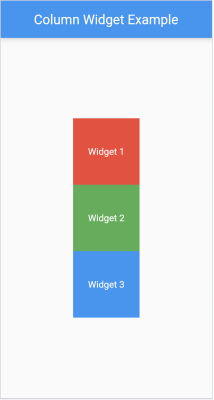
We get the following output by putting together the code explained above:
import 'package:flutter/material.dart';

void main() {
  runApp(MyApp());
}

class MyApp extends StatelessWidget {
  @override
  Widget build(BuildContext context) {
    return MaterialApp(
      home: Scaffold(
        appBar: AppBar(
          title: Text('Column Widget Example'),
        ),
        body: Center(
          child: Column(
            mainAxisAlignment: MainAxisAlignment.center,
            crossAxisAlignment: CrossAxisAlignment.start,
            mainAxisSize: MainAxisSize.min,
            children: <Widget>[
              Container(
                color: Colors.red,
                height: 100,
                width: 100,
                child: Center(child: Text('Widget 1', style: TextStyle(color: Colors.white))),
              ),
              Container(
                color: Colors.green,
                height: 100,
                width: 100,
                child: Center(child: Text('Widget 2', style: TextStyle(color: Colors.white))),
              ),
              Container(
                color: Colors.blue,
                height: 100,
                width: 100,
                child: Center(child: Text('Widget 3', style: TextStyle(color: Colors.white))),
              ),
            ],
          ),
        ),
      ),
    );
  }
}
Complete implementation of column widget
The output will be as follows:
Conclusion
The Column widget in Flutter offers an easier way to arrange multiple children in a vertical layout. We can customize the Column widget using optional named arguments such as child alignment, main axis size, padding, color, and render direction.
However, it’s important to note that one limitation of the Column widget is that it doesn’t support vertical scrolling. Therefore, if the total height of the children exceeds the available screen space, an overflow message will be displayed.
Additional resources
You can learn about other Flutter widgets from the following resources:
Frequently asked questions
Haven’t found what you were looking for? Contact Us
What is the difference between Row and column widget in Flutter?
How to add text in a column in Flutter
Free Resources
Copyright ©2026 Educative, Inc. All rights reserved