How to use Grafana with Prometheus
Grafana is an open-source interactive data visualization tool. It allows for data to be interpreted through visuals like charts and graphs. Depending on the requirements, this data can be shown in a unified visual or split into many. This can be done by creating queries and setting alerts on the inputted data into the tool.
Note: Learn more about Grafana.
Implementation
The input data for Grafana can be sourced from multiple tools. In our example, we will work with Prometheus, a popular integration tool for Grafana. We must first set up our Prometheus services to proceed with this guide.
Setting up Grafana
After setting up your Prometheus services, log in to your Grafana account on the official website. Head to the installation page to learn how to download Grafana for your specific OS; we will follow the Linux guide.
// to be run individuallysudo apt-get install -y apt-transport-httpssudo apt-get install -y software-properties-common wgetsudo wget -q -O /usr/share/keyrings/grafana.key https://apt.grafana.com/gpg.keyecho "deb [signed-by=/usr/share/keyrings/grafana.key] https://apt.grafana.com stable main" | sudo tee -a /etc/apt/sources.list.d/grafana.listsudo apt-get updatesudo apt-get install grafanasudo systemctl start grafana-serversudo systemctl status grafana-server // to check if server runningsudo systemctl enable grafana-server
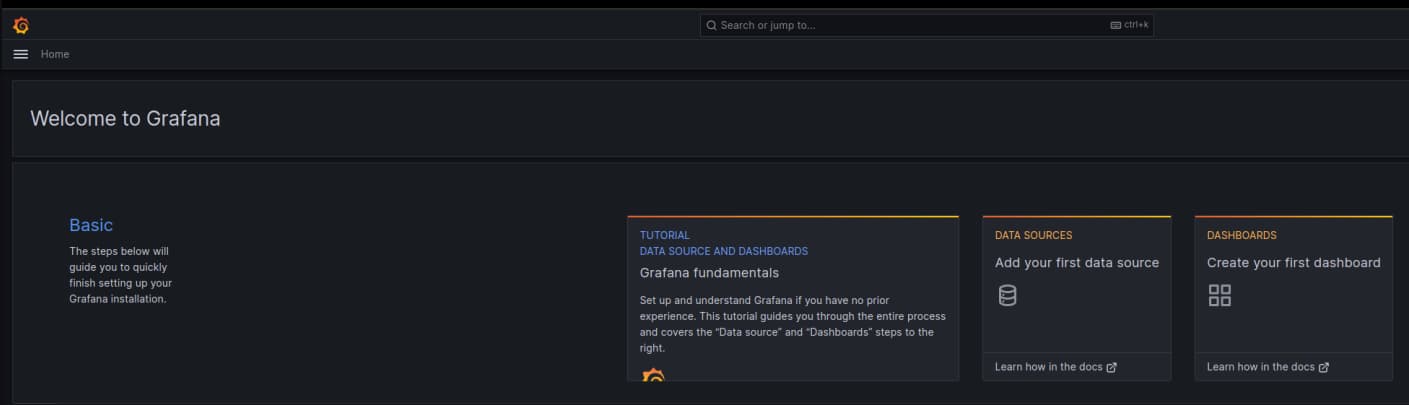
Now we go to our browser and enter "localhost:3000" into the address bar. This will navigate us to our Grafana services page. The login credentials are "admin" and "admin" for the username and password. After that, we will arrive at the screen shown below.
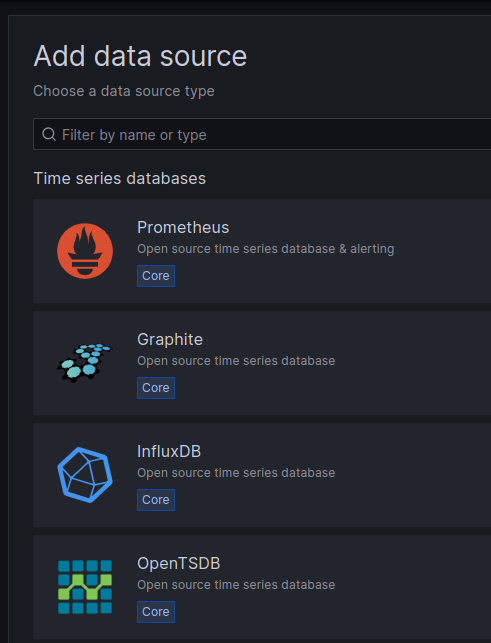
Add a data source
It's now time to add our data source to our Grafana service. For this, we will click on the "Data Sources" prompt. Alternatively, we click the three bars on the top right to open the menu. Then we can click "Connections" followed by "Data Sources" to add our data source.
Then, we click "Add a new data source" and select our preferred one. This will be Prometheus for now.
Afterward, we will be asked to enter our information regarding our Prometheus setup. Mainly, we need to add our "Prometheus server URL." We can modify other details as well, but it is not necessary.
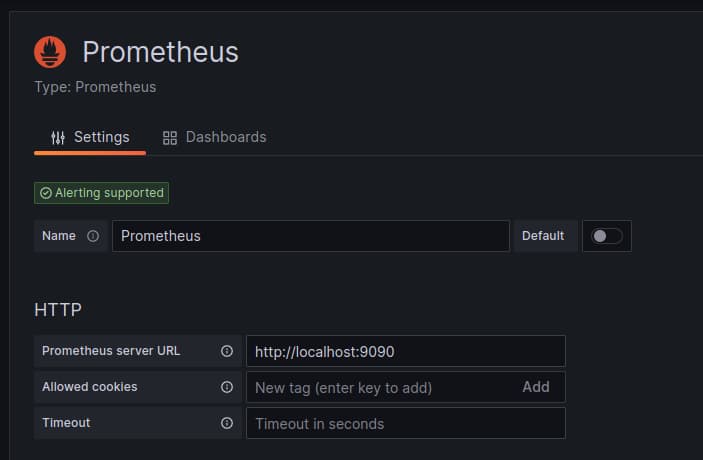
Then we will click "save and test" to proceed.

Creating a dashboard
Let us now create a dashboard to visualize our data. For this, we will click on the "Dashboard" prompt. Alternatively, we click the three bars on the top right to open the menu. Then we can click "Dashboards" to jump to the dashboard list and click "new."
Then, we click "Add visualization" and select our data source i.e., Prometheus.

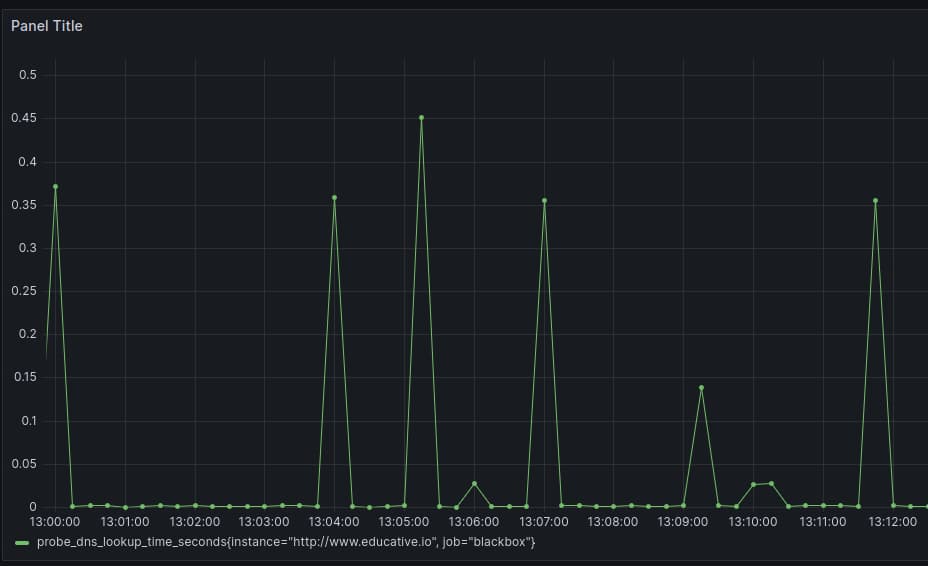
Now, we can start by setting up queries in LokiQL or using the UI given. An example query is shown below.
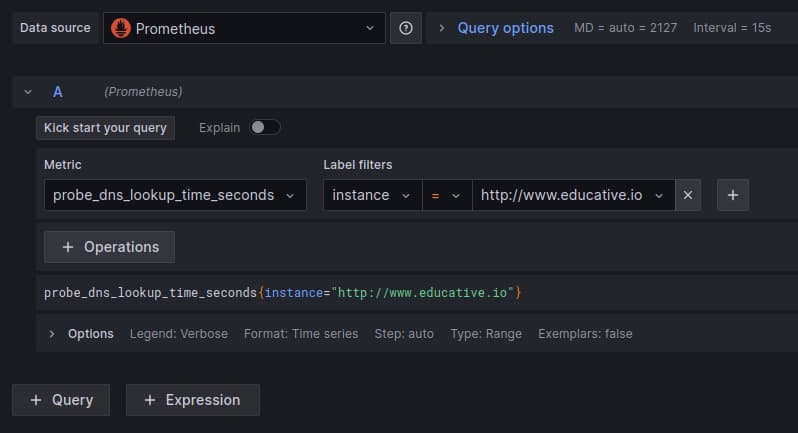
Each query will generate a graph or table, and we can experiment and create multiple queries with their respective visuals.
Multiple dashboards
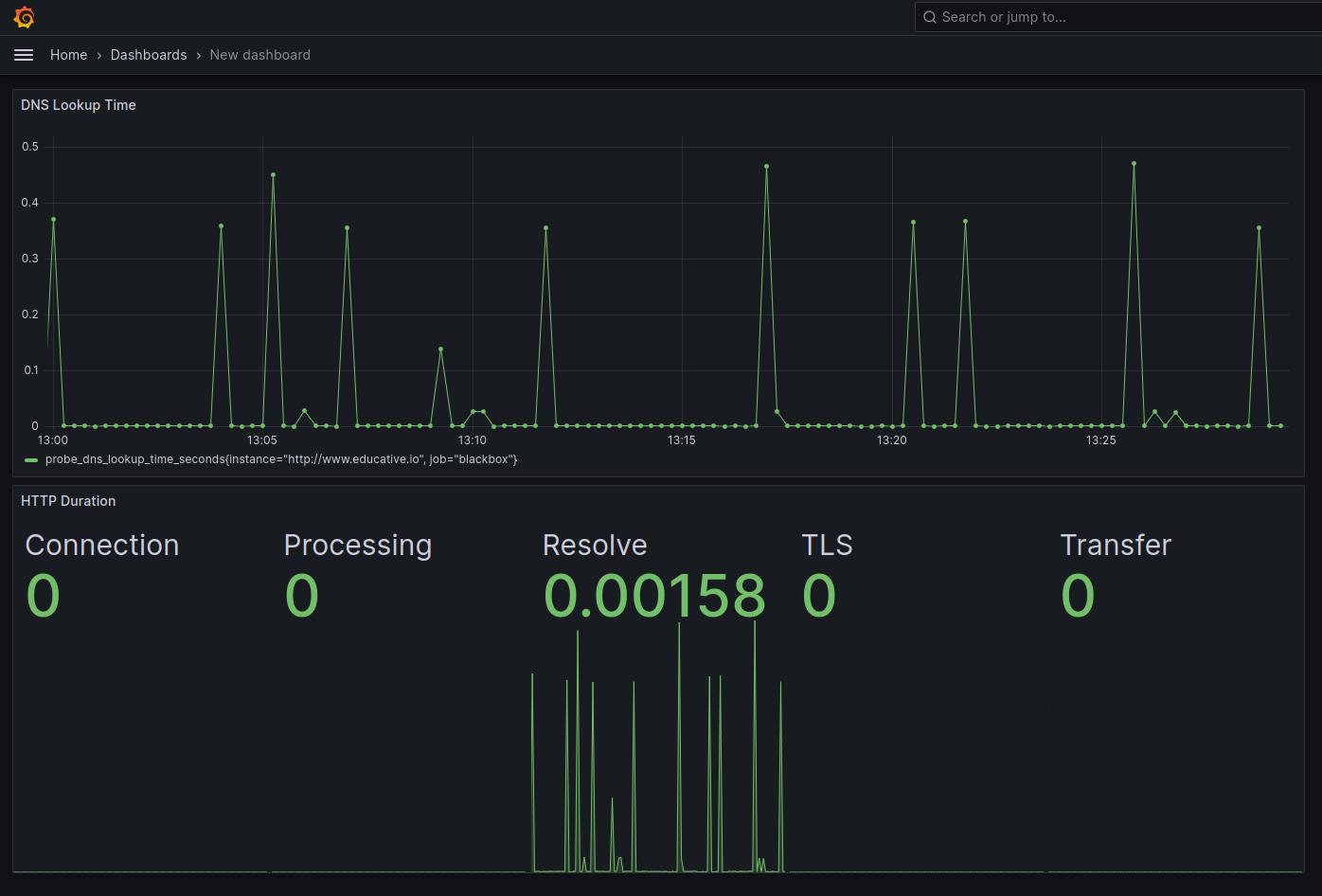
As we have shown, it is possible to convert our metrics into a visual representation. Moreover, we can create multiple dashboards and make them available as a central dashboard.
Conclusion
In conclusion, Grafana provides a convenient service to visualize our data. It can help to visualize complex datasets, which can help us to keep a look out at our websites. Moreover, within Grafana, there are many tools to create better visuals with the ability to filter datasets and set up alerts depending on our needs.
Free Resources