How to use Stack widget in Flutter
The Stack widget in Flutter is a powerful layout widget that allows us to stack multiple child widgets on top of each other. The Stack widget is commonly used when we want to create complex layouts or design custom UI elements, where widgets need to be layered or positioned in a specific order.


Constructor and parameters
The Stack widget provides a constructor with various parameters to customize its behavior and layout.
Stack({
  Key? key,
  AlignmentGeometry alignment = AlignmentDirectional.topStart,
  TextDirection? textDirection,
  StackFit fit = StackFit.loose,
  Clip clipBehavior = Clip.hardEdge,
  List<Widget> children = const <Widget>[]
})
Let's take a closer look at each parameter and its purpose.
key: An optional parameter that allows us to provide a unique identifier for theStackwidget.alignment: Specifies the default alignment of the children within theStack. The default value isAlignmentDirectional.topStart, which aligns the children to the top-left corner. We can use other values likeAlignment.center,Alignment.bottomRight, etc., to adjust the alignment.textDirection: An optional parameter that defines the text directionality within theStack. By default, it follows the ambientDirectionalityof the application.fit: Determines how the children fit into the available space within theStack. The default value isStackFit.loose, allowing the children to take their natural size. Alternatively, we can useStackFit.expandto make the children grow to fill the available space.clipBehavior: Specifies the clipping behavior for the children overflowing theStackwidget. The default value isClip.hardEdge, which clips the children based on the boundaries of theStack: other options includeClip.none,Clip.antiAlias, etc.children: The list of child widgets stacked or overlaid within theStack. We can provide any number of widgets as children. The default value is an empty list ([]).
Key points to remember
Before diving into implementation, there are a few points that we need to understand so that we can effectively utilize the Stack widget in Flutter to create complex UI.
The
Stackwidget in Flutter supports two types of child widgets: positioned and non-positioned.Positioned items are wrapped in the
Positionedwidget and must have at least one non-null property specified.Non-positioned child widgets in
Stackalign themselves based on the stack's alignment. By default, the children are positioned in the top-left corner of theStack.The
alignmentattribute can be used to change the alignment of the child widgets within theStack.The
Stackwidget places its children in a specific order, with the first child at the bottom and the last child at the top. To reorder the children, it is necessary to rebuild theStackin the desired order. By default, the first child of theStackoccupies the maximum size compared to the other widgets.
Implementation
We can follow the instructions given below to add a Stack widget in UI.
Import the necessary packages
To use the Stack widget, we need to import the flutter/material.dart package in our Dart file.
import 'package:flutter/material.dart';
Create a Stack widget
To create a Stack widget, we can use the Stack constructor and provide the desired children widgets as a list.
Stack(children: <Widget>[// Add your children widgets here],)
Adding non-positioned children
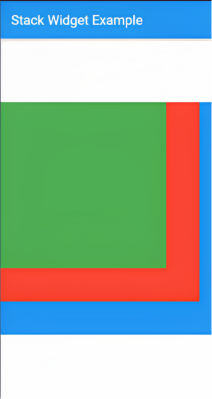
We can add multiple widgets we want to stack inside the children's property of the Stack widget. These children can be any Flutter widgets, such as Text, Image, Container, etc.
Stack(children: [Container(width: 350,height: 350,color: Colors.blue,),Container(width: 300,height: 300,color: Colors.red,),Container(width: 250,height: 250,color: Colors.green,),],),
Output

Adding positioned children
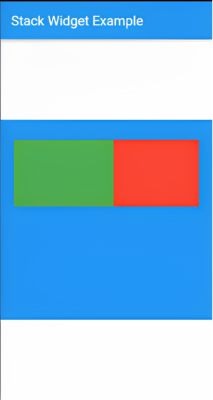
We can also add multiple widgets here, but each widget must be wrapped inside positioned() widget as shown in the code below.
Stack(children: <Widget>[// Max Size WidgetContainer(height: 300,width: 400,color: Colors.blue,),Positioned(top: 30,right: 20,child: Container(height: 100,width: 150,color: Colors.red,),),Positioned(top: 30,left: 20,child: Container(height: 100,width: 150,color: Colors.green,),),],),
Explanation
Lines 6–10: A
Containerwidget is added as a child of theStack. It serves as the "Max Size Widget" and has aheightof300and awidthof400. It is coloredblue.Lines 11–19: The first
Positionedwidget is added. It is positioned relative to the top-right corner of theStack, with an offset of30pixels from thetopand20pixels from theright. It contains aContainerwidget with aheightof100,widthof150, and colorred.Lines 20–28: The second
Positionedwidget is added. It is positioned relative to the top-left corner of theStack, with an offset of30pixels from thetopand20pixels from theleft. It contains aContainerwidget with aheightof100,widthof150, and colorgreen.
Output

Using Align widget of Stack
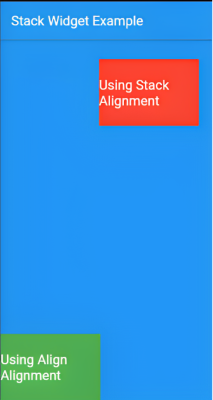
Using the Align widget, we can specify a particular alignment for a single child instead of applying the same alignment to all the children within the Stack.
Stack(alignment: Alignment.topRight,children: <Widget>[// Max Size WidgetContainer(height: 560,width: 400,color: Colors.blue,),Positioned(top: 30,right: 20,child: Container(height: 100,width: 150,color: Colors.red,child: Center(child: Text('Using Stack Alignment',style: TextStyle(color: Colors.white, fontSize: 20),),),),),Align(alignment: Alignment.bottomLeft,child: Container(height: 100,width: 150,color: Colors.green,child: Align(alignment: Alignment.center,child: Text('Using Align Alignment',style: TextStyle(color: Colors.white, fontSize: 20),),),),),],),
Explanation
Line 2: The
alignmentproperty of theStackis set toAlignment.topRight, which aligns the children to the top-right corner of theStack.Lines 5–9: A
Containerwidget is added as a child of theStack. It represents the "Max Size Widget" with aheightof560and awidthof400. It is coloredblue.Lines 10–24: The
Positionedwidget positions the nextContainerwidget. It is positioned relative to the top-right corner of theStack, with an offset of30pixels from thetopand20pixels from theright. It has aheightof100, awidthof150, and is coloredred. TheTextwidget inside is centered both horizontally and vertically using theCenterwidget.Lines 25–39: The
Alignwidget positions the lastContainerwidget. It aligns the widget to the bottom-left corner of theStackwhile it is still inStack. TheContainerhas aheightof100, awidthof150, and is coloredgreen. TheTextwidget inside is centered both horizontally and vertically using theAlignwidget.
Output
Conclusion
The Stack widget is a powerful layout widget that can be used to create complex layouts or design custom UI elements. It supports two types of child widgets: positioned and non-positioned.
Positioned items are wrapped in the Positioned widget and must have at least one non-null property specified. Non-positioned child widgets in Stack align themselves based on the stack's alignment. By default, the children are positioned in the top-left corner of the Stack. The alignment attribute can be used to change the alignment of the child widgets within the Stack.
Test Yourself
Which parameter of the Stack constructor is used to specify the default alignment of the children within the Stack?
alignment
textDirection
fit
clipBehavior
Additional resources
You can learn about other Flutter widgets from the following resources:
Free Resources