How to use templates in JMeter
JMeter, or Apache JMeter, is a free load and stress testing software. It evaluates and quantifies the effectiveness of services, including website performance metrics. This is a helpful tool because it enables us to monitor an application's performance after deployment, which gives us the knowledge that we can use to enhance our service further.
Templates
Before we dive into how to use templates, we will first give an overview of what templates are. Templates in JMeter are reusable project scripts. We can use them to generate a test plan with all the necessary components already built into them. These include:
Thread Group: This collection of threads represents one user per thread. We can modify the number of thread groups to simulate multiple users requesting the service.
Samplers: The controller lets us set which type of request we need to send to our service. It provides multiple options, including FTP, SMTP, HTTP, etc.
Listeners: These show the results of the requests. This can be in a graphical, tabular, tree, or log format.
Configuration: This sets up the default configurations and variables the samplers use. Examples include CSV management, login configuration element, and more.
Finally, there are three types of templates we can use. The first is to use the prebuilt templates provided by JMeter. The second is to merge our current plan with a code file. Finally, to create our template from our plan. This answer will cover all these three options.
Note: If you have not set up your JMeter, follow this answer to first set it up and then continue with this answer.
Prebuilt templates
We will now create our template by following the steps below.
Open your JMeter application and click the template icon or the file tab, then click on "template".
This will open the template gallery. From the drop-down, select your required type of plan.

Now we will click on "Create" to build our plan. We can also click the link provided to learn more about the selected template.

After this, we can see that our template plan has been built. However, it is important to note that we need to modify the values within the template for our tasks to work. The changes depend on our requirements, so it will be different for everyone, but the template provides a solid starting point for users.

Merge templates
This procedure starts with the same first two steps as the prebuilt templates method.
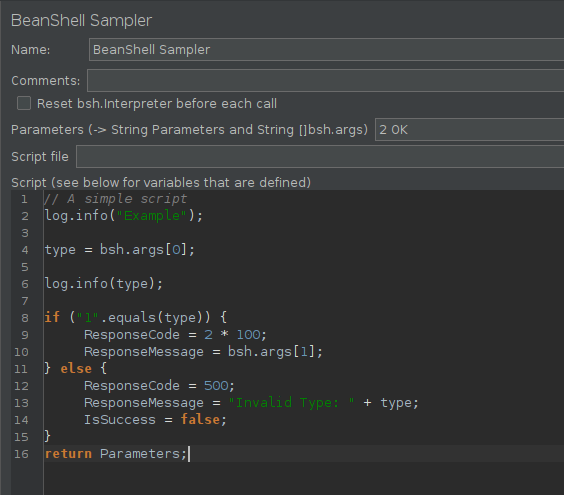
After we have opened the template gallery. This time we select and create the "BeanShell Sampler". This sampler allows for custom code scripting. We can integrate our current plan with another custom sampler. It uses Java syntax, making it easy to use and integrate with JMeter.
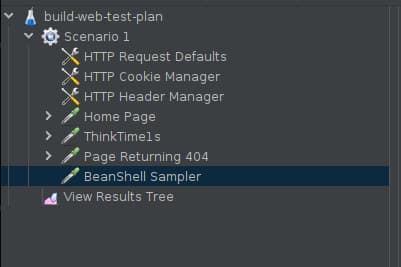
The BeanShell sampler comes with a sample code. We can modify it to suit our requirements.
Create templates
Where we can download templates, we can also create them. This is especially beneficial if we want to use our plan in the future or on another machine. We can follow the steps below to save our file as a template.
First, we need to have a plan to create a template out of it. Then, we need to save it as a ".ymx" file.
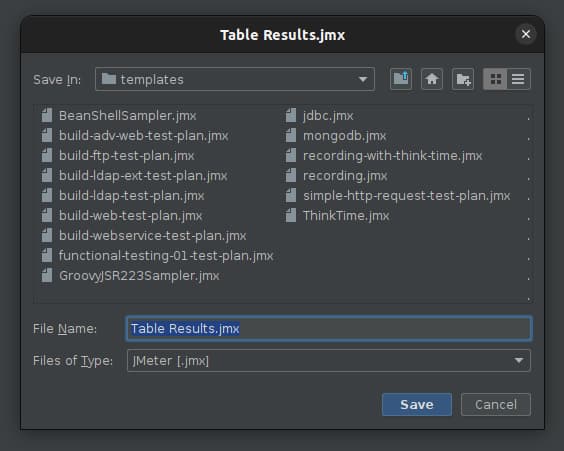
Now, we navigate to the directory where we have saved it and move the ".ymx" file into the /bin/templates directory for JMeter.
After that, we will open the "templates.xml" file from the templates folder. In this file, we can see other templates stored.
<template isTestPlan="true"><name>Functional Testing Test Plan [01]</name><fileName>/bin/templates/functional-testing-01-test-plan.jmx</fileName><description><![CDATA[<h1>Building a Functional Testing Test Plan [01]</h1><p>You can use JMeter to automate API Testing</p><p>This template of Test Plan contains first step when starting creating JMeter script</p><h2>Useful links</h2><ul><li><a href="https://jmeter.apache.org/usermanual/test_plan.html" >https://jmeter.apache.org/usermanual/test_plan.html</a></li><li><a href="https://jmeter.apache.org/usermanual/listeners.html" >https://jmeter.apache.org/usermanual/listeners.html</a></li><li><a href="https://jmeter.apache.org/usermanual/component_reference.html#View_Results_Tree" >https://jmeter.apache.org/usermanual/component_reference.html#View_Results_Tree</a></li></ul>]]></description></template>
We will now create a copy of any of these templates and edit the values as needed. Here is an example of how we have done so for our example.
<template isTestPlan="true"><name>Educative Plan</name><fileName>/bin/templates/Table Result.jmx</fileName><description><![CDATA[<h1>Test plan for Educative</h1><h2>Useful link</h2><ul><li><a href="http://jmeter.apache.org/usermanual/build-ldapext-test-plan.html" >http://jmeter.apache.org/usermanual/build-ldapext-test-plan.html</a></li></ul>]]></description></template>
Afterward, we will close our ".xml" file and our JMeter. Now, let's restart the JMeter tool and open templates. Here we see our template created. We can create it again to see our original plan.

Conclusion
Templates are a very useful JMeter tool for a more efficient and fast-paced workflow. They also promote portability, as anyone can make their plan into a template and deploy it elsewhere. Overall, templates provide many benefits and are essential for using JMeter.
Free Resources