How to work with text fields in Swing
A text field in Java Swing is a graphical user interface component that allows users to enter text. Swing offers the JTextField class, a subclass of JComponent, to construct and manage text fields. Let’s look at different ways to use text fields in a Swing application.
JTextField library import
The JTextField utility is part of the Java Swing library. To import JTextField we can write the following:
import javax.swing.JTextField
Constructors of the JTextField class
To generate text fields with varying starting attributes, the JTextField class offers a variety of constructors. The most popular builders are listed below:
-
JTextField(): This constructor generates a text field that contains no initial text or icon. -
JTextField(String text): This constructor produces a text field with the starting text. -
JTextField(String text, int columns): This constructor generates a text field with the provided beginning text and the requested number of visible columns (width), where thecolumnsparameter refers to the number of characters that the text field can display horizontally.
Commonly used methods of the JTextField class
Let’s explore some commonly used methods of the JTextField class that enable us to interact with text fields:
-
setText(String text): This method sets the text displayed in the text field to the specified value. -
getText(): This method retrieves the current text entered by the user in the text field. -
setColumns(int columns): This method sets the text field’s preferred number of columns (width). -
addActionListener(ActionListener listener): This method adds anActionListenerto the text field. The listener will be notified when the user presses the “Enter” key, often indicating the completion of user input.


Code example
Let’s create a simple Swing application that demonstrates working with a text field and a button. In this example, the user enters text into a text field, and when the “Set Text” button is clicked, the entered text is updated in all the other text fields.
import javax.swing.*;
import java.awt.*;
import java.awt.event.ActionEvent;
import java.awt.event.ActionListener;

public class Main {
    public static void main(String[] args) {
        SwingUtilities.invokeLater(() -> {
            createAndShowGUI();
        });
    }

    private static void createAndShowGUI() {
        JFrame frame = new JFrame("Text Fields Example");
        frame.setDefaultCloseOperation(JFrame.EXIT_ON_CLOSE);
        frame.setPreferredSize(new Dimension(600, 400));

        JPanel panel = new JPanel(new GridBagLayout());
        GridBagConstraints constraints = new GridBagConstraints();
        constraints.gridx = 0;
        constraints.gridy = 0;
        constraints.insets = new Insets(10, 10, 10, 10);

        JTextField textField1 = new JTextField();
        JTextField textField2 = new JTextField("Initial Text");
        JTextField textField3 = new JTextField("Initial text with width", 20);

        textField1.setColumns(20);
        textField2.setColumns(20);
        textField3.setColumns(20);

        constraints.gridy++;
        panel.add(new JLabel("Text Field 1:"), constraints);
        constraints.gridy++;
        panel.add(textField1, constraints);

        constraints.gridy++;
        panel.add(new JLabel("Text Field 2:"), constraints);
        constraints.gridy++;
        panel.add(textField2, constraints);

        constraints.gridy++;
        panel.add(new JLabel("Text Field 3:"), constraints);
        constraints.gridy++;
        panel.add(textField3, constraints);

        ActionListener listener = e -> {
            JTextField source = (JTextField) e.getSource();
            JOptionPane.showMessageDialog(null, "Text entered: " + source.getText());
        };

        textField1.addActionListener(listener);
        textField2.addActionListener(listener);
        textField3.addActionListener(listener);

        JButton setTextButton = new JButton("Set Text");
        setTextButton.setPreferredSize(new Dimension(150, 30));
        constraints.gridy++;
        constraints.gridwidth = 2;
        constraints.fill = GridBagConstraints.HORIZONTAL;
        panel.add(setTextButton, constraints);

        setTextButton.addActionListener(e -> {
            textField2.setText(textField1.getText());
            textField3.setText(textField1.getText());
        });

        frame.setContentPane(panel);
        frame.pack();
        frame.setLocationRelativeTo(null);
        frame.setVisible(true);
    }
}
We have used the
JFrameutility to render our text fields in the GUI. It provides a windowed container for creating GUI applications. Refer to the official documentation of JFrame to learn more about it.
Output
The output of the code above will look like this initially:

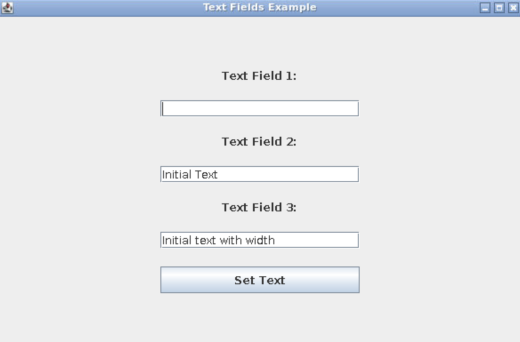
Enter some text in “Text Field 1:” and press the “Set Text” button. You’ll see the results updating in all the text fields, i.e., the value of the other two text fields will be changed to the value we entered.
Code explanation
-
Lines 1–4: The code starts by importing essential packages
javax.swingandjava.awtfor creating GUIs and handling essential AWT functions. -
Lines 7–11: The
mainmethod is the program’s starting point. -
Line 8:
SwingUtilities.invokeLaterensures that the GUI components are constructed and shown on the Event Dispatch Thread (EDT) for proper handling. -
Line 13: The
createAndShowGUImethod establishes Swing GUI components and interactions, encapsulating the application’s core logic. -
Lines 14–16: The
JFrameis the application’s main window. A newJFrame, titled “Text Fields Example,” is created to present the user interface.setDefaultCloseOperation(JFrame.EXIT_ON_CLOSE)defines how the application behaves when the user closes the window.setPreferredSize(new Dimension(600, 400))sets the frame’s preferred size to x pixels, shaping its appearance. -
Lines 18–22: A
JPanelcalledpanelis crafted usingGridBagLayoutfor flexible grid arrangement.GridBagConstraintsconfigure component alignment in the grid, whilegridxandgridyset the starting cell, whereasInsetsprovide external padding for components. -
Lines 32–45: The provided lines introduce labels and text fields to the
panelutilizingGridBagConstraints. The commandconstraints.gridy++advances the grid row for subsequent components. Employingpanel.add(new JLabel("Text Field 1:"), constraints), a label is appended for “Text Field 1.” The subsequent linepanel.add(textField1, constraints)incorporatestextField1within the same row. This pattern is replicated fortextField2andtextField3placements. -
Lines 47–50: An
ActionListenernamedlistenerresponds to Enter key presses by retrieving the source text field and displaying the entered text in a message dialog. -
Lines 52–54: The listener is subsequently applied to each text field using
addActionListener(listener). -
Lines 56–61: A
JButtonnamed setTextButton is generated, featuring the label "Set Text" To determine the button’s size,setTextButton.setPreferredSize(new Dimension(150, 30))is invoked. Simultaneously,constraints.gridy++facilitates the shift to the succeeding row, whileconstraints.gridwidth = 2enables the button’s expansion across two columns. By utilizingconstraints.fill = GridBagConstraints.HORIZONTAL, the button attains a horizontal stretching effect. This refined button is subsequently incorporated into thepanel. -
Lines 68–71: The content pane is designated within the frame to finalize the layout. The frame’s dimensions are optimized via
frame.pack(), and its placement at the screen’s center is ensured withframe.setLocationRelativeTo(null).
Test yourself
Let’s take a moment to make sure you have correctly understood how to use the JTextField. The quiz below helps you check if you have understood the concepts.
JTextfield in Swing
Which text field constructor is used to initialize a text field using the initial text?
JTextField()
JTextField(String text)
JTextField(String text, int columns)
JTextField(String text1, String text2)
Free Resources