Image and its histograms with Plotly in Python
Data visualization is one of the highlights of data analysis as it involves a graphical representation of data. We can enhance our ability to interpret data findings greatly.
Today we'll be learning how to build histograms and use them to show the color channel values of an image in Plotly.

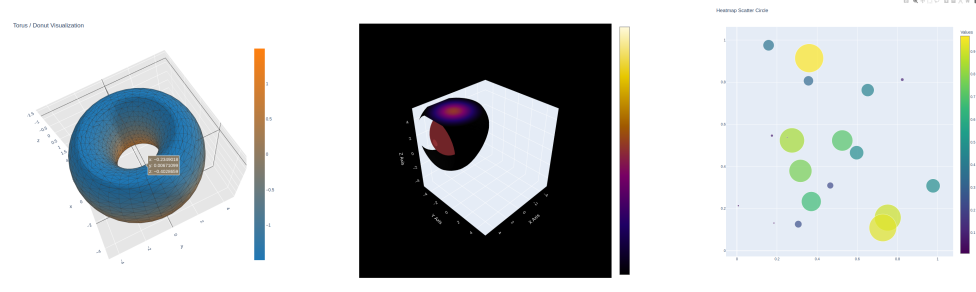
Plotly
Plotly is a data visualization library that allows us to create rich and dynamic visualizations in Python, R, and JavaScript. Some interesting features are:
Zooming
Tooltips
Rotating
Downloading plots


Histograms
Histograms are graphical representations that show the frequency distribution of data values within specific ranges. We can use them to visualize the distribution of color intensities in images.


In this context, an image and its histograms mean displaying a picture and graphs that depict how common various color intensities are within the image.
Complete code
The goal of our application will be to display an image along with a histogram that depicts the RGB colors of that image in a Plotly subplot. Let's get started!
Note: RGB i.e. red, green, and blue, is a common color model we use to represent images.


You can modify the code and click "Run" to see the results.
from plotly.subplots import make_subplots
import plotly.graph_objects as go
from skimage import data as skdata

image = skdata.hubble_deep_field()

figure = make_subplots(rows=1, cols=2, subplot_titles=["Hubble Image", "Color Channel Histograms"])

figure.add_trace(go.Image(z=image), row=1, col=1)

for custom_channel, custom_color in enumerate(['red', 'green', 'blue']):
    figure.add_trace(go.Histogram(x=image[..., custom_channel].ravel(), opacity=0.5,
                                   marker_color=custom_color, name='%s channel' % custom_color), row=1, col=2)

figure.update_layout(height=500, showlegend=True)

figure.show()

figure.write_html("output.html", auto_open=True)
Code explanation
Lines 1– 3: First and foremost, we import our needed libraries. We use
plotly.subplotsto create subplots and theplotly.graph_objectslibrary asgoto make the graph objects.Line 5: Next, we import the pretty cool space oriented
hubble_deep_fieldimage fromskdatain theskimagelibrary.Line 7: We create our subplot layout having 1 row and 2 columns. We also specify the titles for the first and second subplots, "Hubble Image" and "Color Channel Histograms", respectively.
Line 9: Our deep field image goes into the first subplot using the
go.Imagefunction. This displays the image in the first cell of the layout grid.Lines 11– 13: Now, we start a loop to process each color channel, i.e., red, green, and blue in the image. In the loop, we perform the following for each channel:
We generate histograms using the
go.Histogramfunction for theflattened pixel values sequential color intensity values of the pixels in an image We set the opacity and marker color for the histograms.
We place the histograms in the second subplot cell using the corresponding row and column index.
Line 15: We set the height of the plot to 500 pixels and ensure that the legend is displayed.
Line 17: Congratulations, we are now ready to show our interactive plot! We use
show()to display the whole thing, including the image and histograms.
Note: To save the output in an HTML file,
fig.write_html("output.html", auto_open=True)can be used.
Demonstration
When the application is run, this is the initial output.


We can zoom in on the histograms by creating a zoomed-in box around the required area.


This is what the zoomed-in histogram plot looks like.


We can also view coordinates within the image by hovering over the histograms.


What function from the go module can we use to render histograms?
Free Resources