Image tracking in Unity
Unity Hub is a desktop application that serves as a management tool for a Unity ecosystem. You can use it to create AR experiences such as image tracking. Image tracking refers to placing an AR object on an image. The AR object could be an image, a video, or a virtual object you've created.
Track your image using Unity
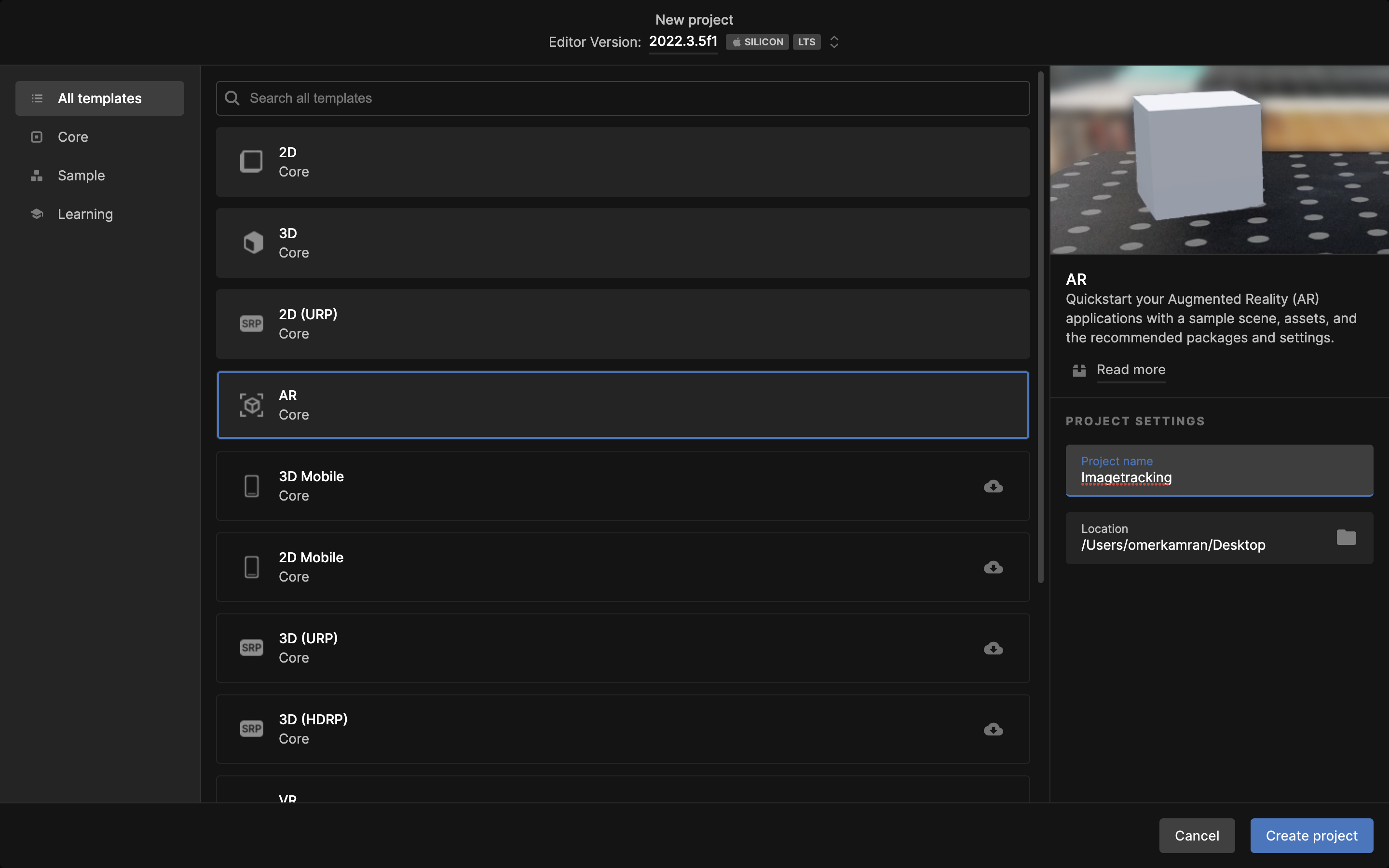
Let's learn how to create an AR application to track your images. Open Unity and create a an AR project.

AR tracked image manager
The AR tracked image manager facilitates the detection, tracking, and management of real-world images as markers in augmented reality experiences. These images, known as "Tracked Images," act as triggers to anchor virtual content or augmentations to specific physical objects. In the serialized library, we'll need to add a reference library. This library will include images that you want to track.
Reference library
The reference library includes reference images, that will act as a marker. To create a reference library, go to your assets folder and create a prefabs folder if not already present. Open the prefabs folder and build a reference image library by clicking the "+" sign, XR > Reference image library.
Once created, select it and click on add image. Now add the image you want to track. It's a good practice to specify the size of your image and check the box to keep texture on runtime. You can add as many images here as you like.
Now, drag the reference image library to the serialized library.
Placing prefab on the image
There's a wide range of things you can do with images that you're tracking. Here, we will instantiate a prefab over the tracked image. For that, you can create a prefab. Then drag the prefab in the tracked image prefab.
Save the scene. Connect your Android or iOS device. Go to File > Build and Run.
Demonstration
Conclusion
Unity provides a user-friendly framework to integrate image-tracking capabilities into applications and games seamlessly. Now, you can easily build your image-tracking applications in Unity.
Free Resources