Multiple image tracking in Unity AR
In recent years, augmented reality (AR) has emerged as a groundbreaking technology, seamlessly blending the digital and physical worlds. One of the applications of AR is multiple image tracking, which involves the simultaneous recognition and tracking of multiple images. In this answer, you will learn how you can place unique prefabs on multiple images.
Implementation
Unity’s AR foundation provides tools to integrate image recognition capabilities into AR applications, enabling the identification of predefined images or patterns

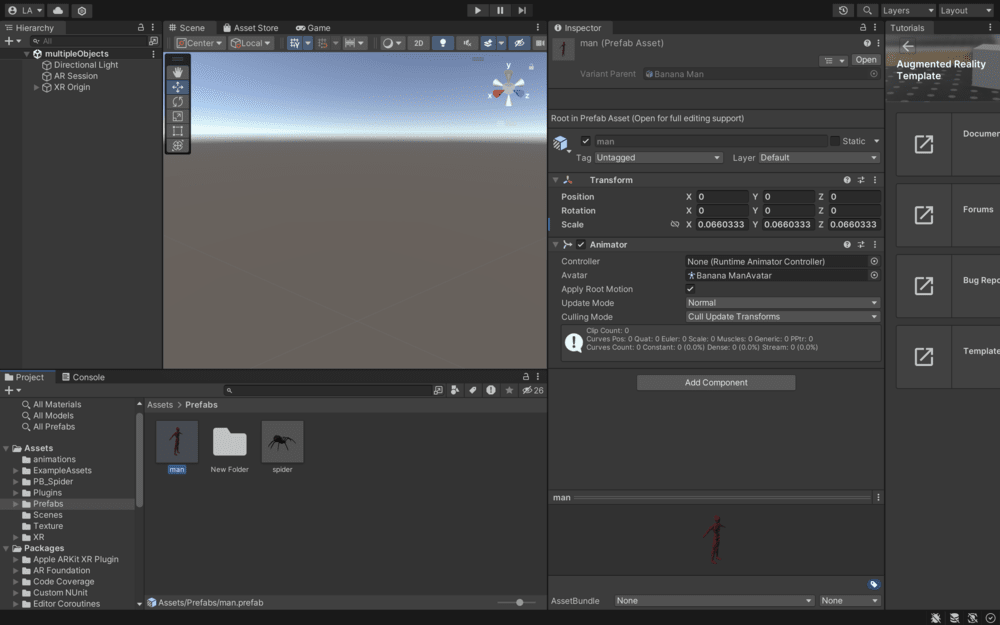
Models
You can use various models as your prefab. They can be downloaded from the Unity asset store. You can also create your prefabs. For this demo, both models were imported from the Unity asset store.
Reference image library
In the assets folder, create a folder called "Texture". In this folder, you will add the images you want to track. Once the textures have been added to the folder, create a reference image library, Right-click > XR > Reference image library.
Drag the images to the library. Specify their size and check "Keep Texture at Runtime."
Note: Ensure that the name of the models and images you add in the reference library are the same.
AR tracked image manager
The AR tracked image manager is a component in AR frameworks that handles the detection and tracking of real-world images as targets in augmented reality experiences. It dynamically recognizes and tracks these images in the camera view.
Go to your XR origin and add the AR-tracked image manager component. Drag the reference library to the serialized library.
Image tracker
To spawn objects onto their respective images, create a C# script called "ImageTracking," and add the code below.
Script
This script manages the spawning, positioning, and activation of prefab instances based on the tracked AR images.
using System.Collections;using System.Collections.Generic;using UnityEngine;using UnityEngine.XR;using UnityEngine.XR.ARFoundation;[RequireComponent(typeof(ARTrackedImageManager))]public class imageTracking : MonoBehaviour{[SerializeField]private GameObject[] placedPrefab;private Dictionary<string, GameObject> spawnedPrefab = new Dictionary<string, GameObject>();private ARTrackedImageManager trackedImageManager;private void Awake(){trackedImageManager = FindObjectOfType<ARTrackedImageManager>();foreach(GameObject prefab in placedPrefab){GameObject newPrefab = Instantiate(prefab, Vector3.zero, Quaternion.identity);newPrefab.name = prefab.name;spawnedPrefab.Add(prefab.name, newPrefab);}}private void OnEnable(){trackedImageManager.trackedImagesChanged += imageChanged;}private void OnDisable(){trackedImageManager.trackedImagesChanged -= imageChanged;}private void imageChanged(ARTrackedImagesChangedEventArgs eventArgs){foreach(ARTrackedImage trackedImage in eventArgs.added){updateImage(trackedImage);}foreach (ARTrackedImage trackedImage in eventArgs.updated){updateImage(trackedImage);}foreach (ARTrackedImage trackedImage in eventArgs.removed){spawnedPrefab[trackedImage.name].SetActive(false);}}private void updateImage(ARTrackedImage trackedImage){string name = trackedImage.referenceImage.name;Vector3 position = trackedImage.transform.position;GameObject prefab = spawnedPrefab[name];prefab.transform.position = position;prefab.SetActive(true);foreach(GameObject go in spawnedPrefab.Values){if(go.name != name){go.SetActive(false);}}}}
Explanation
Line 1–5: These lines are importing various namespaces from Unity’s scripting API. It includes classes and functions required for working with augmented reality (AR) using AR foundation and Unity’s XR system.
Line 7–8: A custom script named
imageTrackingis defined as a "MonoBehaviour". The[RequireComponent]attribute indicates that this script requires a GameObject to have anARTrackedImageManagercomponent attached to it for the script to work properly.Line 10–11: This line declares a private array of GameObjects named
placedPrefab. The[SerializeField]attribute allows the private field to be exposed in the Unity editor for serialization. This means you can assign GameObject prefabs to this array directly in the Unity inspector.Line 13–14: Two private fields are declared here. One is a dictionary named
spawnedPrefab, which will be used to store spawned prefab instances based on their names. The other is anARTrackedImageManagernamedtrackedImageManagerwhich will be used to manage AR tracked images.Line 16–26: The
Awake()method is called when the script instance is being loaded. It finds theARTrackedImageManagerin the scene usingFindObjectOfType. Then, for eachplacedPrefabin the array, it instantiates a new instance at the zero position and with no rotation. The instance’s name is set to match the prefab’s name, and the instance is added to thespawnedPrefabdictionary using its name as the key.Line 27–30: The
OnEnable()method is called when the script is enabled. It subscribes theimageChangedmethod to thetrackedImagesChangedevent of theARTrackedImageManager. This means that when the tracked images changed (added, updated, or removed), theimageChangedmethod will be called.Line 31–34: The
OnDisable()method is called when the script is disabled. It unsubscribes theimageChangedmethod from thetrackedImagesChangedevent of theARTrackedImageManager.Line 35–49: The
imageChangedmethod is responsible for handling changes in the tracked images. When images are added or updated, theupdateImagemethod is called with the correspondingARTrackedImage. When an image is removed, the associated prefab instance is retrieved from thespawnedPrefabdictionary and set to inactive.Line 50–66: The
updateImagemethod updates the position of the prefab instance based on the tracked image’s position. It activates the prefab instance and deactivates other prefab instances in thespawnedPrefabdictionary, ensuring that only the relevant prefab is visible at a time.
Final steps
Save the script and drag it to the XR origin. This will add the "Image Tracking" component. Change the number next to placed prefab according to the number of your models. Click on the drop-down button and add your models in each tab.
Save the scene. Connect your Android or iOS device. Go to File > Build and Run.
Demonstration
Conclusion
Multiple image tracking in Unity AR represents an advancement in augmented reality, enabling the creation of interactive and captivating experiences. Leveraging Unity’s AR foundation, you can implement image recognition and tracking systems that connect virtual content with real-world objects.
Free Resources