Object placement in AR
In Augmented Reality (AR), object placement/spawning refers to positioning virtual objects or content in the user’s real-world environment or virtual space. It involves placing digital 3D objects, images, or other virtual elements onto the physical world, making them appear as if they exist in the user’s surroundings.
Implementing object placement
Object placement is a crucial aspect of AR/VR applications as it directly affects the user’s experience and immersion. The goal is to integrate virtual content with the real-world environment to create a convincing and interactive user experience.
In AR applications, object placement relies on the detection and tracking of real-world surfaces (e.g., floors, tables, walls) to ensure that virtual objects align and interact realistically with the physical world. Create a Unity AR project.

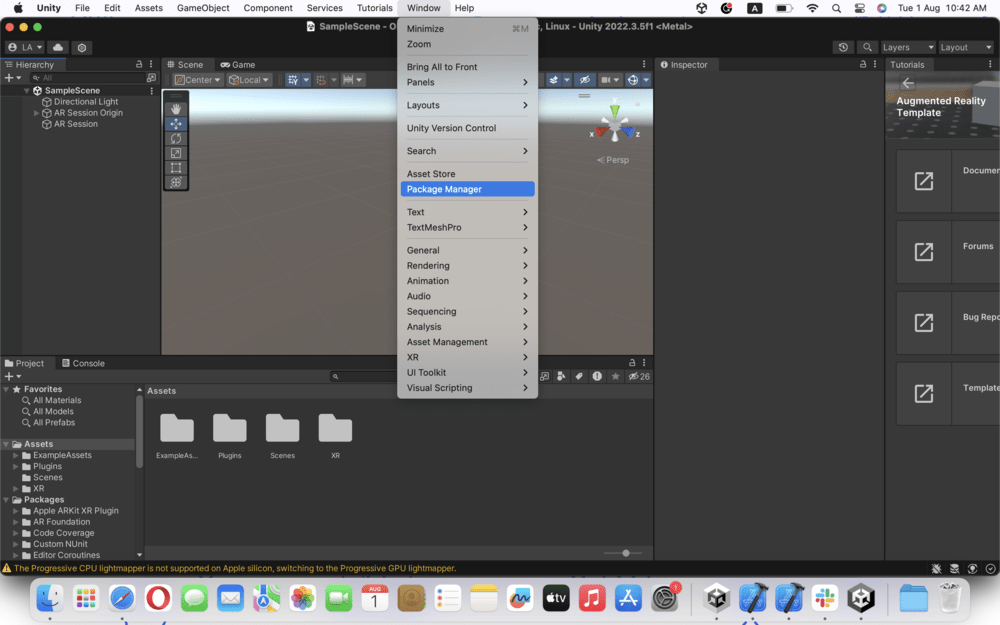
In XR origin, add the AR plane management component and include the AR default plane.
AR raycast manager
The AR raycast manager is a key component that enables raycasting in AR scenes. Raycasting is the process of projecting a ray into the scene for collision detection. It provides a unified API for working with AR across different platforms. It allows you to perform AR-aware raycasts, which means the raycast considers the real-world geometry, to determine where the ray intersects the AR scene. Add the AR raycast manager component.
Spawned object
You now need the object that you will spawn on the plane. Create a prefab cube and name it "SpawnableObject." Update the scale to 0.1,0.1,0.1. Create a new tag called "Spawnable" and tag it to your spawnable object and drag it into the prefab folder.
Spawnable manager
To manage the spawned object, you need a manager. For that create a new C# script with the name "SpawnableManager." The script will include the code as mentioned below.
Script code
This script enables AR-based object placement using touch input.
using System.Collections;using System.Collections.Generic;using UnityEngine;using UnityEngine.XR.ARFoundation;public class SpawnableManager : MonoBehaviour{[SerializeField]ARRaycastManager m_RaycastManager;List<ARRaycastHit> m_Hits = new List<ARRaycastHit>();[SerializeField]GameObject prefabSpawn;Camera cam;GameObject spawnObject;// Start is called before the first frame updatevoid Start(){// Initialize variablesspawnObject = null;// Find the AR Camera in the scene and get its Camera componentcam = GameObject.Find("AR Camera").GetComponent<Camera>();}// Update is called once per framevoid Update(){// Check if there are no touches on the screenif (Input.touchCount == 0)return;// Create a ray from the touch position to detect potential AR hitsRay ray = cam.ScreenPointToRay(Input.GetTouch(0).position);// Raycast from the ARRaycastManager to check for AR hitsif (m_RaycastManager.Raycast(Input.GetTouch(0).position, m_Hits)){// Check if the touch phase has begun and there is no currently selected spawnObjectif (Input.GetTouch(0).phase == TouchPhase.Began && spawnObject == null){// Check if there is a regular RaycastHit, this is used for non-AR interactionsif (Physics.Raycast(ray, out RaycastHit hit)){// If the GameObject has the "Spawnable" tag, select it as the spawnObjectif (hit.collider.gameObject.tag == "Spawnable"){spawnObject = hit.collider.gameObject;}else{// Spawn a new prefab at the AR hit position if it's not a "Spawnable" GameObjectSpawnPrefab(m_Hits[0].pose.position);}}}// If the touch phase is Moved and there is a selected spawnObjectelse if (Input.GetTouch(0).phase == TouchPhase.Moved && spawnObject != null){// Move the selected spawnObject to the AR hit positionspawnObject.transform.position = m_Hits[0].pose.position;}// If the touch phase is Ended, reset the selected spawnObject to nullif (Input.GetTouch(0).phase == TouchPhase.Ended){spawnObject = null;}}}// Instantiate the prefab at the given position and set spawnObject to the newly instantiated objectprivate void SpawnPrefab(Vector3 spawnPosition){spawnObject = Instantiate(prefabSpawn, spawnPosition, Quaternion.identity);}}
Explanation
Line 6: The
SpawnableManagerclass is defined and inherited fromMonoBehaviour, which is the base class for Unity scripts.Line 8 – 13: Two serialized fields are declared:
m_RaycastManager, which is of typeARRaycastManager, andprefabSpawn, which is of typeGameObject. Serialized fields can be set in the Unity Inspector.Line 10:
List<ARRaycastHit> m_Hitsis declared to store the AR raycast hit information.Line 15 – 16: Two more variables are declared:
camof typeCamera, which will store the AR camera in the scene, andspawnObject, which will represent the currently selected spawnable object.Line 19 – 25: In the
Startmethod, thespawnObjectis initialized as null, and the AR camera component is obtained by searching for a GameObject named “AR Camera” in the scene.Line 28 – 70: In the
Updatemethod, the code checks if there are any touches on the screen. If there are none, the method returns.Line 35: A ray is created from the touch position on the screen using the AR camera’s
ScreenPointToRaymethod.Line 38: The
m_RaycastManageris used to perform an AR raycast to check for AR hits and to store results in them_Hitslist.Line 38 – 69: Inside the AR raycast block, it checks the touch phase:
Line 41: If the touch phase has just begun (
TouchPhase.Began) and nospawnObjectis currently selected, it checks for a regular raycast hit usingPhysics.Raycast.Line 47: If the raycast hits a GameObject with the tag “Spawnable,” it sets the
spawnObjectvariable to the hit GameObject.Line 54: If the raycast does not hit a “Spawnable” GameObject, it calls the
SpawnPrefabmethod to instantiate a new prefab at the AR hit position.Line 59: If the touch phase is “Moved” (
TouchPhase.Moved) and there is a selectedspawnObject, it updates the position of thespawnObjectto follow the AR hit position.Line 65: If the touch phase is “Ended” (
TouchPhase.Ended), it resets thespawnObjectto null, indicating that no object is currently selected.
Line 73 – 76: The
SpawnPrefabmethod takes aspawnPositionvector as a parameter and instantiates theprefabSpawnGameObject at that position with a default rotation (Quaternion.identity). The newly instantiated object is then assigned to thespawnObjectvariable.
In the hierarchy tab, create an empty GameObject named "SpawnManager." Drag the SpawnableManager script onto the SpawnManager. Click on SpawnManager.
In the inspector tab, drag the XR origin to the raycast manager field and your spawnable object to the spawnable prefab field. Save the scene. Connect your Android or iOS device. Go to File > Build and Run.
Demonstration
Conclusion
In AR applications, object placement is generally within the virtual environment itself. Users can interact with and manipulate virtual objects in a simulated 3D space. In this Answer, you learned how to place an object on the plane.
Free Resources