OpenCV rotate image
Image processing is a critical and rapidly evolving field, with applications ranging from security and surveillance to social media filters. One common operation in image processing is rotation.
In this Answer, we will explore how to rotate images using OpenCV, an open-source library designed for computer vision tasks. OpenCV is like a magic toolbox for computers, helping them understand images and videos. It lets them see, analyze, and even make decisions based on visual information, just like we humans do with our eyes!
Installing OpenCV
To start with, OpenCV needs to be installed in the Python environment. It can be installed using pip.
pip install opencv-python
Image rotation
Image rotation is a common image processing routine with a range of uses, from machine vision to basic image editing. It entails changing the orientation of an image by rotating it by a certain angle around a given point.


We will use two approaches to performing image rotation using OpenCV: a matrix-based approach and a simple function call to cv2.rotate().
1. Matrix-based rotation
This method involves creating a rotation matrix with cv2.getRotationMatrix2D(center, angle, scale), which returns a rotation matrix. The parameters define the rotation center, angle in degrees, and scale factor. The rotation is applied with cv2.warpAffine(). The function signature and parameters are as follows:
cv2.warpAffine(src, M, dsize[, dst[, flags[, borderMode[, borderValue]]]])
src: This is the input image on which the affine transformation will be applied. It should be a NumPy array (image) of typeuint8,float32, etc.M: The 2x3 transformation matrix used for the affine transformation. It should be of type NumPy array with the shape(2, 3).dsize: The output image size (width, height) as a tuple (width, height).dst(optional): The output image. If not specified, the function creates an output image of the same type and size as thesrcimage.flags(optional): The interpolation method to be used during transformation. The default value iscv2.INTER_LINEAR. Other possible values arecv2.INTER_NEAREST,cv2.INTER_CUBIC, etc.borderMode(optional): The border mode fills in pixels outside the transformed image. The default value iscv2.BORDER_CONSTANT. Other possible values arecv2.BORDER_REFLECT,cv2.BORDER_WRAP, etc.borderValue(optional): The value used for the border pixels when theborderModeiscv2.BORDER_CONSTANT. The default value is 0.
The advantage of this method is its flexibility: we can rotate by any angle and scale the image.
2. Using cv2.rotate()
OpenCV provides the function cv2.rotate() that can be used to rotate an image. The following are the parameters for this function:
src: This is the input image, which is of typecv2.InputArray. It represents the source image that we want to rotate.dst: This is the output image, which is of typecv2.OutputArray. It represents the destination or output image where the rotated image will be stored.rotateCode: This parameter specifies the rotation angle and rotation direction. It can take one of the following values:cv2.ROTATE_90_CLOCKWISE: Rotate the image 90 degrees clockwise.cv2.ROTATE_90_COUNTERCLOCKWISE: Rotate the image 90 degrees counterclockwise.cv2.ROTATE_180: Rotate the image 180 degrees.
Unlike the matrix-based method, cv2.rotate() does not allow for arbitrary rotation angles or scaling.
Now, let's learn the steps involved in image rotation using OpenCV using both approaches:
Step 1: Import necessary libraries
import cv2import matplotlib.pyplot as pltimport numpy as np
In this step, the necessary libraries for the program are imported. OpenCV (cv2) is used for image processing, matplotlib.pyplot for image display and numpy for numerical operations.
Step 2: Load an image
image = cv2.imread('image.png')
This line reads the image file using cv2.imread() function. 'image.png' is the image file that we want to rotate.
Step 3: Determine image properties
(height, width) = image.shape[:2]center = (width / 2, height / 2)
Here, we get the shape of the image (its height and width) and compute the center point of the image. These properties are used when computing the rotation matrix.
Step 4: Perform the general rotation
angle = 45scale = 1.0matrix = cv2.getRotationMatrix2D(center, angle, scale)rotated_by_matrix = cv2.warpAffine(image, matrix, (width, height))
In these lines, we set the angle by which we want to rotate the image and the scale factor. We create a rotation matrix with cv2.getRotationMatrix2D() and apply this matrix to our image with cv2.warpAffine(). The resulting image is stored in rotated_by_matrix.
Step 5: Perform the rotations using rotate()
rotated_90_clockwise = cv2.rotate(image, cv2.ROTATE_90_CLOCKWISE)
This line uses OpenCV's rotate() function to rotate the image 90 degrees clockwise. The resulting image is stored in rotated_90_clockwise. Also, let's perform 90 degrees counter-clockwise and 180 degrees rotation using the following code.
rotated_90_counterclockwise = cv2.rotate(image, cv2.ROTATE_90_COUNTERCLOCKWISE)rotated_180 = cv2.rotate(image, cv2.ROTATE_180)
In these lines, we rotate the image 90 degrees (counter-clockwise) and 180 degrees. The resulting images are stored in rotated_90_counterclockwise and rotated_180 variables.
Step 6: Prepare the plot
fig, axs = plt.subplots(2, 3, figsize=(15, 10))
This line creates a 2x3 grid of subplots with a specific figure size. We will use these subplots to display the original image and the rotated images.
Step 7: Display all the images
# Display the original imageaxs[0, 0].imshow(cv2.cvtColor(image, cv2.COLOR_BGR2RGB))axs[0, 0].set_title('Original Image')axs[0, 0].axis('off')# and so on for all the rotated images...
These lines display each of the images on a different subplot. The imshow function is used to display an image. However, since OpenCV reads images in BGR format by default and imshow expects images in RGB format, we use cv2.cvtColor() to convert the BGR image (image) to RGB format before displaying it. This function takes two arguments: the image to be converted (image), and the conversion code (cv2.COLOR_BGR2RGB), which specifies the conversion from BGR to RGB color space. The set_title() is used to set a title for the subplot and axis('off') is used to hide the axis.
Step 8: Show the plot with all images
plt.show()
This line displays the figure with all the subplots.
Complete code
Here's the complete executable code following the above steps:
# Import necessary libraries
import cv2
import matplotlib.pyplot as plt
import numpy as np

# Load an image
image = cv2.imread('image.png')

# Get the image size
(height, width) = image.shape[:2]

# Define the center of the image
center = (width / 2, height / 2)

# Perform the general rotation
angle = 45
scale = 1.0
matrix = cv2.getRotationMatrix2D(center, angle, scale)
rotated_by_matrix = cv2.warpAffine(image, matrix, (width, height))

# Perform the 90 degrees clockwise rotation
rotated_90_clockwise = cv2.rotate(image, cv2.ROTATE_90_CLOCKWISE)

# Perform the 90 degrees counter-clockwise rotation
rotated_90_counterclockwise = cv2.rotate(image, cv2.ROTATE_90_COUNTERCLOCKWISE)

# Perform the 180 degrees rotation
rotated_180 = cv2.rotate(image, cv2.ROTATE_180)

# Prepare the plot
fig, axs = plt.subplots(2, 3, figsize=(15, 10))

# Display the original image
axs[0, 0].imshow(cv2.cvtColor(image, cv2.COLOR_BGR2RGB))
axs[0, 0].set_title('Original Image')
axs[0, 0].axis('off')

# Display the rotated image (general rotation)
axs[0, 1].imshow(cv2.cvtColor(rotated_by_matrix, cv2.COLOR_BGR2RGB))
axs[0, 1].set_title('Rotated Image (45 degrees)')
axs[0, 1].axis('off')

# Display the rotated image (90 degrees clockwise)
axs[0, 2].imshow(cv2.cvtColor(rotated_90_clockwise, cv2.COLOR_BGR2RGB))
axs[0, 2].set_title('Rotated Image (90 degrees clockwise)')
axs[0, 2].axis('off')

# Display the rotated image (90 degrees counter-clockwise)
axs[1, 0].imshow(cv2.cvtColor(rotated_90_counterclockwise, cv2.COLOR_BGR2RGB))
axs[1, 0].set_title('Rotated Image (90 degrees counter-clockwise)')
axs[1, 0].axis('off')

# Display the rotated image (180 degrees)
axs[1, 1].imshow(cv2.cvtColor(rotated_180, cv2.COLOR_BGR2RGB))
axs[1, 1].set_title('Rotated Image (180 degrees)')
axs[1, 1].axis('off')

# Hide the last subplot (if you have more images, this can be used)
axs[1, 2].axis('off')

# Show the plot with all images
plt.show()Output
This is the output plot generated by the code:

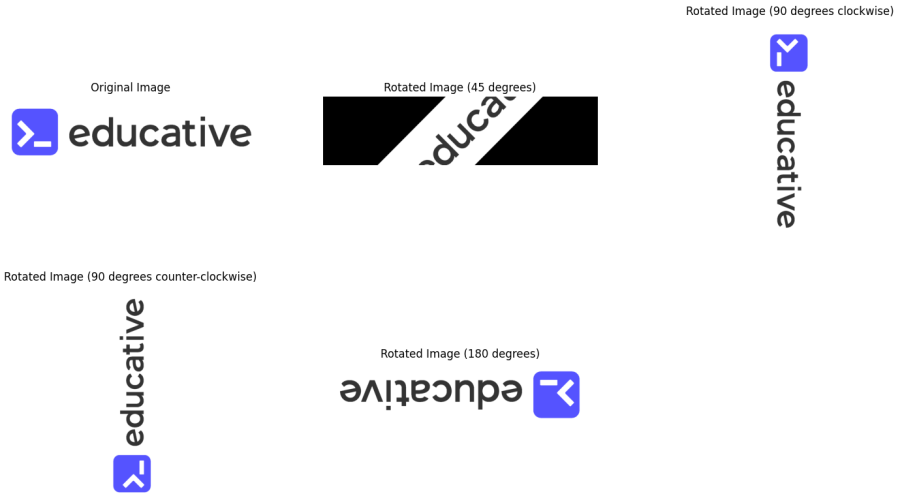
The output plot is a 2x3 grid of subplots, each displaying a different image.
The subplot in the first row, first column displays the original image.
The subplot in the first row, second column displays an image rotated 45 degrees around the center point. This rotation is performed using a rotation matrix and the
cv2.warpAffine()function.The subplot in the first row, third column shows an image rotated 90 degrees clockwise. This rotation is performed using the
cv2.rotate()function with thecv2.ROTATE_90_CLOCKWISEargument.The subplot in the second row, first column shows an image rotated 90 degrees counter-clockwise. This rotation is also done using the
cv2.rotate()function, but this time with thecv2.ROTATE_90_COUNTERCLOCKWISEargument.The subplot in the second row, second column displays an image rotated 180 degrees. This rotation is done using the
cv2.rotate()function with thecv2.ROTATE_180argument.The subplot in the second row, third column is empty since the code hides this subplot with the
axis('off')command.
Conclusion
In this Answer, we explored two different methods for image rotation using OpenCV. These methods are straightforward, providing an easy way to manipulate images in Python. As we've seen, OpenCV is a powerful library for image processing, and there's much more to explore beyond image rotation. Whether we're working on a large project or just playing around with image manipulation, OpenCV has tools that can help.
Free Resources