ReactJS dark mode
React is a JavaScript framework primarily concerned with creating dynamic and interactive user interfaces to improve user experience. We can build the ability to switch between light and dark mode themes for websites or React applications using ReactJS.
Demand for dark mode
Dark mode is a user interface (UI) design option that presents content on a dark background with light-colored text and elements, unlike the traditional light mode with dark text on a light background.
It has become popular in modern web applications, providing users a visually appealing and comfortable experience. Since it offers an alternative color scheme for digital interfaces, users can toggle based on their preferences or environmental conditions.
Creating the application
Here, we will learn and explore how to implement a dark mode toggle functionality in our ReactJS app.
To execute a ReactJS application with dark mode toggle functionality, we can create a new project for your app or use an existing project to incorporate the dark mode component.
Note: We implemented dark mode toggle functionality in this ReactJS project for our convenience.
Since we already have a ReactJS project, we will navigate to the project directory in our terminal and open it in the code editor.
For our convenience, we will edit all three files for this project.
App.jsis a JavaScript file with the application's main component, and it defines the structure and functionality of the SearchBar and dark mode components. This file will run the application upon execution.SearchBar.cssis a Cascading Style Sheets (CSS) file used to define the visual appearance of the SearchBar component, such as setting colors, sizes, borders, and other styles for different elements.SearchBar.jsis a JavaScript file with the application's main components, SearchBar, and dark mode for the project. Both are reusable components that represent a search bar with dynamic filtering functionality and a toggle functionality button that switches between light and dark themes.
Code
import React, { useState } from "react";
import "./SearchBar.css";

const SearchBar = () => {
  const [searchQuery, setSearchQuery] = useState("");
  const [filteredItems, setFilteredItems] = useState([]);
  const [currentMode, setCurrentMode] = useState("light");

  const itemList = [
    { name: "Apple", price: "$1.99" },
    { name: "Banana", price: "$0.99" },
    { name: "Orange", price: "$1.49" },
    { name: "Strawberry", price: "$2.49" },
    { name: "Grapes", price: "$3.99" },
    { name: "Watermelon", price: "$4.99" },
  ];

  const handleInputChange = (event) => {
    const query = event.target.value;
    setSearchQuery(query);
    const filtered = itemList.filter((item) =>
      item.name.toLowerCase().includes(query.toLowerCase())
    );
    setFilteredItems(filtered);
  };

  const handleSubmit = (event) => {
    event.preventDefault();
    console.log("Search query:", searchQuery);
    const filtered = itemList.filter((item) =>
      item.name.toLowerCase().includes(searchQuery.toLowerCase())
    );
    setFilteredItems(filtered);
  };

  const toggleMode = () => {
    setCurrentMode(currentMode === "light" ? "dark" : "light");
  };

  return (
    <div
      className={`bar ${currentMode === "light" ? "light-mode" : "dark-mode"}`}
    >
      <button onClick={toggleMode}>Toggle Mode</button>

      <form className="search-bar" onSubmit={handleSubmit}>
        <input
          type="text"
          placeholder="Search..."
          value={searchQuery}
          onChange={handleInputChange}
        />
        <button type="submit">Search</button>
      </form>
      <ul className="item-list">
        {searchQuery === "" ? (
          itemList.map((item, index) => (
            <li key={index}>
              {item.name} - {item.price}
            </li>
          ))
        ) : filteredItems.length > 0 ? (
          filteredItems.map((item, index) => (
            <li key={index}>
              {item.name} - {item.price}
            </li>
          ))
        ) : (
          <li>No matching items found</li>
        )}
      </ul>
    </div>
  );
};

export default SearchBar;Code explanation
Note: Check this Answer for an in-depth explanation of the code above. We will only explain the code that focuses on creating and implementing dark mode toggle functionality.
Line 7: In this line, we use the
useStatehook to declare two state variables,currentModestores the current mode, either light or dark andsetCurrentModeis a function to update thecurrentModestate.Line 36–38: Here, we use the
toggleModefunction that toggles the mode between light and dark and checks the current mode usingcurrentMode. If the current mode is light, it updatescurrentModeto dark. Otherwise, it updates the mode to light.Line 40-43: We add a div element that wraps the component's content.The
classNameattribute of the div is set dynamically based on the current mode. IfcurrentModeis light, the div will have the class bar light-mode. Otherwise, it will have the class bar dark-mode.Line 44: In this line, we finally add the button element with the text "Toggle Mode" and an
onClickevent that triggers the toggleMode function when clicked.
Output
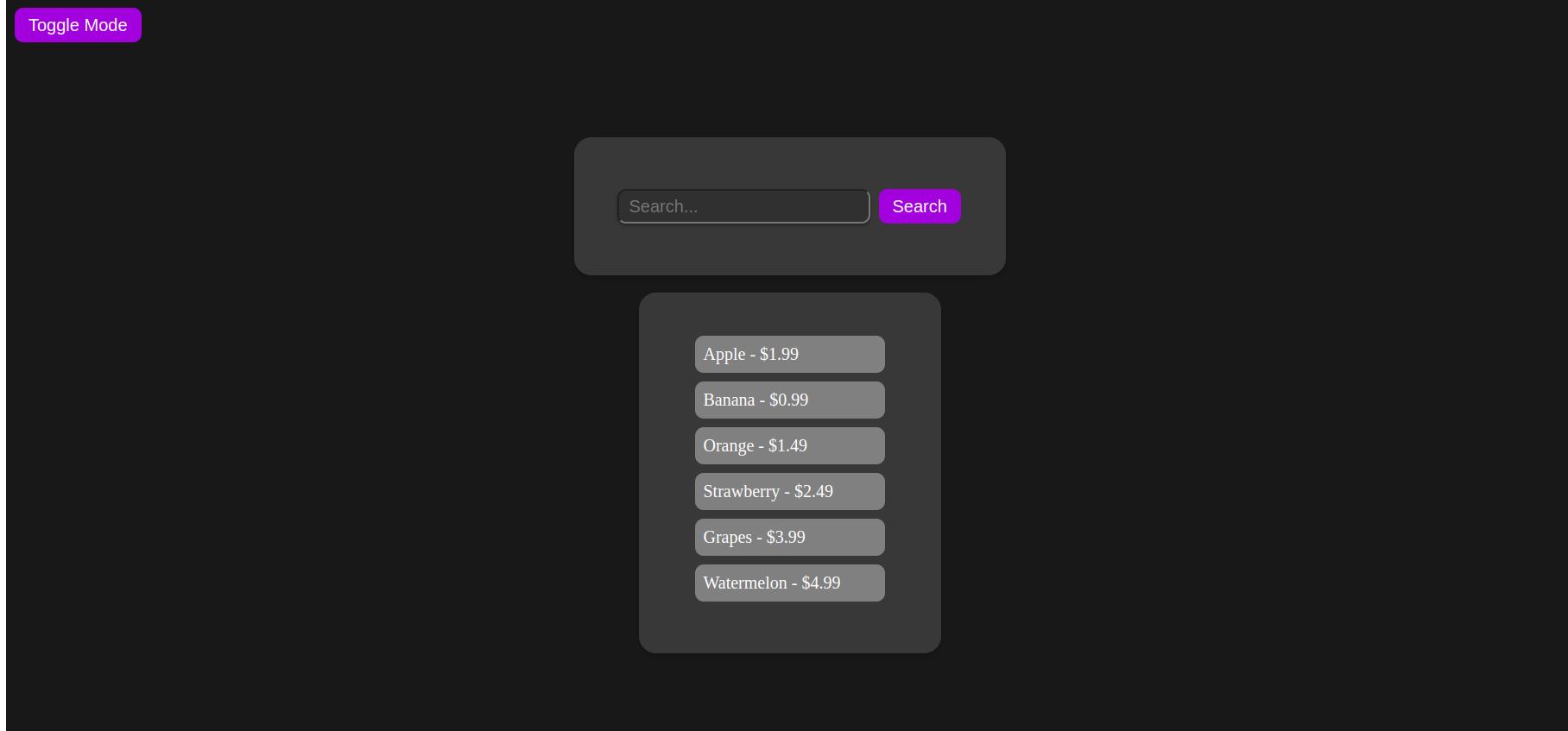
Upon execution, the project looks like this:
In light mode

In dark mode
Conclusion
Hence, users can now switch between light and dark modes by incorporating the dark mode toggling component into their ReactJs app, which provides a sleek and user-friendly interface. to enhance their viewing experience. By utilizing React state and CSS classes, they can create dynamic themes that improve user accessibility and aesthetics.
Free Resources