ReactJS search filter
React is a JavaScript framework mainly focused on building interactive and dynamic user interfaces to enhance user experience. Using ReactJS, we can create a search filter or search bar for websites or React projects.
What does a search filter do?
A search filter is a tool or feature that lets users choose certain things or search results based on criteria or keywords.
Narrowing down the presented material to only the things that match their search query helps visitors obtain pertinent information quickly.
Creating the search filter application
We can quickly develop simple and complex web applications and projects using ReactJS since it smoothly integrates with other JavaScript libraries or frameworks.
To create a simple search filter application that performs searching for particular items, we will make a new React project for our app.
You can find a step-by-step approach to creating a React app on your machine here.
Once we have set up ReactJS on our systems and have the React app ready for execution, we will make three separate files for this project.
App.jsis a JavaScript file with the application's main component, and it defines the structure and functionality of the SearchBar component. The app will run the application upon execution.SearchBar.cssis a Cascading Style Sheets (CSS) file used to define the visual appearance of the SearchBar component, such as setting colors, sizes, borders, and other styles for different elements.SearchBar.jsis a JavaScript file with the application's main component, SearchBar, which is a reusable component that represents a search bar with dynamic filtering functionality. It lets users input a search query and instantly display a list of things matching it.
Code
import React, { useState } from "react";
import "./SearchBar.css";

const SearchBar = () => {
  const [searchQuery, setSearchQuery] = useState("");
  const [filteredItems, setFilteredItems] = useState([]);

  const itemList = [
    { name: "Apple", price: "$1.99" },
    { name: "Banana", price: "$0.99" },
    { name: "Orange", price: "$1.49" },
    { name: "Strawberry", price: "$2.49" },
    { name: "Grapes", price: "$3.99" },
    { name: "Watermelon", price: "$4.99" },
  ];

  const handleInputChange = (event) => {
    const query = event.target.value;
    setSearchQuery(query);
    const filtered = itemList.filter((item) =>
      item.name.toLowerCase().includes(query.toLowerCase())
    );
    setFilteredItems(filtered);
  };

  const handleSubmit = (event) => {
    event.preventDefault();
    console.log("Search query:", searchQuery);
    const filtered = itemList.filter((item) =>
      item.name.toLowerCase().includes(searchQuery.toLowerCase())
    );
    setFilteredItems(filtered);
  };

  return (
    <div>
      <form className="search-bar" onSubmit={handleSubmit}>
        <input
          type="text"
          placeholder="Search..."
          value={searchQuery}
          onChange={handleInputChange}
        />
        <button type="submit">Search</button>
      </form>
      <ul className="item-list">
        {searchQuery === "" ? (
          itemList.map((item, index) => (
            <li key={index}>
              {item.name} - {item.price}
            </li>
          ))
        ) : filteredItems.length > 0 ? (
          filteredItems.map((item, index) => (
            <li key={index}>
              {item.name} - {item.price}
            </li>
          ))
        ) : (
          <li>No matching items found</li>
        )}
      </ul>
    </div>
  );
};

export default SearchBar;
Code explanation
Line 1–2: We import React and the
useStatehook from React library and theSearchBar.cssfile for styling purposes.Line 4: In this line, We define a functional component called
SearchBarusing an arrow function.Line 5–6: In these lines, we use the
useStatehook to declare two state variables:searchQuerystores the current search query entered by the user andfilteredItemsstores the list of items that match the search query.Line 8–15: Here, we define an array called
itemListthat represents a list of items with their names and prices.Line 17–24: In these lines, we use
handleInputChangefunction that gets triggered whenever the input value changes. It extracts the query from the event target’s value and updates thesearchQuerystate with it. It then filters theitemListarray based on the query, ignoring case sensitivity and updating thefilteredItemsstate with the filtered result.Line 26–33: Similarly, we use
handleSubmitfunction that gets triggered when the form is submitted. It prevents the default form submission behavior. It logs the search query to the console. It performs the same filtering process ashandleInputChangeto update thefilteredItemsstate based on the search query.Line 35: In this line, we return the JSX markup of the component.
Line 37–45: These lines of code render a form with a search input field and a submit button. The
valueattribute of the input field is set tosearchQuery, which ensures it reflects the current state value. TheonChangeevent of the input field is set to thehandleInputChangefunction, which updates the search query as the user types. The form’sonSubmitevent is set to thehandleSubmitfunction, which handles the form submission.Line 46: Moving on, we have an unordered list (
ul) with a class of"item-list". The list is dynamically populated based on the search query and the state offilteredItems.Line 47–59: Here, we check if the search query is empty, then it displays all items from the
itemListarray. However, if the search query is not empty and matches items are infilteredItems, it then displays the filtered items.Line 60: In this line, we check if the search query is not empty but has no matching items, then it displays a message saying, “No matching items found.”
Line 67: Finally, we export the
SearchBarcomponent as the default export, making it available for other files to import and use by the fileApp.js.
Output
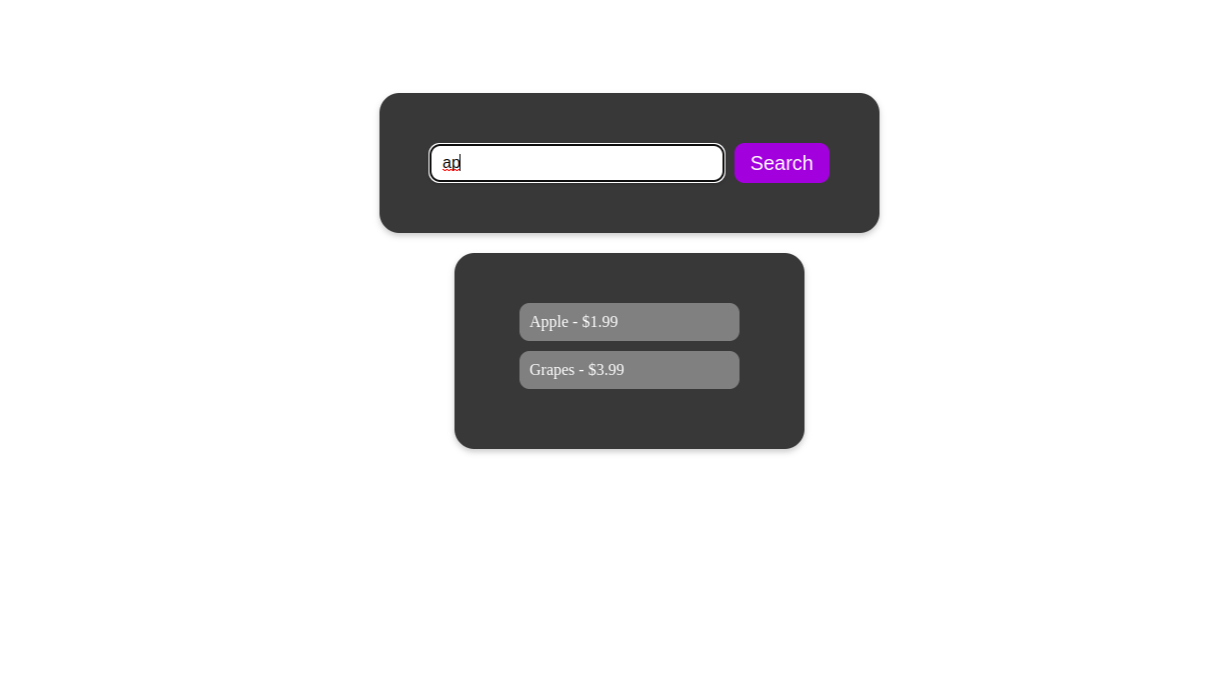
Upon execution of the above code, the output should look something like this:

We put "ap" in the search bar to check all list items containing one or both of the aforementioned characters. We see Apple and Grapes by writing our search query.
You can alter this according to your needs.
Free Resources