Splitting RGB channels in Python
Image processing is a crucial part of computer vision and is aided by numerous Python libraries. Computer vision, in easier words, is a field of artificial intelligence containing techniques that allow machines to analyze and interpret images and videos, recognize objects, and extract information from visual data.
It can range from very simple to highly complex tasks, and in almost all of them, some

RGB channels
In computer vision and image processing, RGB i.e. red, green, and blue, is a common color model we use to represent images. Splitting RGB channels involves separating the red, green, and blue components of an image. This effectively allows us to view the intensities of the colors individually and manipulate them.
Red channel: The red channel represents the intensity of the red color component in an image. By isolating it, we can detect red objects in computer vision applications.
Green channel: The green channel represents the intensity of the green color component. We can apply this in nature-oriented images, enabling the exploration of green-dominant regions.
Blue channel: The blue channel represents the intensity of the blue color component. This could be useful in scenarios like underwater imaging etc.


RGB values
RGB values are usually represented as a 3-dimensional vector like (R, G, B), where each component ranges from 0 to 255. In coding, we represent them as 3 integers within brackets, like (255, 0, 0) for red, (0, 255, 0) for green, and (0, 0, 255) for blue, respectively.
Matplotlib and PIL
In Python, libraries like PIL i.e. Python Imaging Library and Matplotlib, facilitate easy access to RGB channels, image processing, and plotting. In our answer, we will be using these libraries together.


Displaying split channels
For simply splitting the RGB channels in an image, we can use the cmaps function of Matplotlib to display the specific channels.
cmaps = 'Reds'is used for displaying the red channel.cmaps = 'Blues'is used for displaying the blue channel.cmaps = 'Greens'is used for displaying the green channel.
import numpy as np
import matplotlib.pyplot as plt
from PIL import Image

img = Image.open("test_image.png")
M = np.asarray(img)

plt.figure(figsize=(12, 6))
plt.subplot(131)

plt.imshow(M[:, :, 0], cmap='Reds', vmin=0, vmax=255)
plt.title("Red Channel")
plt.subplot(132)

plt.imshow(M[:, :, 1], cmap='Greens', vmin=0, vmax=255)
plt.title("Green Channel")
plt.subplot(133)

plt.imshow(M[:, :, 2], cmap='Blues', vmin=0, vmax=255)
plt.title("Blue Channel")

plt.show()
Code explanation
First, we import the necessary modules needed for our code to run properly.
We load our image named
test_image.pngusing theImage.open()method from PIL and save it inimg.Next, we convert the loaded image
imginto a NumPy arrayMusingM = np.asarray(img). Now,Mrepresents the image as a 3D array, where each element represents a pixel's RGB color value.We then create a Matplotlib figure with a size of 12 x 6 inches using
plt.figure(figsize=(12, 6)).Three subplots are created side by side using
plt.subplot(131),plt.subplot(132), andplt.subplot(133). These three subplots represent the positions of the channels.For each subplot, we use
plt.imshow()to display the channels.plt.imshow(M[:, :, 0], cmap='Reds', vmin=0, vmax=255): This displays the red channel i.e. index 0 of the arrayMwith a colormap of "Reds". Thevminandvmaxarguments set the range of colors for the colormap, which is from 0 to 255 i.e. minimum to maximum.plt.imshow(M[:, :, 1], cmap='Greens', vmin=0, vmax=255): We do the same for the green channel.plt.imshow(M[:, :, 2], cmap='Blues', vmin=0, vmax=255): We do the same for the blue channel.
plt.title("Red Channel"),plt.title("Green Channel"), andplt.title("Blue Channel")set the titles of the three subplots to "Red Channel," "Green Channel," and "Blue Channel," respectively.We finally display our subplot figures using
plt.show(), with each subplot showing one of the RGB color channels of the image.
Code output
The above code displays the three channels and labels them accordingly.


Displaying split and original images together
We can also create a figure containing the original image for comparison. The axis can be turned off too. Feel free to experiment with the code and try it by clicking "Run".
import numpy as np
import matplotlib.pyplot as plt
from PIL import Image

img = Image.open("test_image.png")
M = np.asarray(img)

plt.figure(figsize=(12, 12))

plt.subplot(2, 2, 1)
plt.imshow(img)
plt.title("Original Image")
plt.axis('off')

plt.subplot(2, 2, 2)
plt.imshow(M[:, :, 0], cmap='Reds', vmin=0, vmax=255)
plt.title("Red Channel")
plt.axis('off')

plt.subplot(2, 2, 3)
plt.imshow(M[:, :, 1], cmap='Greens', vmin=0, vmax=255)
plt.title("Green Channel")
plt.axis('off')

plt.subplot(2, 2, 4)
plt.imshow(M[:, :, 2], cmap='Blues', vmin=0, vmax=255)
plt.title("Blue Channel")
plt.axis('off')

plt.show()
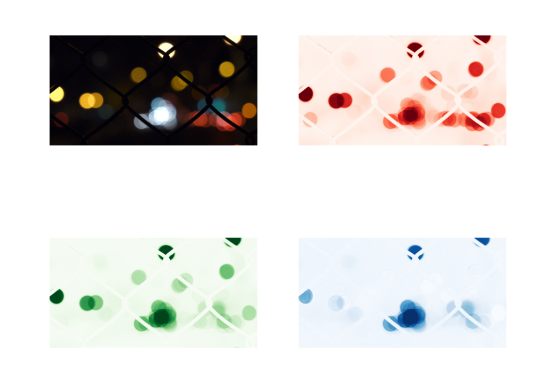
Code output
The above code displays the original image and the three channels as four subplots.


Application scenario
Such a splitting task is inherently simple, but there are many more complex applications it can be used in. Let's take an interesting scenario below. Suppose we have an image and want to enhance one particular channel from the RGB channel. We can easily do that through the code below.
import numpy as np
import matplotlib.pyplot as plt
from PIL import Image


img = Image.open("test_image.png")
M = np.asarray(img)

red_channel = M[:, :, 0]
green_channel = M[:, :, 1]
blue_channel = M[:, :, 2]

red_enhanced = np.clip(red_channel * 1.5, 0, 255)

enhanced_image = np.stack((red_enhanced, green_channel, blue_channel), axis=-1).astype(np.uint8)
enhanced_image = Image.fromarray(enhanced_image)

plt.figure(figsize=(12, 6))

plt.subplot(1, 2, 1)
plt.imshow(img)
plt.title("Original Image")

plt.subplot(1, 2, 2)
plt.imshow(enhanced_image)
plt.title("Enhanced Image (Red Channel)")

plt.show()
Code explanation
We first load our image
test_image.pngusing PIL and convert it into an arrayM.The red, green, and blue channels of the image are extracted into separate arrays called
red_channel,green_channel, andblue_channel.This is the main image enhancement step. The intensity of the red channel is enhanced by multiplying all its values by 1.5 and then changing the result to stay within the valid intensity range i.e. 0 to 255.
The enhanced red channel is combined with the original green and blue channels to create a new image
enhanced_image.We create two subplots to display the original and enhanced images side by side and add titles to them.
The Matplotlib figure containing both of the subplots is displayed using
plt.show().
Code output
It's visible how the original image's red channel is enhanced below. Pretty good results, right?


Enhancing other channels
We can also enhance the green and blue channels using the same procedure.


What color does (0,0,255) represent in the RGB channel?
Free Resources