What is hardware virtualization?
Hardware virtualization refers to creating and operating virtual machines (VMs) on a physical computer system. It allows multiple operating systems (OSs) and applications to run simultaneously and independently on a single physical machine, known as the host machine. Each VM acts as a separate and isolated environment with its own virtualized hardware resources, including CPU, memory, storage, and network interfaces.

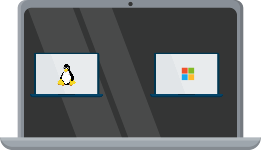
Virtualization is achieved through a combination of hardware and software components. The underlying hardware, such as the CPU, memory management unit (MMU), and input/output (I/O) devices, play a crucial role in supporting virtualization. Let’s dive deeper into the key aspects of hardware virtualization.
Virtualization extensions
Modern CPUs often include special instructions and features known as virtualization extensions, which enhance the performance and security of virtualization. Intel processors use Intel Virtualization Technology (Intel VT), while AMD processors incorporate AMD Virtualization (AMD-V). These extensions enable the CPU to efficiently handle the virtualization of resources and provide hardware-level support for the virtual machine monitor (VMM) or hypervisor.
Hypervisor
The hypervisor, also known as the VMM, is a software layer that sits between the physical hardware and the VMs. It is responsible for managing and controlling the virtualized resources. There are two types of hypervisors: Type 1 and Type 2.
-
Type 1 hypervisor (bare-metal): This hypervisor runs directly on the host machine’s hardware, without the need for a separate OS. It has direct access to hardware resources, providing high performance and efficiency. Examples of Type 1 hypervisors include VMware ESXi, Microsoft Hyper-V, and Kernel-based Virtual Machine (KVM).
-
Type 2 hypervisor (hosted): This hypervisor runs on top of a host operating system, leveraging its services and resources. It requires the host operating system to be installed on the physical machine. Type 2 hypervisors are commonly used for desktop virtualization and are less efficient than Type 1 hypervisors. Examples include VMware Workstation, Oracle VirtualBox, and Parallels Desktop.
Virtual machine monitor (VMM)
The VMM is an essential hypervisor component responsible for creating, managing, and monitoring VMs. It emulates the underlying hardware and presents it to each VM. The VMM ensures that VMs can run their OSs and applications independently, without interference or knowledge of other VMs on the same host.
Hardware abstraction
Hardware virtualization abstracts the physical hardware, such as CPUs, memory, and I/O devices, into virtualized versions that can be assigned to each VM. Each VM is allocated a portion of the host machine’s resources, which are then used exclusively by that VM. This abstraction allows multiple VMs to run simultaneously, with each VM perceiving itself as running on dedicated hardware.
Benefits of hardware virtualization
Some benefits of hardware virtualization are the following:
- Server consolidation: Hardware virtualization enables multiple virtual servers to coexist on a single physical machine. This consolidation reduces hardware costs, space requirements, and power consumption while optimizing resource utilization.
- Isolation and security: Each VM operates independently of others, providing strong isolation and security boundaries. If one VM crashes or experiences a security breach, it does not affect the others.
- Hardware compatibility: VMs can run different operating systems and applications, allowing for greater flexibility in software deployment. It enables running legacy systems, testing new configurations, and providing a platform for software development and experimentation.
Code example
The following is an example of using hardware virtualization with the KVM hypervisor on a Linux system:
# Install necessary packagessudo apt-get install qemu-kvm libvirt-bin virtinst bridge-utils# Create a virtual machine imagesudo virt-install \--name myvm \--ram 2048 \--vcpus 2 \--disk size=20 \--cdrom ubuntu.iso \--os-type linux \--os-variant ubuntu18.04 \--network bridge=br0 \--graphics none \--console pty,target_type=serial \--location 'http://archive.ubuntu.com/ubuntu/dists/bionic/main/installer-amd64/'# Start the virtual machinesudo virsh start myvm# Connect to the virtual machine consolesudo virsh console myvm
Code explanation
- Line 2: We install the required packages working with the KVM hypervisor and manage VMs.
- Lines 5–16: We create a new VM named
myvmusing thevirt-installpackage. - Line 19: We start the created VM.
- Line 22: We connect to the console of the VM.
Free Resources