What is ListView in C#?
C# ListView provides an interface to display a list of items using different kinds of views (e.g., text data, image data, and large images). In this shot, we will see how to create and use a ListView in C#.
How to create a C# ListView
ListView is created in windows forms in C#. There are two methods to create a ListView control:
- Use designer forms to create a control at design time.
- Use ListView class to create a control at runtime.
We will see how to create ListView using the first method.
Design-time ListView
We are going to create a ListView control at design-time using the Forms designer:
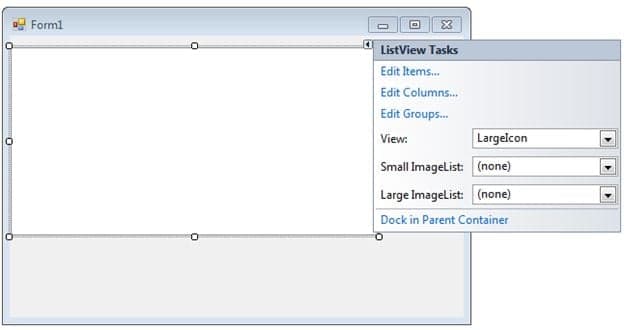
- With the Toolbox on the left-side of the screen, drag and drop the ListView control from the toolbox onto the form.
- It should now look like the image below.
- Adjust the size of ListView and set its properties.
Features of ListView
ListView offers a variety of features to design and view data. Some of the features are:
- Add column. You can add columns in Listview with the
Columns.Add()method. This function takes two arguments: the first is the heading and the second is the width of the column. In the code below, “FirstName” corresponds to the heading, and 120 corresponds to the width of the column.
listView1.Columns.Add("FirstName", 120);
- Add item. You can add items in listbox using ListViewItem, which represents a single item in a ListView control.
string[] arr = new string[4];
ListViewItem item;
//add items to ListView
arr[0] = "Muhammad";
arr[1] = "Ali";
item = new ListViewItem(arr);
listView1.Items.Add(item);
- Get item. The code below will return the item from the second column of the first row.
productName = listView1.SelectedItems[0].SubItems[1].Text;
Code

Below is the code to obtain a list of the problem above that stores FirstName and LastName, and displays the pointed field when Button 1 is pressed.
using System;using System.Drawing;using System.Windows.Forms;namespace WindowsFormsApplication1{public partial class Form1 : Form{public Form1(){InitializeComponent();}private void Form1_Load(object sender, EventArgs e){listView1.View = View.Details;listView1.GridLines = true;listView1.FullRowSelect = true;//Add column headerlistView1.Columns.Add("FirstName", 100);listView1.Columns.Add("LastName", 100);//Add items in the listviewstring[] arr = new string[3];ListViewItem item ;//Add first itemarr[0] = "Muhammad";arr[1] = "Ali";item = new ListViewItem(arr);listView1.Items.Add(item);//Add second itemarr[0] = "Joe";arr[1] = "Frazier";item = new ListViewItem(arr);listView1.Items.Add(item);//Add Third itemarr[0] = "Michael";arr[1] = "Jordan";item = new ListViewItem(arr);listView1.Items.Add(item);}private void button1_Click(object sender, EventArgs e){string FirstName = null;string LastName = null;FirstName = listView1.SelectedItems[0].SubItems[0].Text;LastName = listView1.SelectedItems[0].SubItems[1].Text;MessageBox.Show (FirstName + " " + LastName);}}}
Free Resources
Copyright ©2026 Educative, Inc. All rights reserved