What is the "GetComponent" method in Unity?
In Unity, the GetComponent method is used to access and interact with the components attached to a GameObjects. Understanding how to use the GetComponent method is essential for changing different aspects of a GameObject.
GameObjects are the foundational objects that represent characters, props, and all objects inside a scene – every object in your game is a GameObject.
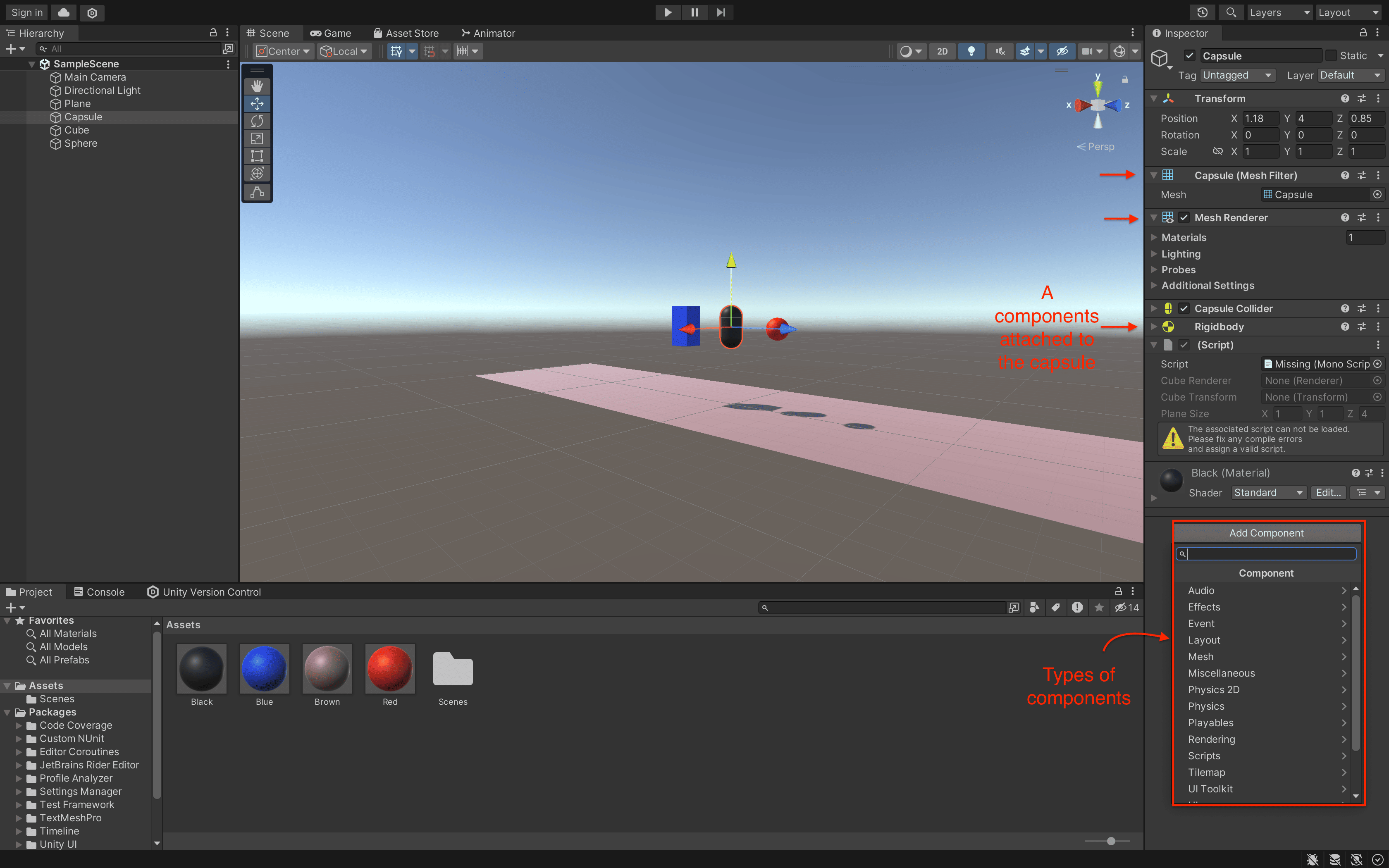
Components are the modular pieces of functionality that can be added or removed from the GameObjects. These components define the behavior, appearance, and other aspects of the GameObjects.
How to use the GetComponent method
The GetComponent method requires specifying the type of the component you want to retrieve.
For example, if you want to access a Rigidbody component attached to the GameObject, the code will look like this.
public Rigidbody rigidObject;rigidObject = GetComponent<Rigidbody>();
Here,
Line 1: It declares a
publicvariable namedrigidObjectof typeRigidbody.Line 2: It assigns
rigidObjectthe value returned by theGetComponentmethod, which retrieves theRigidbodycomponent from the current gameObject.

Benefits of using GetComponent method
The GetComponent method provides several advantages in Unity development, some of them are explained below.
Modularity and reusability: By utilizing components, Unity promotes a modular approach to game development. Components can be reused across different GameObjects which enables you to develop complex systems with ease.
Dynamic interaction: Since
GetComponentis used during runtime, you can interact with the components based on conditions, user inputs, or other dynamic factors. It allows responsive and interactive game experiences.Encapsulation and organization: Components allow developers to encapsulate specific functionality within separate units, making the codebase more organized and manageable.
Facilitates communication: Components enable communication between different GameObjects through C# scripts, allowing for collaborative and interactive game experiences to the users.
Sample project
A sample project is demonstrated here which uses GetComponent method to access the Renderer and Transform components of the GameObject. The values of these components are then changed whenever a GameObject is clicked.
Note: Click on each of the GameObject to see its color, angle, size, and position changing over time.
The project uses the C# script given below.
using System.Collections;using System.Collections.Generic;using UnityEngine;public class Controllers : MonoBehaviour{public Renderer objectRenderer;public Transform objectTransform;void Start(){objectRenderer = GetComponent<Renderer>();objectTransform = GetComponent<Transform>();}void OnMouseDown(){// Change the color of the GameObject to a random colorColor newColor = new Color(Random.value, Random.value, Random.value);objectRenderer.material.color = newColor;// Rotate the object by a random angle around the Y-axisfloat randomAngle = Random.Range(30f, 90f);objectTransform.Rotate(Vector3.up, randomAngle, Space.World);// Change the scale of the object to a random sizefloat randomScale = Random.Range(0.5f, 2f);objectTransform.localScale = new Vector3(randomScale, randomScale, randomScale);}}
Explanation
Lines 1–3: These lines make all the necessary imports.
Line 5: A class is declared named
Controllers. It inherits methods from the classMonoBehaviour, a base class in Unity for scripts attached to the specific GameObjects.Lines 7–8: These lines declare a
publicRenderervariable namedobjectRendererand apublicTransformvariable namedobjectTransform.Lines 9–13: The
Start()function is called once when the specific event starts. TheobjectRenderervariable is assigned theRenderercomponent of the GameObject by usingGetComponent<Renderer>(). Similarly, theobjectTransformvariable is assigned theTransformcomponent of the GameObject usingGetComponent<Transform>(). These lines access the required components.Line 15: The
OnMouseDown()function is triggered when the GameObject is clicked by the mouse.Lines 18–19: The color of the GameObject material is changed to a random color which is generated using the
Random.valuefunction for each basic color (red, green, blue). The new color is then applied to the material usingobjectRenderer.material.color.Random.valuegenerates a random float value betweenand . It is used here to create new color with RGB components.
Lines 22–23: The object is rotated around the y-axis by a random angle between
and
usingRandom.Range(30f, 90f)andobjectTransform.Rotate(Vector3.up, randomAngle, Space.World).Lines 26–27: The scale of the object is changed to a random size between
and using Random.Range(0.5f, 2f)andobjectTransform.localScale.
import React from 'react';
require('./style.css');

import ReactDOM from 'react-dom';
import App from './app.js';

ReactDOM.render(
  <App />,
  document.getElementById('root')
);
Note: Make sure to assign the C# script to the required GameObject by dragging and dropping it onto the GameObject.
Continue reading
Free Resources