Adding Image-to-Text Capabilities with Gemini
Explore how to integrate Google's Gemini for image-to-text capabilities in Python-based chatbots. Learn to configure the API, handle multimodal inputs with Gradio, and combine Gemini with LLMs like Llama to create interactive, multimodal chatbot experiences that process both text and images effectively.
Gemini is a popular multimodal chatbot built by Google. It can take input from various data modalities, such as text, images, charts, PDFs, videos, and audio. We are particularly interested in Gemini’s image-processing capabilities for our use case. A simple use case would be to generate HTML code from the image of a web page. This will greatly enhance our educational chatbot’s capabilities. Let’s begin!
Google AI Studio is a web-based tool designed to prototype and experiment with the Gemini AI models. The AI Studio can be a great place to get started with Gemini, but most importantly, the Studio also allows us to generate an API key that can be used to access Gemini using code.
Creating a Gemini API key
Let’s quickly walk through the API key creation process. Head over to the AI Studio and login. Then, follow the slides below:

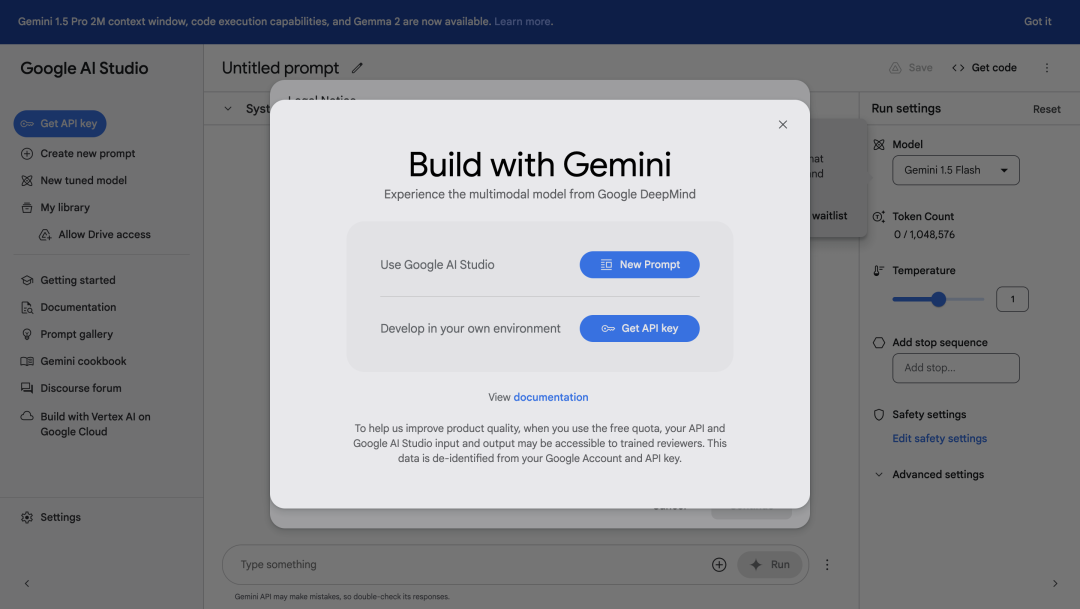
Now that the API key is created, we can go ahead and start using Gemini. For Python, we will also need to install the google-generativeai library. This can be done with the code below:
pip install google-generativeai
Once again, the library has already been set up for the widgets in this course. Installations are not needed.
The AI Studio also provides a “Get code” button that can be used to get the Python code to send a request to the model. We have copied the code from the AI Studio into the widget below.
import os
import google.generativeai as genai

genai.configure(api_key=os.environ["GEMINI_API_KEY"])

# Create the model
generation_config = {
  "temperature": 1,
  "top_p": 0.95,
  "top_k": 64,
  "max_output_tokens": 8192,
  "response_mime_type": "text/plain",
}

model = genai.GenerativeModel(
  model_name="gemini-2.5-pro",
  generation_config=generation_config,
)

chat_session = model.start_chat(
  history=[
  ]
)

response = chat_session.send_message("Hello!")

print(response.text)Let’s review the code:
Line 1: We import the
google.generativeailibrary to interact with Google’s Generative AI API.Line 4: We configure the generative AI client using an API key stored in the environment variable
GEMINI_API_KEY. This grants access to the generative AI models.Lines 7–12: We define a dictionary named
generation_configthat specifies optional parameters for generating the response. These parameters control aspects like:Temperature: Controls randomness (1 being more balanced).
Top P: Focuses on the most likely tokens (0.95 means high focus).
Top K: Considers top K most likely next words (64 provides some diversity).
Max output tokens: Limits the length of the generated text (8192 sets a maximum of 8192 words or sub-words).
Response Mime Type: Sets the output format (text/plain indicates plain text).
Lines 15–18: We create a
GenerativeModelobject namedmodelby specifying the model namegemini-2.5-proand the generation configuration we defined earlier.Lines 20–23: We initiate a chat session with the model using the
start_chat...