Text editor
Explore how to use the text editor to enter and format text effectively using Markdown and standard options. Understand how to insert and manage interactive widgets, helping you create concise and well-organized technical answers for enhanced clarity and engagement.
We'll cover the following...
The basics
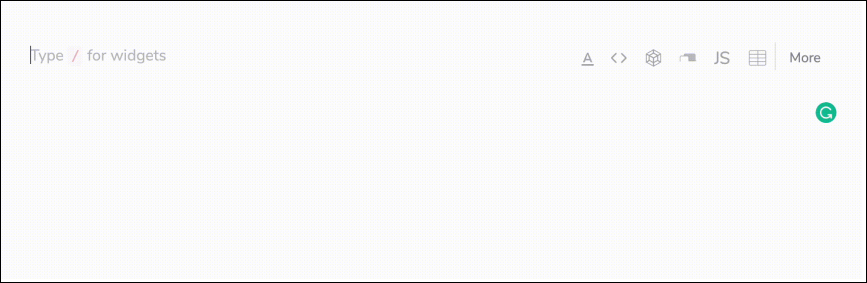
The text editor allows you to enter the textual content for your Answer. It will also serve as your primary interface for creating new widgets.
The editor is available by default, which means that you can start writing text in it right away! It supports Markdown syntax and also offers standard formatting options.

Markdown cheatsheet
You can find our markdown cheatsheet here.
Formatting menu
On a new line, you can bring up formatting options by pressing the A button in the right-side panel.
Highlighting a piece of text will bring up a similar list of formatting options.


Inserting widgets
You can access the widget dropdown menu by pressing / at the start of your line. If you have inserted a widget into your lesson, the editor will automatically be available below it.