Accessing Gemini: API Keys and Setup
Explore how to access Google Gemini through its chatbot interface and how to generate and use API keys via Google AI Studio. Understand the setup process for Python integration, including installing dependencies and testing your API key to connect with Gemini’s models.
We'll cover the following...
The Gemini chatbot can be accessed from the website or the application. Let’s check out the web version.
To start using the Gemini chatbot, head over to the chatbot’s page and sign in with your Google account. The chatbot is free to use and offers quite a few unique features.
Gemini chatbot features
At first glance, the Gemini chatbot interface might look similar to ChatGPT. However, it does offer a few extra features.
Response drafts: For each response that Gemini presents, it provides us with with option to review and use other drafts that the model might have generated. This allows us to quickly tailor the response to our specific needs.
Double-check information: Being a Google product, Gemini has access to Google search. The double-check information button uses Google search to see if it finds content similar to the generated output. It can also notify if it doesn’t find relevant content or if the output differs from the search result. This provides additional reassurance about the correctness of the response.
Response citations: Another feature that sets Gemini apart from the rest is the ability to cite responses. While LLMs are trained to generate new content rather than replicating it from the source, if Gemini extensively quotes something from a website, it will also cite it in the generated output.
Google integrations: Gemini can also pull live information from services such as Google Maps, YouTube, Google Workspace, Google Flights, and Google Hotels. These services can be referred to using the “@” symbol.

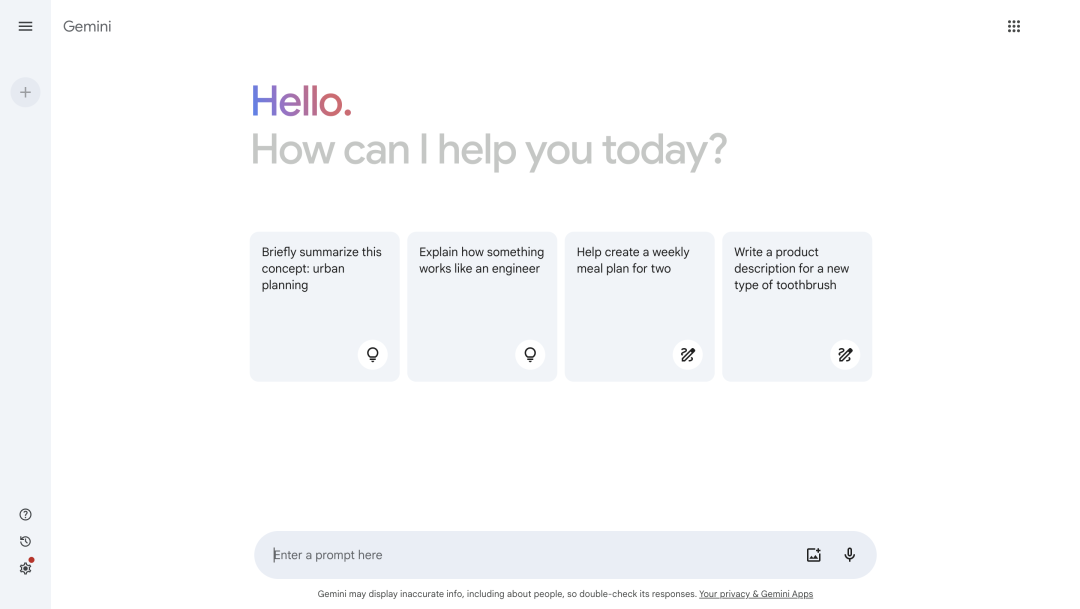
These features set Gemini apart from the competition, allowing it to be more than just a generative AI model.
The chatbot is great if a human wants to access Gemini. However, what if we want to use Gemini in our code or applications? This is where API keys come in. A quick and easy way to create an API key is with Google’s AI Studio.
Google AI Studio
Google AI Studio is a web-based tool specifically designed for prototyping and experimenting with the Gemini AI models. It enables easy interaction with Gemini models, allowing us to send prompts to them directly without having to write code. AI Studio also allows the prompts to be exported to code directly. The AI Studio can be a great place to get started with Gemini, but most importantly, the Studio also allows us to generate an API key that can be used to access Gemini using code.
Creating an API key
Let’s quickly walk through the API key creation process. Head over to the AI Studio and login if you have not already. Then, follow the slides below:
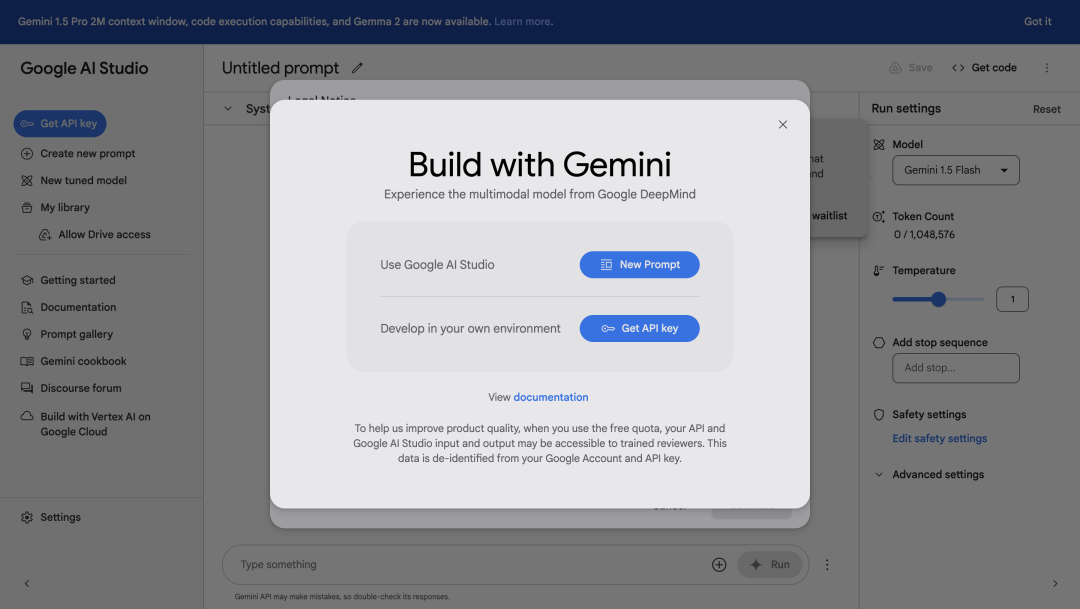
As with any API key, copy it and save it in a secure way.
Note: The availability of API features and the models might vary from region to region. If you plan on running the codes on your local machine, please refer to availability section.
Now that our API key has been created, let’s try it out in some Python code.
Dependencies
Python can be used to interface with Gemini models using the Google AI Python SDK. To get started, we would need the following installed:
Python 3
google-generativeailibrary for Python
You can install the google-generativeai library using the code below:
python3 -m pip install google-generativeai
Note: We have already set these up for the widgets in this course. Installations are not needed.
Testing the API key
A quick way to test a Gemini API key is to send a small prompt or list the models available on that API key. Let’s check the models available to us in the code widget below.
We’ll use Python and Google’s google-generativeai library to access Gemini. To run the demo, paste your API key in the input below. This will allow us to set our API key once and use it in future widgets.
If the API key has been set up correctly, we output should return the list of models that we can access using this API key.
In case you receive an error while running the code with your API key, you can refer to the troubleshooting guide. For 5XX errors, waiting a while and retrying usually works.
This demo serves as a pre-flight check to test out the API key. We will go over the code and various methods later in the course.