The Box Model
Explore the CSS box model to understand how browsers render HTML elements as boxes with content, padding, borders, and margins. This lesson helps you learn how to manipulate dimensions, spacing, and borders using CSS properties like height, width, padding, margin, border, and border-radius to control layout and style on your web pages.
Your browser renders every HTML element as a rectangular box according to the standard CSS box model. Each HTML element on your web page consists of a content area, padding, a border, and a margin.

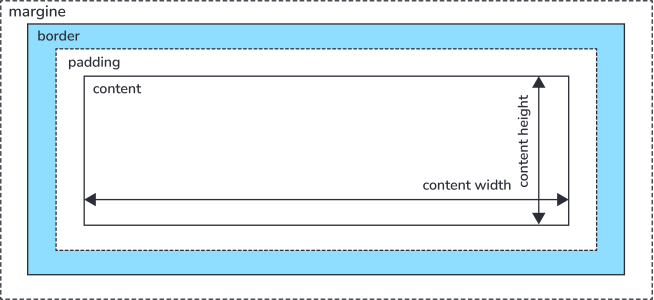
Learning how to manipulate the CSS properties within the box model will be helpful with laying out content on your web pages.
Relative vs. absolute measurements
We can manipulate the parameters for sizing the “box” that makes up an element with many different CSS properties. Often times, you will want to specify the length of the content area, padding, margins, etc.
But how do we specify these lengths? The most common units used are percentages, %, and the number of pixels, px.
Percentages are a relative measure of length. When specifying length using the % unit, the length is measured as relative to the parent element’s length:
Since we used %, a relative unit of measurement, the length of the h1 elements in the second div are half that of the h1 elements in the first div even though these elements have the same CSS properties.
Specifying the number of pixels, on the other hand, yields an absolute measure of length. Absolute measurements are fixed and do not rely on measurements from other HTML elements.
Notice how since we used an absolute measurement of length, the width of the h1 elements in the second div is exactly the same as the h1 elements in the first div.
Manipulating the box model
This lesson will go over many of the common CSS properties you can use to manipulate the box model.
height and width
Use the height and width CSS properties to change the height and width of an element’s content area.
padding
Use the padding property to create spacing between an element’s content area and border. The padding property applies this spacing in different ways depending on how many values you provide, as illustrated in the example below:
When you specify the length as a percentage, the length is relative to the width of the parent element.
You can also apply padding to a single side of the element using more specific CSS properties. These include padding-bottom, padding-left, padding-right, and padding-top. These properties accept a single value in either relative or absolute units of length:
/* Apply 10 percent (of parent element's width) worth of padding to the bottom side of paragraph elements */

p {
	padding-bottom: 10%;
}
Test your understanding
What is the correct way to set padding for only the right side of a div element?
div {
  padding: 10px;
}
div {
  padding right: 10px;
}
div {
  padding: right 10px;
}
div {
  padding-right: 10px;
}
border
Like its name implies, the border CSS property sets the border of an element. The syntax for the border property is as follows
border: width style color;
The width can be given in absolute or relative units. The style can include things like dotted, groove, double, and solid. Check the full list of border styles on Mozilla documentation. The color can be any valid color value. We will use shorthand CSS color values to specify the color property.
The border property can be expanded into more finely tuned properties such as border-style, border-color, and border-width. These properties can be further expanded to target a specific side, e.g. border-top-width, border-left-style, and so on.
The simple border property is considered shorthand for the more detailed properties. A full reference of all the different CSS properties that apply to borders can be found on the Mozilla documentation.
border-radius
If you want to create borders that have rounded corners, use the border-radius property. You can also create elliptical corners by providing two values to border-radius, separated by a slash (/).
Exercise
- Use the shorthand CSS property to give the
h1element a dashed, maroon border that has a width of 15 pixels. - Pad the top and bottom of the element by
10pxand pad the right and left by20px.Note: Use only the padding attribute
paddingto pad right and left. - Give the element’s border rounded corners.
margin
The margin property is very similar to the padding property, except it allows you to define the spacing around the outside of an HTML element past the border. Like padding, it allows you to define single or multiple values.
In this example, the space between the green and black borders represents the margin between the <span> elements and their <div> containers.
margin can also be broken out into more fine-grained properties to target a specific side, including margin-top, margin-bottom, margin-right, and margin-left.
Exercise
Let’s use margins to center an HTML element.
- The
<h1>element should have a width that is half that of its parent - Give the
<h1>element a margin on the left and right sides that is 1/4th the width of its parent element. Do this using two different CSS properties.