




AWS Identity and Access Management (IAM) uses groups and roles to manage permissions. IAM groups collect users, streamlining permission changes across multiple users simultaneously. IAM roles, however, delegate permissions without sharing access keys, suitable for users and services needing temporary access. This makes roles ideal for dynamic permission requirements, whereas groups simplify user-specific permission management.
How to create an IAM admin user and user group
Key takeaways:
IAM users are unique identities for accessing AWS resources, while IAM groups allow for easier user permissions management by applying policies to multiple users at once.
Create IAM users and groups via the AWS Management Console for a GUI-based approach or AWS CLI for automation and scripting.
IAM groups ensure consistent access control by applying the same permissions to all users in the group, making large-scale management easier.
Use AWS CLI commands like
aws iam list-groups-for-userandaws iam simulate-principal-policyto verify user permissions and apply the correct policies.
Creating an Identity and Access Management (IAM) admin user and user group is a foundational step in setting up secure and efficient access controls within the AWS platform. This process can be accomplished through two principal methods: the AWS Management Console, which provides a GUI for beginner users, and the AWS Command Line Interface (CLI), which provides functionality suitable for the seasoned developer and programmer.
What is an IAM user?
An IAM user in AWS means an identity allowed to access and manipulate AWS services. It operates under the AWS account and has its unique identity, for instance, an access key or password, to securely perform operations in the AWS environment. IAM users are meant to be single users and can do things like read/write files on S3, create instances on EC2, or create DynamoDB tables. IAM users also have a name, and we can set policies for what the user can do in the AWS environment.
What is an IAM group?
An IAM group can be described as several users to whom a similar Identity and Access Management level has been granted. Organizations use groups to make permissions management easier because the IAM policies attached to an IAM group are effective on all the users attached to the IAM group. So, organizations can use IAM groups for policy management instead of managing the permissions of every single user. For instance, we can have a group named “Developers,” which will be given rights to use the development materials. Any new user in this group shall be subjected to this group’s access rights. IAM groups are especially valuable for access control at the scale and conformity across many people.
Using the AWS Management Console
Let’s create IAM users and groups using the AWS Management Console:
Step 1: Access the IAM console
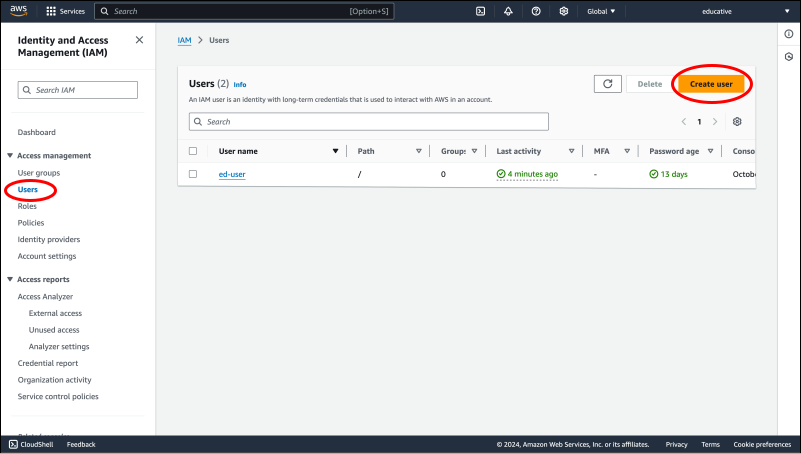
Navigate to the IAM console page, select the “Users” option from the sidebar, and click the “Create user” button.
IAM console
Step 2: Specify user details
A detailed page will be shown after clicking the “Create user” button. Then, carry out the following steps:
Type
testuserin theUser nameoption.Make sure that
Provide user access to the AWS Management Console - optionaloption is selected.Select “I want to create an IAM user” for the “User type” option (if this option appears).
Select “Custom password” and type a custom password in the
Console passwordoption.Finally, check the
User must create a password at next sign-in - Recommenededoption.Now, click the “Next” button.
Specify IAM user details
Step 3: Add the user to a group
On the “Set permissions” page, select the “Add user to group” option and click the “Create group” button.
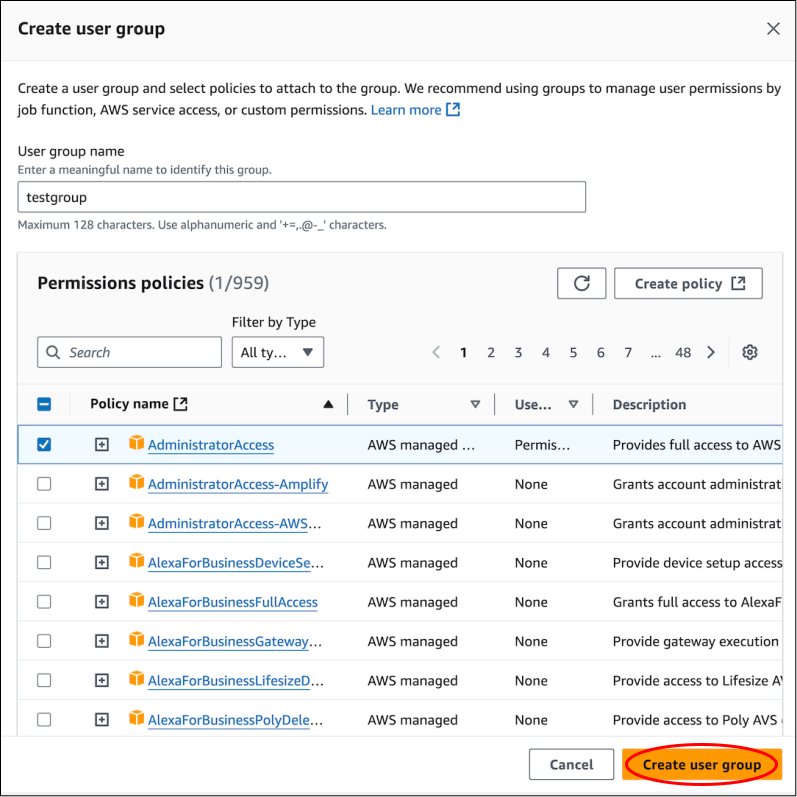
A dialog box will appear after clicking the “Next” button. Over there, we will enter the
testgroupforGroup nameand check theAdministratorAccesspolicy. Then, we will click the “Create user group” button.
Name the IAM group and select the IAM policy
We will select the user group we created
testgroupand click the “Next” button.
Add the IAM user to an IAM group
Step 4: Review and create
We will verify all the information about the user and the user group, then click the “Create user” button.
Review the details and create the user
Step 5: Retrieve or download credentials
A success message will indicate that a user has been successfully created. Moreover, the option to download a .csv file containing the user’s login information will be shown. We can download this file.
That’s it! We have successfully created the first IAM admin user and user group. By following the steps listed above, we can create as many users as we want.
Using the AWS CLI
This section explains how to use the AWS CLI to create and manage IAM users and groups, providing an efficient method for scripting and automation.
Step 1: Create the user
We will create a user named testuser with the following command:
aws iam create-user --user-name testuser
Step 2: Create the user group
We will create a group named testgroup with the following command:
aws iam create-group --group-name testgroup
Step 3: Attach policies
We will attach the policy AdministratorAccess to the user group named testgroup with the following command:
aws iam attach-group-policy --group-name testgroup --policy-arn arn:aws:iam::aws:policy/AdministratorAccess
Step 4: Add the user to the group
We will add a user named testuser to the group named testgroup with the following command:
aws iam add-user-to-group --user-name testuser --group-name testgroup
Step 5: Verification and testing
To verify that the user has been added successfully and the policy is in effect, use the aws iam list-groups-for-user command:
aws iam list-groups-for-user --user-name testuser
By following these commands, we have successfully created an IAM user and group, attached the necessary policies, and confirmed their settings, all through the command line.
In the CLI, we can use aws iam simulate-principal-policy to check if a group policy has been applied to a user. This command helps to determine a user’s effective permissions by simulating the policies assigned to that user, including those delegated to that user through groups.
Impact of group policies on IAM users
An IAM policy attached to a group is effective for all the users in that group, meaning that all group users have the permissions defined by the group’s policy. This makes access management easy because if all users belong to a group, they are bound by the same policies. However, if a particular user is assigned other policies besides those available in the group policies, the set of policies controlling that user becomes a combination of policies.
If you want to learn more about securing your resources with IAM and the impact of conflicting IAM policies on an AWS resource. Explore the following cloud labs:
Wrap up and next steps!
This answer demonstrates creating IAM admin users and groups using the AWS Management Console and the AWS CLI. Each method offers distinct advantages: the AWS Management Console provides a visual and interactive approach, making it accessible for beginners, while the CLI offers speed and automation for more experienced users. Choose the approach that best suits your operational needs and proficiency in managing your AWS resources.
Explore our AWS catalog on Educative to continue learning about AWS IAM and other AWS services.
Frequently asked questions
Haven’t found what you were looking for? Contact Us
What is the difference between AWS IAM groups and roles?
Can one IAM user be a member of multiple groups?
Is it possible to create several IAM users at once?
Are IAM users permitted to create other IAM users?
What steps are involved in adding users to an IAM group?
How can IAM user permissions be effectively managed?
What are the security best practices for IAM users and groups?
Free Resources
Copyright ©2026 Educative, Inc. All rights reserved