React Native phone authentication with Firebase
Overview
In this shot we’ll learn to integrate phone authentication in React Native.
Installation
Create a new React Native application from your terminal.
npx react-native init authtutorial
cd authtutorial
Go to your Firebase dashboard and create an Android and iOS application named com.authtutorial (or your application’s name). You’ll get two files called googleservices.json for Android and googleServices-Info.plist for iOS. We’ll need these two files for integrating firebase services in our React Native application.
Enable phone authentication in your Firebase dashboard.
Installation for Android
Place the googleservices.json inside the android>app folder. Follow the below steps to initialize your Firebase in your Android version of the application.
- Add the below code in
build.gradle.
classpath 'com.google.gms:google-services:4.3.10'
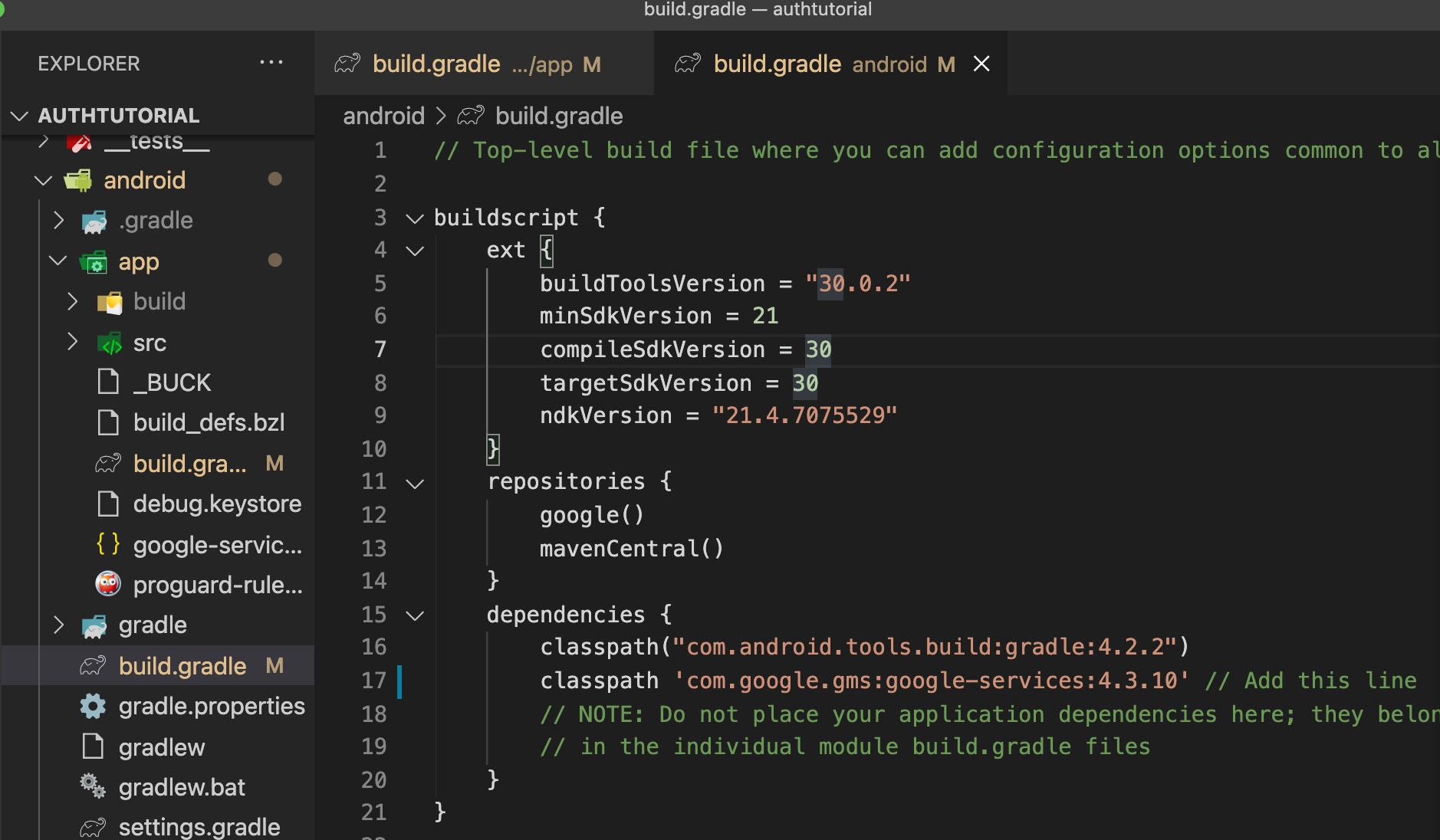
- Add the below code in
build.gradlein theappfolder.
apply plugin: 'com.google.gms.google-services'
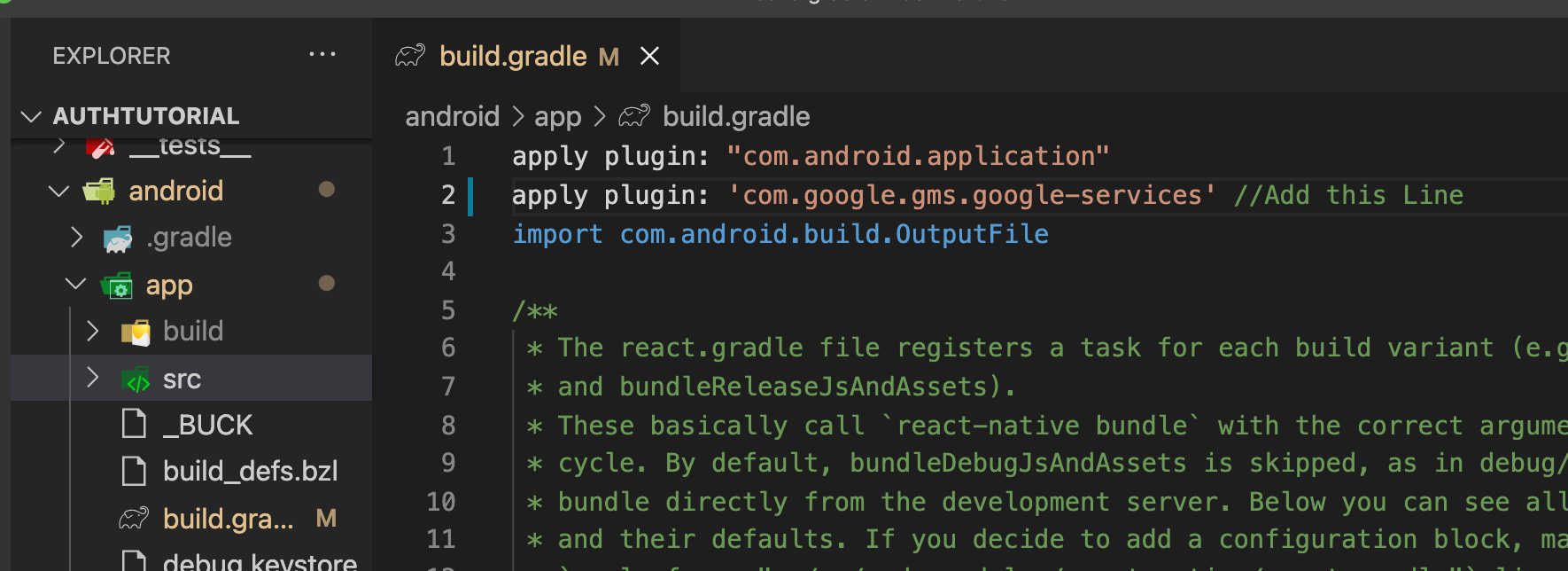
At the top of the app>build.gradle file.
- Add the below code in dependencies in the same file.
dependencies {
  // Import the Firebase BoM
  implementation platform('com.google.firebase:firebase-bom:29.0.3')

Now, let’s go into the configuration for iOS version of the application.
Installation for iOS
Download the googleServices-Info.plist file from the Firebase dashboard and drag and drop it into Xcode.
Follow the steps below for Firebase configuration with iOS version of your application.
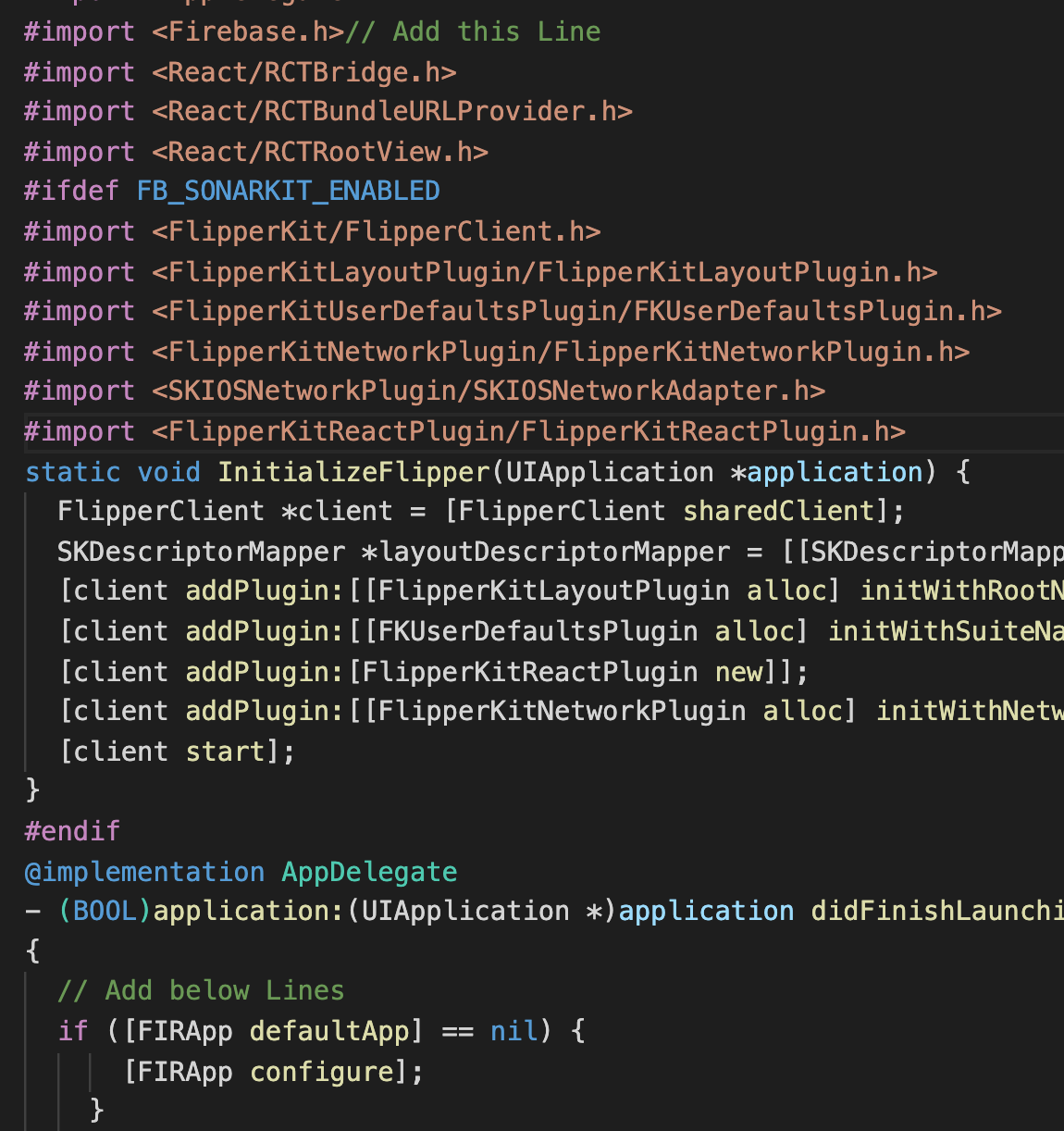
- First go to
AppDelegate.mand add the code to initialize firebase in your iOS application.
- (BOOL)application:(UIApplication *)application didFinishLaunchingWithOptions:(NSDictionary *)launchOptions
{
// include the below Code
  if ([FIRApp defaultApp] == nil) {
      [FIRApp configure];
    }
- Add
#import <Firebase.h>at the top of the file.
Android
Install the required npm packages from the terminal.
npm install --save @react-native-firebase/app @react-native-firebase/auth
In App.js, add the below code to integrate phone authentication to your application.
import React, {useState, useEffect} from 'react';import {SafeAreaView,Text,TextInput,TouchableOpacity,View,} from 'react-native';import auth from '@react-native-firebase/auth';const App = () => {const [user, setUser] = useState(null);const [mobile, setMobile] = useState(null);const [confirm, setConfirm] = useState(null);const [code, setCode] = useState('');const onAuthStateChanged = async userAuth => {if (!userAuth) {return;}if (userAuth) {console.log(userAuth);setUser(userAuth);}return () => userReference();};useEffect(() => {const subscriber = auth().onAuthStateChanged(onAuthStateChanged);return () => {subscriber;};}, []);const signInWithMobileNumber = async () => {const confirmation = await auth().signInWithPhoneNumber(mobile);setConfirm(confirmation);};const confirmCode = async () => {try {await confirm.confirm(code);} catch (error) {console.log('Invalid code.');}};const signOut = async () => {auth().signOut();setUser(null);return () => userReference();};return (<SafeAreaView style={{alignItems: 'center', flex: 1, marginTop: 100}}><View style={{margin: 10}}><Text>Mobile Sign In Tutorial</Text></View><View style={{margin: 10}}>{user === null && (<><TextInputvalue={mobile}onChangeText={e => setMobile(e)}placeholder="mobile"style={{borderWidth: 1,margin: 10,padding: 10,width: 200,}}></TextInput>{!confirm ? (<><TouchableOpacitystyle={{borderWidth: 1,margin: 10,padding: 10,alignItems: 'center',}}onPress={() => signInWithMobileNumber()}><Text>Get Code</Text></TouchableOpacity></>) : (<><TextInputvalue={code}onChangeText={e => setCode(e)}placeholder="Code"style={{borderWidth: 1,margin: 10,padding: 10,width: 200,}}></TextInput><TouchableOpacitystyle={{borderWidth: 1,margin: 10,padding: 10,alignItems: 'center',}}onPress={() => confirmCode()}><Text>Confirm Code</Text></TouchableOpacity></>)}</>)}</View>{user !== null && (<View style={{margin: 10}}><Text style={{margin: 10}}>{user.phoneNumber}</Text><TouchableOpacity onPress={signOut} style={{alignItems: 'center'}}><Text>Sign Out</Text></TouchableOpacity></View>)}</SafeAreaView>);};export default App;
Testing phone authentication
We ask the user to enter their mobile number with their country code.
Once the user has entered a valid mobile number, an OTP will be sent to their mobile number.
Once the user enters the correct OTP, they will be authenticated.
If the user is authenticated, a button will be available for them to sign out.
We create a function which listens to the authChanges.
We create two input fields called “Mobile Number” and the OTP code and listen to the user’s inputs.
iOS
In the terminal, run the command to install pods in your project.
cd ios
pod install
The code will be the same in App.js for iOS.