Generative art in Flutter
Art and computer science are both ever-evolving and beautiful things are created when their concepts combine. Generative art is a prime example of this. In this Answer, we'll look at what generative art is and how to use Flutter to render basic generative art.

Flutter
Flutter is a UI development toolkit primarily used for building applications for various platforms using a single codebase. It is completely open-source and is a product of Google.
Simply put, this means that developers can write the code once and use it on different platforms without having to start from scratch for each one.


Note: We offer various courses if you aim to continue your journey in learning Flutter!
Note: Before proceeding with the answer, ensure that your Flutter setup is complete.
Generative art
Generative art is a form of art created using algorithms, code, or other systematic processes to produce different kinds of artwork. These artworks could be in the form of:
visual
auditory
interactive
Simply put, instead of being drawn by the artists themselves, generative art is created using a systematic procedure in a virtual environment. It relies on rules, randomness, and input data to create unique art pieces.
Samples of generative art in Flutter
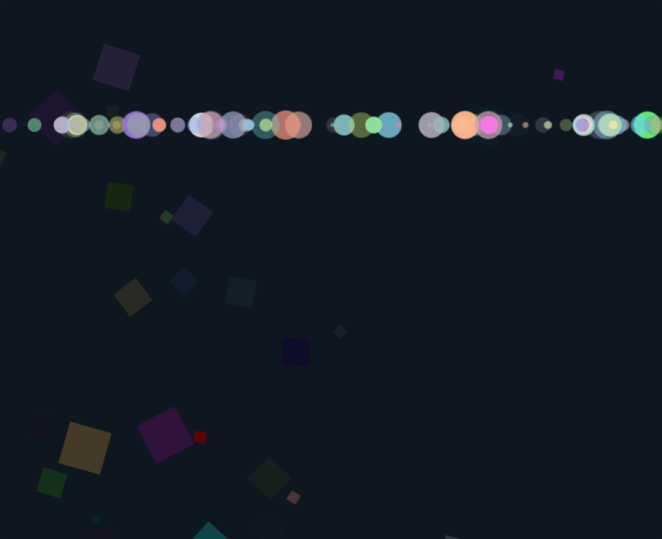
The following samples have been generated by configuring our Flutter application with different algorithms. Wonderfully crafted, aren't they?


Some of the pieces are static, while others are dynamic. Static generative art is rendered once and doesn't contain motion or interactivity, and dynamic generative art changes with time according to the specified rules.
Static artwork


Dynamic artwork
The process of creating generative art
CustomPainter class
First and foremost, we create a new CustomPainter class and make it extend CustomPainter. This class will be responsible for drawing art mainly.
paint method
Next, we override the paint method inside the CustomPainter class. This is where we define what shapes, patterns, or mathematical operations we'll be modeling.
Mathematical operations
We can make shapes by using different draw methods like drawRect, drawCircle in Flutter or take it to the next level by applying mathematical functions, such as sin, cos, tan, atan exp, etc., to generate dynamic shapes and patterns. For instance, we can use sin, and cos functions to create smooth curves or waves and exp for exponential growth or decay effects.
Color styles
It is up to us to choose colors or gradients to style the patterns made by our chosen mathematical operations. For example, we could use hue shifting based on angles.
Optional animations
To add animations, we can use the AnimatedBuilder widget or Ticker. We can specify how we want to control the updates in our custom painting logic using these tools. Within the paint method, we can update the mathematical operations or variables at each frame to create an animation effect. For instance, we can increment angles or change colors.
Display the animation
Finally, we wrap our CustomPainter inside the CustomPaint widget and use it within the widget tree. We can run the animation using a Timer to trigger the repaints or utilize the AnimationController to manage the animation duration and progress.
This table depicts how generative artworks in general.
Steps | Explanation |
Algorithm design | We should first figure out what algorithm rules or patterns we want our art to be based on. |
Randomization | We can also make our art unpredictable and unique through randomization. |
Parameterization | Our art can also be influenced by adding parameters. |
Iterations | We can make use of loops to make similar patterns repeatedly. |
Data input | We can also take input from the user or environment. |
Mathematical equations | This is the crux of the process in which we define mathematical equations to model our artwork. |
Color and gradients | We can add colors and gradients in our art to add depth. |
Animations | We can add motion to implement different animations of patterns. |
Interactivity | We can incorporate user interactions to modify the generative process too. |
Rendering | Our artwork can finally be rendered and exported in the needed formats. |
An animated generative art example
import 'dart:math';
import 'package:flutter/material.dart';

void main() {
  runApp(MyApp());
}

class MyApp extends StatelessWidget {
  @override
  Widget build(BuildContext context) {
    return MaterialApp(
      home: GenerativeArtScreen(),
    );
  }
}

class GenerativeArtScreen extends StatelessWidget {
  @override
  Widget build(BuildContext context) {
    return Scaffold(
      backgroundColor: Colors.black,
      body: Center(
        child: GenerativeArt(),
      ),
    );
  }
}

class GenerativeArt extends StatefulWidget {
  @override
  _GenerativeArtState createState() => _GenerativeArtState();
}

class _GenerativeArtState extends State<GenerativeArt> with TickerProviderStateMixin {
  final random = Random();
  final int maxSquares = 100;
  final int maxCircles = 100;
  final double minCircleRadius = 2.0;
  final double maxCircleRadius = 20.0;

  late AnimationController controller;

  @override
  void initState() {
    super.initState();
    controller = AnimationController(vsync: this, duration: Duration(seconds: 10))..repeat();
  }

  Color randomDarkColor() {
    return Color.fromARGB(
      255,
      random.nextInt(100),
      random.nextInt(100),
      random.nextInt(100),
    );
  }

  Color randomLightColor() {
    return Color.fromARGB(
      255,
      100 + random.nextInt(155),
      100 + random.nextInt(155),
      100 + random.nextInt(155),
    );
  }

  @override
  Widget build(BuildContext context) {
    return CustomPaint(
      painter: GenerativeArtPainter(
        random: random,
        maxSquares: maxSquares,
        maxCircles: maxCircles,
        minCircleRadius: minCircleRadius,
        maxCircleRadius: maxCircleRadius,
        controller: controller,
        randomDarkColor: randomDarkColor,
        randomLightColor: randomLightColor,
      ),
      size: MediaQuery.of(context).size,
    );
  }

  @override
  void dispose() {
    controller.dispose();
    super.dispose();
  }
}

class GenerativeArtPainter extends CustomPainter {
  final Random random;
  final int maxSquares;
  final int maxCircles;
  final double minCircleRadius;
  final double maxCircleRadius;
  final AnimationController controller;
  final Color Function() randomDarkColor;
  final Color Function() randomLightColor;

  GenerativeArtPainter({
    required this.random,
    required this.maxSquares,
    required this.maxCircles,
    required this.minCircleRadius,
    required this.maxCircleRadius,
    required this.controller,
    required this.randomDarkColor,
    required this.randomLightColor,
  }) : super(repaint: controller);

  @override
  void paint(Canvas canvas, Size size) {
    canvas.drawColor(Colors.black, BlendMode.clear);

    for (int i = 0; i < maxSquares; i++) {
      final double x = random.nextDouble() * size.width;
      final double y = random.nextDouble() * size.height;
      final double side = random.nextDouble() * 50 + 10;
      final double angle = random.nextDouble() * pi;
      final double opacity = random.nextDouble();
      final Paint paint = Paint()
        ..color = randomDarkColor().withOpacity(opacity)
        ..style = PaintingStyle.fill;
      final Rect squareRect = Rect.fromCenter(
        center: Offset(x, y),
        width: side,
        height: side,
      );
      canvas.save();
      canvas.rotate(angle);
      canvas.drawRect(squareRect, paint);
      canvas.restore();
    }

    final double t = controller.value;
    for (int i = 0; i < maxCircles; i++) {
      final double x = random.nextDouble() * size.width;
      final double y = size.height * (1 - t);
      final double radius = random.nextDouble() * (maxCircleRadius - minCircleRadius) + minCircleRadius;
      final double opacity = random.nextDouble();
      final Paint paint = Paint()
        ..color = randomLightColor().withOpacity(opacity)
        ..style = PaintingStyle.fill;
      canvas.drawCircle(Offset(x, y), radius, paint);
    }
  }

  @override
  bool shouldRepaint(covariant CustomPainter oldDelegate) {
    return true;
  }
}
Code explanation
The first thing that we do is define our main function to run the
MyAppwidget.Second, we create the
GenerativeArtScreenas our home screen.The
GenerativeArtScreenwidget sets up the main screen, which is a black background with theGenerativeArtwidget centered on it.We pair the
GenerativeArtwidget with a custom animation controller. It generates random dark and light colors for the squares and circles.We use the
CustomPaintwidget to draw generative art. The code specifies theGenerativeArtPainteras the painter for the canvas.Next, we move to the
GenerativeArtPainter. It is a custom painter that draws this art on the canvas. It generates random dark squares and animated light circles with random positions, sizes, and colors.For the animation, it updates the animation based on the value of the
AnimationController, which causes the circles to move from the bottom to the top of the screen.
Demonstration
What should we use if we aim to change our static art to dynamic art?
Free Resources