


To construct a bar chart, you first need to define the data you want to visualize. This typically involves organizing your data into categories and associating each category with a numerical value that represents its frequency or magnitude. Next, you’ll choose a tool or library for creating the bar chart, such as Flutter’s charts_flutter package, Python’s Matplotlib, or any other visualization platform that suits your needs. Once the data is ready and the library is installed, you define your chart configuration, including settings for bar orientation (vertical or horizontal), grouping type (grouped or stacked), and appearance options like colors and labels. Finally, integrate the chart into your project or application, ensuring it aligns with your desired design and functionality.
How to create a bar chart in Flutter
Takeaway skills
Use the
charts_flutterpackage to create visually appealing and dynamic bar charts for representing categorical data with grouped or individual bars.Define a custom data model (e.g.,
Sales) and organize sales data into lists for categories like "Desktop Sales," "Tablet Sales," and "Mobile Sales" to plot meaningful insights.Configure the
charts.BarChartwidget with options likeanimatefor animations,barGroupingTypefor grouped or stacked bars, anddefaultRendererfor bar styling.Add the
charts_flutterdependency inpubspec.yaml, import the package, and embed the bar chart widget into the Flutter widget tree to display the chart in your application.
Flutter is a powerful toolkit created by Google to build fast mobile, web, and desktop applications using just one Codebase. It offers an easy-to-use and flexible development environment, making it a popular choice for developers who want to create beautiful and responsive user interfaces across multiple platforms.
What is a bar chart?
A bar chart is an essential data visualization tool used to display categorical data using rectangular bars. The length or height of each bar represents the frequency or value of the corresponding category.
Creating a bar chart in Flutter
In this Answer, we will learn how to create a bar chart in Flutter using the charts_flutter package.
Step 1: Adding dependency
To begin using bar charts, we must install the necessary package. For this purpose, we will open the pubspec.yaml in our Dart project and add the following line under the dependencies section:
dependencies
  charts_flutter:
Leaving the version number empty will automatically install the latest version of the package.
After making the changes, we can install the package in two ways:
Right-click the
pubspec.yamlfile and click "get packages."Write the following command in the terminal.
flutter pub get
We can skip all the above steps and just run the following command, which will automatically install the latest version of the charts_flutter package.
flutter pub add charts_flutter
Step 2: Adding import package statement
Now we can import the package into the Dart file by adding the following line of code in the Dart file where we want to implement the charts_flutter function:
import 'package:flutter/material.dart';import 'package:charts_flutter/flutter.dart' as charts;
Step 3: Define the data for the bar chart
Let’s assume we have data that represents sales of a product in different years for three categories:
Desktop sales
Tablet sales
Mobile sales
class Sales {final String year;final int sales;Sales(this.year, this.sales);}final List<Sales> desktopSalesData = [Sales('2015', 100),Sales('2016', 200),Sales('2017', 150),Sales('2018', 300),Sales('2019', 400),// Add more data points as needed];final List<Sales> tabletSalesData = [Sales('2015', 150),Sales('2016', 120),Sales('2017', 250),Sales('2018', 180),Sales('2019', 300),// Add more data points as needed];final List<Sales> mobileSalesData = [Sales('2015', 80),Sales('2016', 180),Sales('2017', 100),Sales('2018', 280),Sales('2019', 350),// Add more data points as needed];
Lines 1–6: We define a class called
Salesto represent the data points for the chart. It has two properties which areyear(String) andsales(int).Lines 8–33: We create three lists (
desktopSalesData,tabletSalesData, andmobileSalesData) to store the sales data for each category (“Desktop Sales,” “Tablet Sales,” and “Mobile Sales”) for different years.
Step 4: Create the bar chart widget
In our Flutter widget tree, we will create a new widget to display the bar chart:
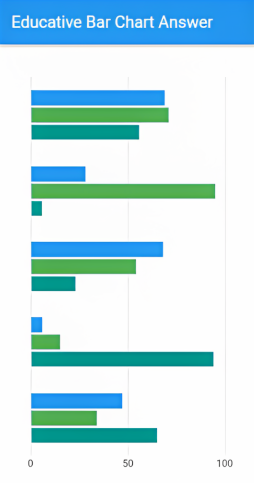
class BarChartWidget extends StatelessWidget {List<charts.Series<Sales, String>> _createChartSeries() {return [charts.Series<Sales, String>(id: 'Desktop Sales',domainFn: (Sales sales, _) => sales.year,measureFn: (Sales sales, _) => sales.sales,data: desktopSalesData,fillColorFn: (_, __) => charts.MaterialPalette.blue.shadeDefault,),charts.Series<Sales, String>(id: 'Tablet Sales',domainFn: (Sales sales, _) => sales.year,measureFn: (Sales sales, _) => sales.sales,data: tabletSalesData,fillColorFn: (_, __) => charts.MaterialPalette.green.shadeDefault,),charts.Series<Sales, String>(id: 'Mobile Sales',domainFn: (Sales sales, _) => sales.year,measureFn: (Sales sales, _) => sales.sales,data: mobileSalesData,fillColorFn: (_, __) => charts.MaterialPalette.teal.shadeDefault,),];}@overrideWidget build(BuildContext context) {return Scaffold(appBar: AppBar(title: Text('Educative Bar Chart Answer')),body: Center(child: Padding(padding: EdgeInsets.all(8.0),child: charts.BarChart(_createChartSeries(),animate: true,vertical: false,barGroupingType: charts.BarGroupingType.grouped,defaultRenderer: charts.BarRendererConfig(groupingType: charts.BarGroupingType.grouped,strokeWidthPx: 1.0,),domainAxis: charts.OrdinalAxisSpec(renderSpec: charts.NoneRenderSpec()),),),),);}}
Line 1–50: We create a stateless widget called the
BarChartWidget, which displays the bar chart.Lines 2–26: Inside the widget, we define a method called the
_createChartSeries()that creates a list ofcharts.Seriesobjects. Eachcharts.Seriesobject represents one category ('Desktop Sales','Tablet Sales', or'Mobile Sales') and contains the corresponding sales data and configuration settings.Lines 35–45: The
charts.BarChartwidget takes the list ofcharts.Seriesobjects from_createChartSeries()function and other configuration options to render the bar chart.Line 37: We set
animatetotrueto enable animations for the chart.Line 38: We set
verticaltofalseto display horizontal bars.Line 39: We set
barGroupingTypetogroupedfor grouped bars.Lines 40–43: We customize the appearance of the bars using the
defaultRendererand set thegroupingTypetogroupedto display grouped bars and thestrokeWidthPxto1.0to set the bar stroke width.Line 44: We hide the domain axis labels using the
charts.NoneRenderSpec()for a cleaner appearance
Step 5: Display the bar chart
Now, display the BarChartWidget in our app. We can do this by adding it to the home property of our MaterialApp:
void main() {runApp(MaterialApp(home: BarChartWidget(),));}
Complete implementation
We get the following output by putting together the code explained above.
name: flutter_simple_web_app
description: A simple web app with Flutter

version: 1.0.0+1

environment:
  sdk: ">=2.12.0 <3.0.0"  # Upgraded to the latest Flutter SDK version

dependencies:
  flutter:
    sdk: flutter

  cupertino_icons: ^0.1.2
  charts_flutter:

dev_dependencies:
  flutter_test:
    sdk: flutter

flutter:

  uses-material-design: true
The output will be like this:
Ready to build stunning Android apps? Beginning Flutter: Android Mobile App Development takes you from designing contact profiles to integrating APIs and publishing your app, all with Flutter's powerful UI framework.
Conclusion
Flutter, with its powerful toolkit and flexibility, enables developers to create stunning and responsive applications across multiple platforms using a single codebase. By leveraging the charts_flutter package, developers can seamlessly integrate bar charts into their apps, effectively visualizing categorical data with rich customization options. From defining data structures to building custom widgets and fine-tuning chart aesthetics, Flutter empowers developers to craft interactive and visually engaging user experiences with ease.
Frequently asked questions
Haven’t found what you were looking for? Contact Us
How do I construct a bar chart?
How to create a graph in Flutter
Free Resources