Building and Running Tests
Explore how to build and execute Gatling performance test simulations using Gradle commands. Learn to run single or multiple tests, generate detailed HTML reports, and analyze test outcomes to improve automation processes.
Now, we are familiar with the framework code structure. In the next lesson, we will learn to build, run, and experiment with the downloaded sample simulation code.
Building the framework code
Navigate to the project root folder and run the following commands:
./gradlew clean build -x test
Running a single simulation file
Navigate to the project and run the following command:
./gradlew clean gatlingRun-<fully-qualified-simulation-file>
Example:
./gradlew clean gatlingRun-simulations.SampleSimulation
Running all the simulation files
Go to the project root to run the command.
./gradlew clean gatlingRun
This will run all the simulation files present under src/test/scala/simulations. This configuration that includes all simulation files under the simulations package is present on line 32 of build.gradle.
All the simulation files will be run one after the other.
Generated reports path
At the end of the run, we should see the path of the generated report that looks like this:
build/reports/gatling/<simulation-file>-<timestamp>/index.html
If we run multiple simulations, multiple folders will be present under build/reports/gatling.
Sample report
We can open the HTML report in any browser.
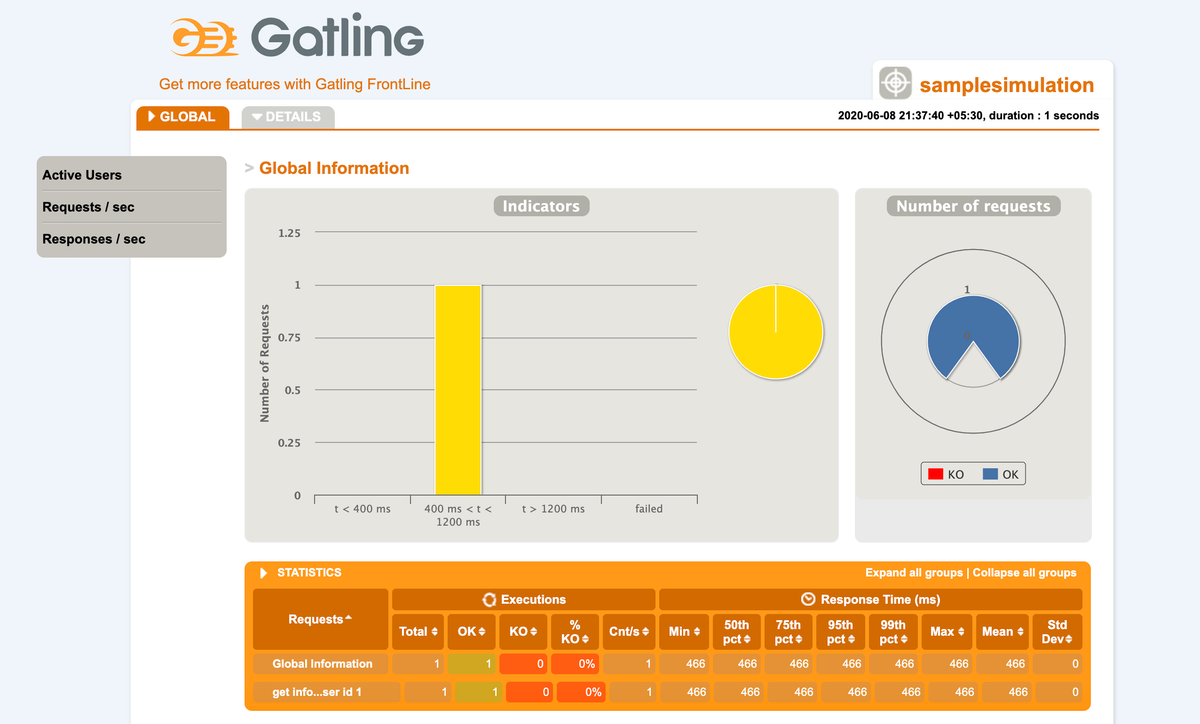
Run the framework simulation code and analyze the output
Press the RUN button and see the output of the code given below!
package simulations

import io.gatling.core.Predef.{jsonPath, _}
import io.gatling.http.Predef._

class SampleSimulation extends Simulation {

  val protocols = http
    .disableCaching
    .disableWarmUp
    .baseUrl("http://localhost:8080")

  val scn = scenario("sample scenario")
    .exec(session => session.set("id", 1))
    .exec(http("get info for user id 1").get("/api/users/${id}")
      .check(
        status.is(200),
        status.not(400),
        status.in(200, 201),
        jsonPath("$.data.id").ofType[Int].is(session => session("id").as[Int]),
        jsonPath("$.data.first_name").transform(str => str.trim).saveAs("first_name"),
        jsonPath("$.data.last_name").transform((str, session) => str.trim + " " + session("first_name").as[String]).saveAs("full_name")
      ))

  setUp(scn.inject(atOnceUsers(1))).protocols(protocols)
}
Remember that the server will take some time to respond.
Once execution completes, follow the steps below to view the execution report.
- Navigate to the Output tab
- It will show Gatling report
Or
- You can click on link after the text “Your app can be found at:”
- It will show Gatling report