Claude.ai Essentials: Models, Search, and Styles
Explore how to navigate Claude.ai by selecting the right model for your task, using integrated web search for current information, uploading various file types, customizing response styles, and managing conversations. This lesson helps you build proficiency in leveraging Claude.ai’s core features for document analysis, research, and communication.
Claude.ai is where most people start with Claude, and where most work happens. It runs in your browser, handles everything from quick questions to deep document analysis, and requires no setup beyond creating an account. This lesson covers the core experience: choosing a model, searching the web, uploading files, customizing output style, and managing your conversations.
Choosing a model
When you start a new conversation on Claude.ai, you choose which model powers the response. Claude offers three model tiers, each with different strengths.

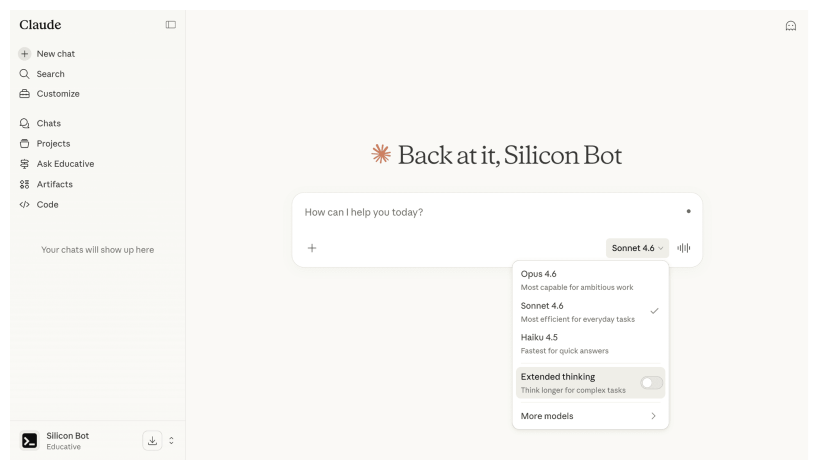
Sonnet is the default and the right choice for most tasks. It handles document summaries, email drafts, data analysis, and general research well. Choose Haiku when speed matters more than depth, like reformatting a list or answering a factual question. Choose Opus when the task requires careful reasoning, like analyzing a contract for subtle risks or writing a strategy document that needs to hold up under scrutiny.
Model | Best For | Speed | Depth |
Haiku | Quick lookups, simple rewrites, lightweight tasks | Fastest | Good for straightforward requests |
Sonnet | Everyday work: drafting, analysis, brainstorming, research | Fast | Strong balance of speed and quality |
Opus | Complex reasoning, nuanced writing, multi-step analysis | Slower | Deepest thinking, highest quality |
Model availability depends on your plan. Free users have access to Haiku and Sonnet. Opus requires a Pro plan or higher. Pro, Max, and Team plans also increase usage limits and provide priority access.
You can switch models at any point in a conversation. If Sonnet’s response feels shallow, regenerate it with Opus. If you are doing repetitive formatting, switch to Haiku to get work done faster.
Extended thinking
When using Opus, you can enable extended thinking, a mode where Claude reasons through a problem more deliberately before responding. Think of it as giving Claude time to think before it speaks. With extended thinking on, Claude works through the logic, weighs trade-offs, and structures its approach before producing output.
Enable extended thinking when the task involves complex analysis, multi-part reasoning, or when the first response from Opus still feels too surface-level. For simple tasks, it adds time without adding value. For a contract review, a strategic recommendation, or a nuanced comparison, it produces noticeably stronger output.
Web search
Claude can search the internet during a conversation to find current information. This is useful when your question involves recent events, live data, or anything that may have changed since Claude’s training.
When you ask a question that benefits from current information, Claude automatically searches the web, reads relevant pages, and incorporates what it finds into the response. You do not need to ask Claude to search. It decides based on the question. A query like: What were Anthropic’s latest product announcements? triggers a search automatically. By contrast, a prompt such as: Explain the concept of sunk cost, would not usually require a web search because it can be answered from general knowledge.
When Claude uses information from the web, it includes citations linking to the source. Citations appear as numbered references in the response, each pointing to a specific URL. This lets you verify the information and dig deeper when needed.
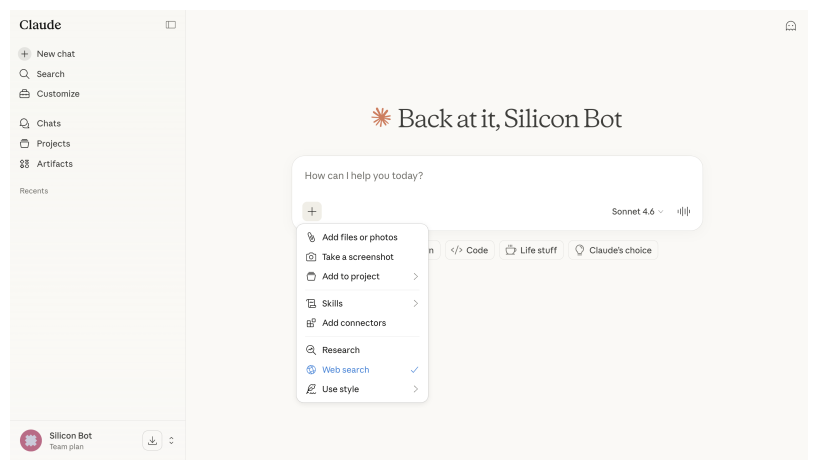
You can turn web search on or off for a conversation. If you want Claude to rely only on its training and any documents you have uploaded (for example, when analyzing an internal report without outside influence), toggle it off. The toggle appears in the toolbar below the message input, alongside the file attachment icon.
Web search works across all plans and pairs well with file uploads. You can upload a market report and ask Claude to compare its findings against current public data, getting both your internal analysis and fresh external context in one response.
Web search is enabled by default; however, some enterprise or team plans might choose to disable this feature.
Uploading files
Claude.ai accepts files directly in the conversation. You can drag and drop a file into the chat, or click the attachment icon to browse. Claude reads the file, understands its structure, and can answer questions about it, extract information, or transform its contents.
A wide range of file formats is supported:
Documents: PDF, Word (.docx), plain text (.txt), Markdown (.md)
Spreadsheets: CSV, Excel (.xlsx)
Images: PNG, JPG, GIF (first frame only for animated files), WebP
Code files: Python, JavaScript, HTML, and most common programming languages
Presentations: PowerPoint (.pptx)
What Claude does with uploaded files
Claude processes each file type differently. For a PDF, it reads the text content page by page. For a spreadsheet, it parses rows and columns and can identify patterns, outliers, or trends. For an image, it analyzes the visual content: reading text in screenshots, interpreting charts, or describing photos.
Here are common file-based tasks that work well:
Summarize a report: Upload a 30-page PDF and ask for a one-page executive summary.
Extract structured data: Upload a payment contract and ask Claude to pull all dates, obligations, and payment terms into a table.
Analyze a spreadsheet: Upload a CSV of sales data and ask for the top-performing regions and month-over-month trends.
Read an image: Upload a photo of a whiteboard and ask Claude to transcribe and organize the notes.
Compare documents: Upload two versions of a proposal and ask Claude to identify what changed.
Limits to keep in mind
Each file counts against the conversation’s context window, which is the total amount of information Claude can consider at once. Very large files (hundreds of pages) may approach this limit. When that happens, store the file in a Project (covered in the next lesson), where it persists across conversations without consuming the context window of each chat.
You can upload multiple files in a single conversation. Claude can work across all of them at once, which makes it effective for tasks like comparing vendor proposals or synthesizing findings from several research papers.
Custom styles
By default, Claude responds in a balanced, professional tone. Custom styles let you change how Claude writes without changing what it knows or how it reasons. Your answers stay just as accurate, but they just sound different.

Claude.ai includes several built-in style options:
Normal: Balanced and clear. This is the default response style.
Learning: Patient, educational responses that build understanding through Socratic questions.
Concise: Shorter responses, fewer transitions, straight to the point.
Explanatory: More detailed, with added context and examples. Good for learning or sharing with others who need a background.
Formal: Polished, professional language suited for external communications.
You can switch styles from the conversation settings at any time. The style applies to Claude’s next response and all subsequent responses in that conversation until you change it again.
Creating your own style
If the presets do not fit your needs, you can create a custom style. A custom style is a short description of how you want Claude to write. For example:
“Write in a direct, no-nonsense tone. Use short sentences. Avoid jargon. Assume the reader is a busy executive.”
“Match the voice of our brand guidelines: warm but professional, conversational but not casual.”
“Write in British English. Use active voice. Keep paragraphs to two sentences maximum.”
You can now also upload or paste an existing piece of content, and Claude can create a custom style for you.
Custom styles are reusable. Once created, they appear alongside the presets and can be selected for any conversation. This is particularly useful if you produce recurring deliverables (weekly reports, client updates, internal memos) that need a consistent voice.
The distinction between styles and prompts is worth noting. A style shapes the form of every response. A prompt shapes the content of a single response. Use styles for persistent tone preferences and prompts for specific task instructions.
What Claude cannot do: One limitation worth noting early is that Claude cannot generate photos, illustrations, or realistic images. It creates text, documents, code, diagrams (Mermaid, SVG), and interactive components, but not visual art or photography. If you need image generation, that requires a different tool. Claude’s visual strengths are in reading images (analysis, transcription, interpretation), not creating them.
Managing conversations
As you use Claude.ai regularly, your conversation list grows. Claude provides several tools to keep it organized.

By clicking the three dots on the conversation tab, you can:
Rename: Claude auto-generates a title for each conversation based on the first few messages. You can rename it to something more descriptive, such as Q3 Budget Analysis or Marketing Copy Review.
Star: Mark important conversations for quick access. Starred conversations appear in a dedicated section.
Search: Find past conversations by keyword. Useful when you remember discussing a topic but cannot locate the specific conversation.
Delete: Remove conversations you no longer need. Deleted conversations cannot be recovered.
Keeping your conversations organized makes it easy to revisit past work. If you ran a competitive analysis two weeks ago, starring and renaming it means you can pull it up in seconds instead of scrolling through dozens of chats.
For work that spans multiple conversations on the same topic, Projects (covered in the next lesson) provide a better structure. But for general day-to-day organization, starring and renaming go a long way.
Try this now
Grab a document from your actual work, something a few pages long, like a report, a brief, or a proposal. Upload it to Claude.ai and ask for a one-paragraph summary.
Run the prompt with Sonnet and read the output.
Open a new conversation, upload the same file, and run the same prompt with Opus (Pro plan or higher). If you don't have access to Opus, try to use Haiku.
Now compare them side by side. Look at the depth, the tone, and what each model chose to highlight. You will notice the biggest differences in documents with nuance: a strategic memo, a research summary, something with implicit context. This exercise builds your intuition for when Opus is worth the extra processing time and when Haiku’s speed is the better trade-off.
Conclusion
Claude.ai is where most of your Claude work happens. Choosing the right model (Sonnet for everyday tasks, Opus with Extended Thinking for complex reasoning, Haiku for speed) shapes the quality and speed of every response. Web search brings in current information with citations. File uploads let you work with real documents, spreadsheets, and images inside the conversation. Custom styles keep the output consistent with your voice and your audience. And conversation management keeps it all findable.